
Profile Data Scoring allows Admins to assign scores to Crew members' answers in Profile Data. This can help Admins assess Crew based on their experience, skills, or qualifications.
For example, you could give higher scores to Crew with more experience or specific qualifications.
Scoring is available for Dropdown, Checkboxes, and Multiple Choice Data Types.
Go to PLATFORM SETTINGS > PROFILES.
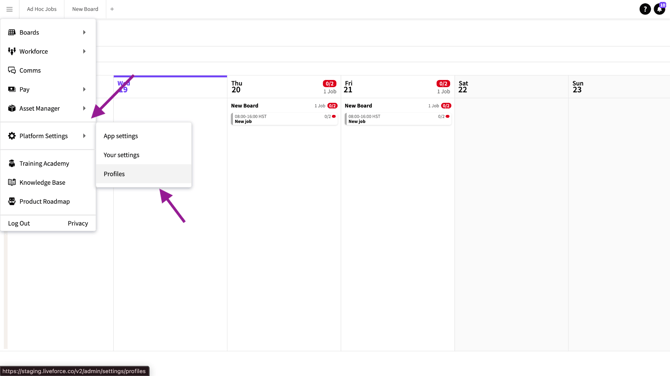
Navigation
Select the Profile you want to edit.
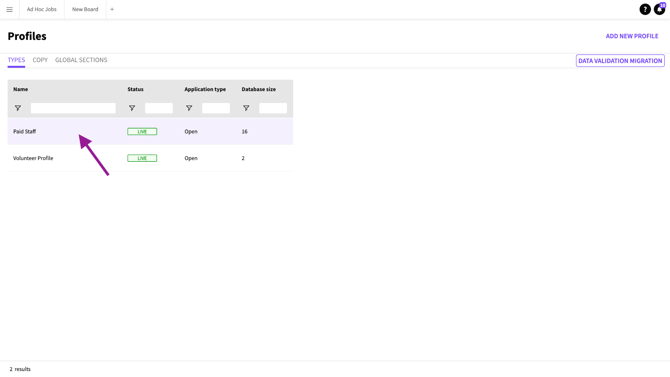
Selecting the profile
Select DATA.
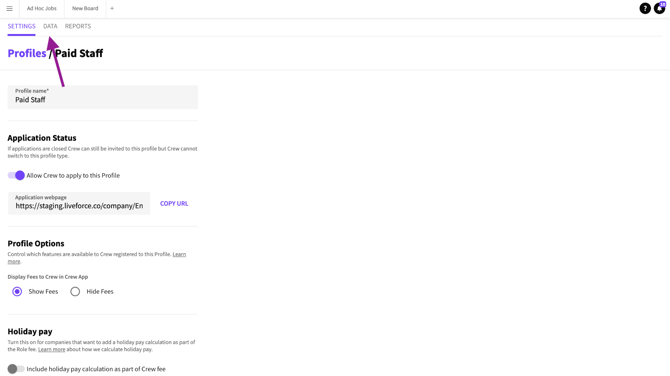
Data tab
Add the Data Type you want to score, if it has not already been added.
Scoring is available for Dropdown, Checkboxes, and Multiple Choice Data Types.
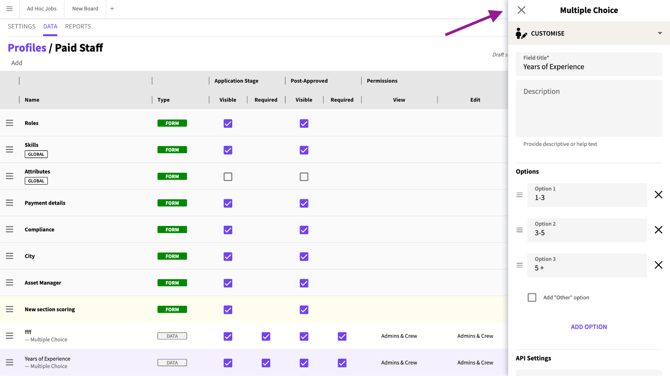
Data type
Open the dropdown menu for the Data Type and select ADVANCED SETTINGS.
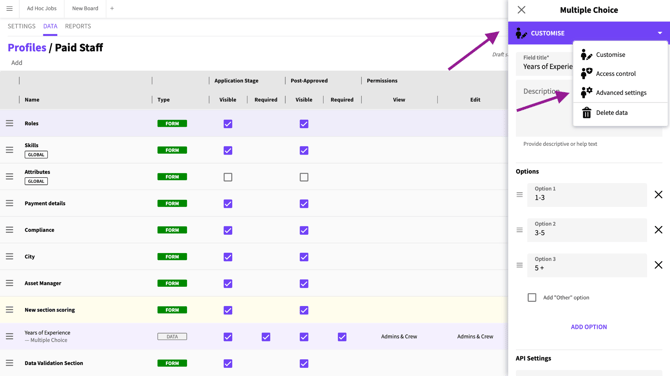
Advanced settings
Turn on SCORE ANSWERS Toggle.
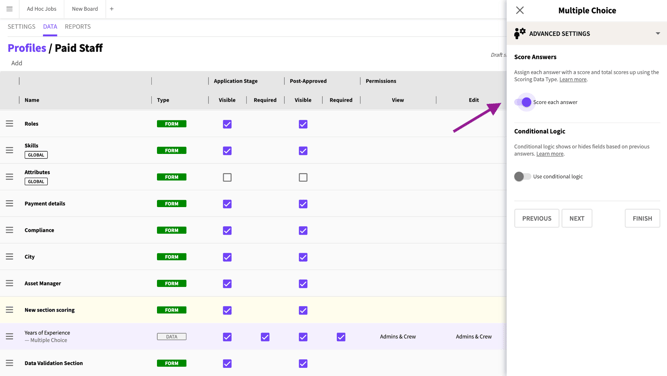
Scores toggle
Open the dropdown menu for the Data Type and click Customise.
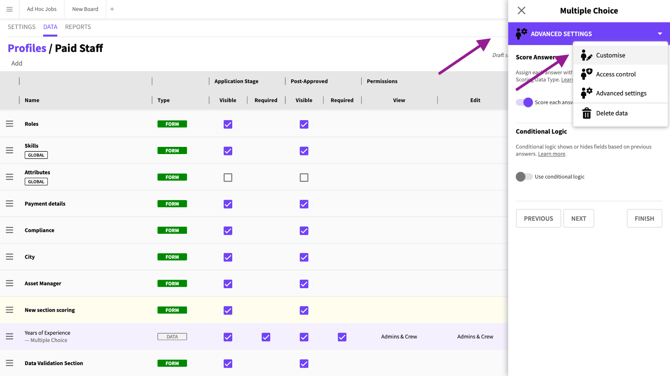
Customise
Under Options, enter a score next to each answer option.
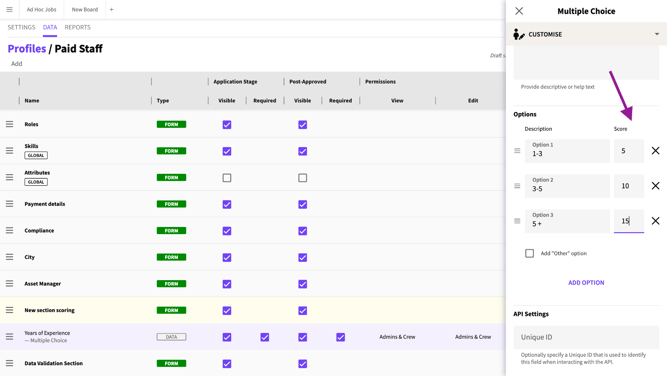
Options
Select NEXT.
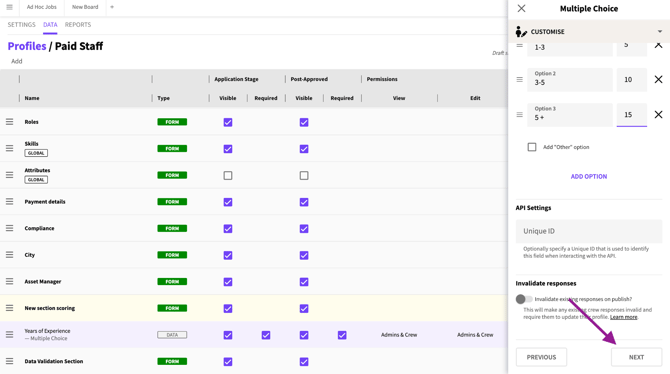
Next button
Select FINISH.
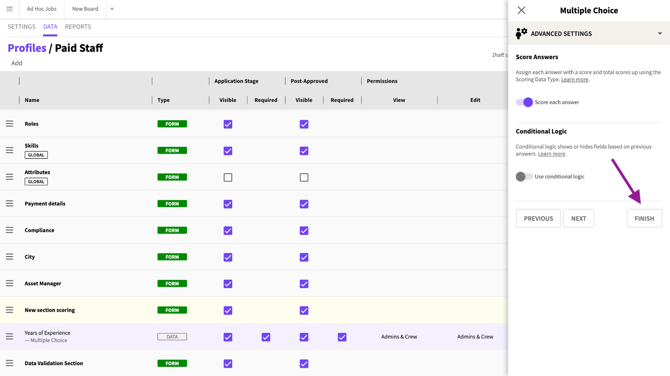
Finish button
Don’t forget to PUBLISH CHANGES.
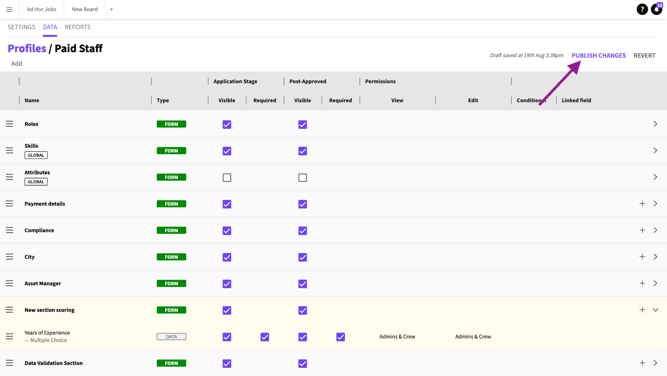
Publish changes
Crew View
Crew members complete the Profile Data as normal.
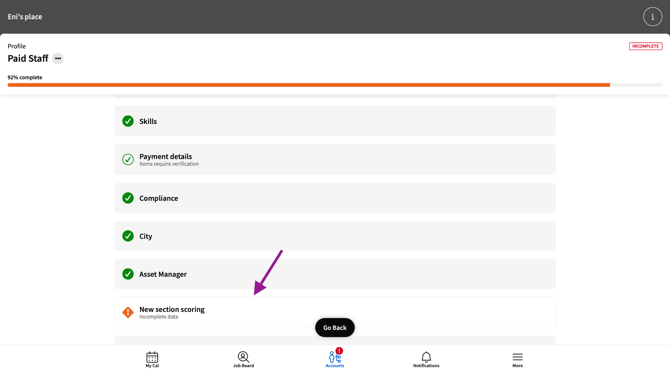
Profile data for Crew
Crew members cannot see the scores.
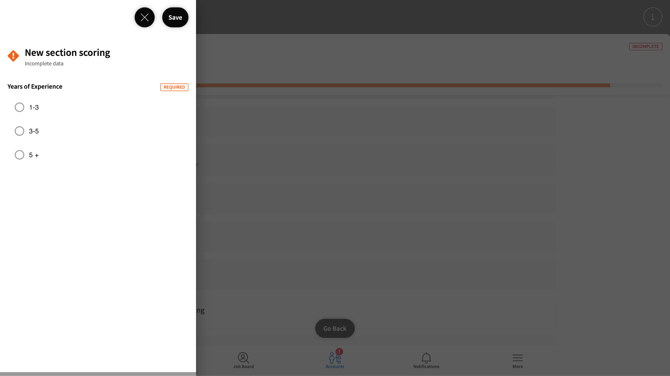
Section questions
Go to the Workforce page.
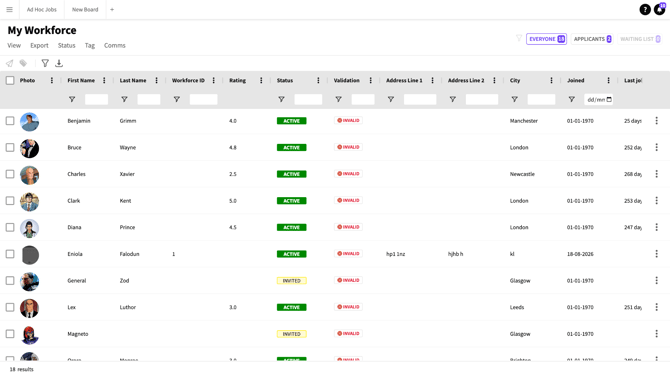
Workforce page
Click VIEW then CUSTOMISE VIEW.
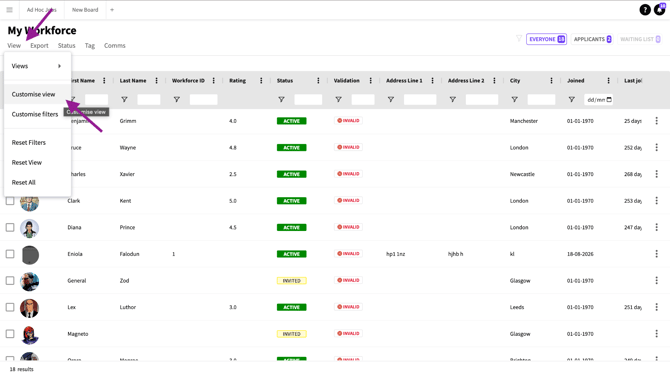
Customise view
Click the check box next to SCORING to display the Scores as a column.
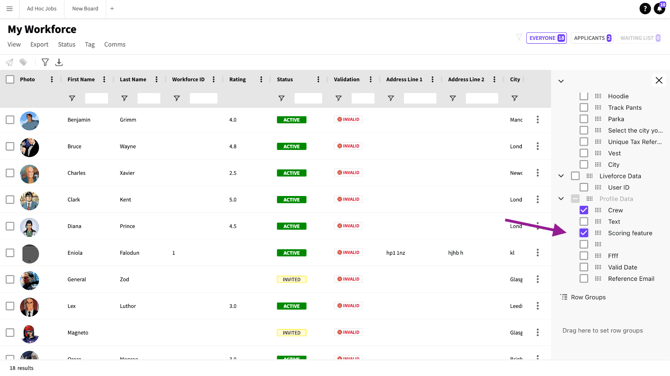
Select scoring
The Scoring column is now visible.
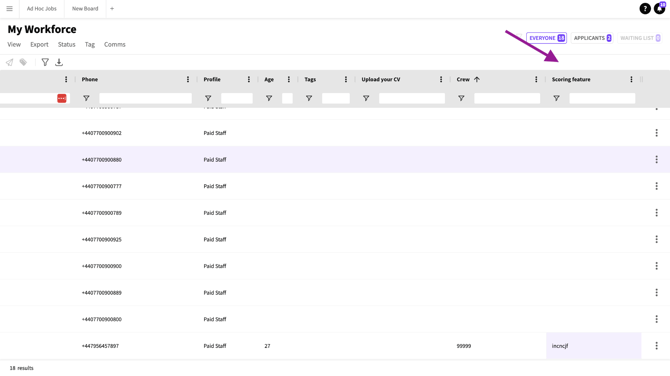
Scoring column
To view an individual Crew Member's score, select the Crew Member from the Workforce page and open the Crew Member's Crew Profile, then click the relevant Profile Data from the dropdown menu.
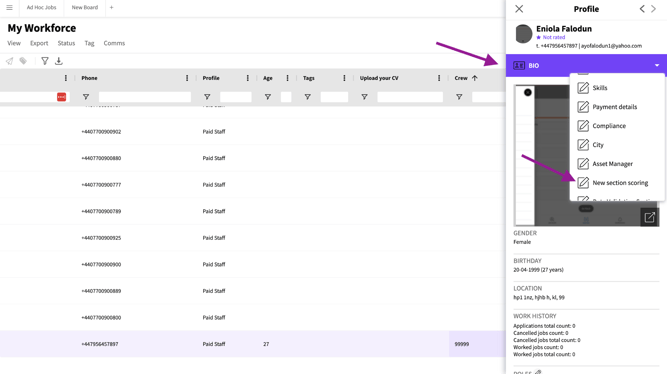
Individual scores
View the score next to the selected answer.
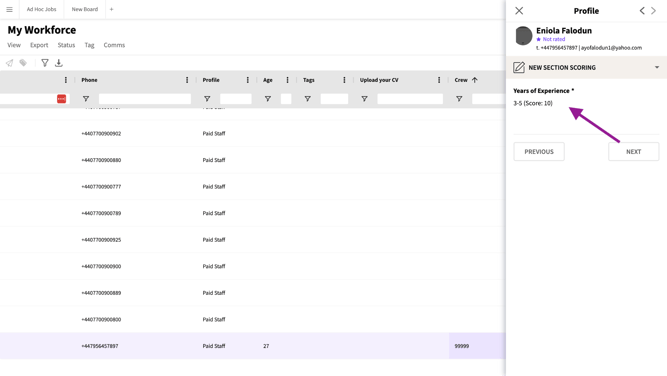
Score
To export the Scores, make the Scoring Column visible and export the Workforce data as normal.
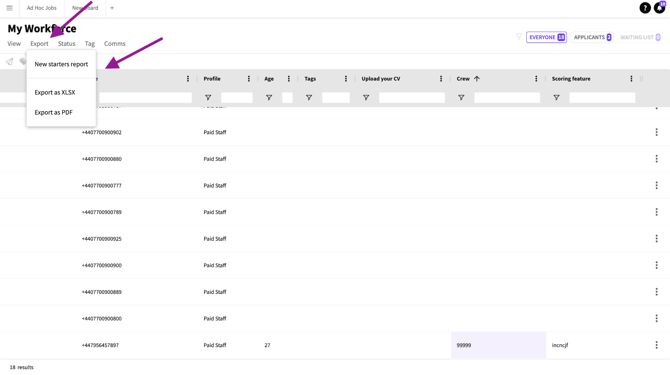
Exporting