---
title: Rota View
description: Rota View provides an alternative way to view and manage Jobs on the Job Board. It allows you to see Roles, Jobs and Multi-Day Jobs in a calendar-style layout, making it easier to manage Crew across multiple dates.
---
[Skip to content](https://help.liveforce.co/en/admin/rota-view#main-content)
[](https://liveforce.co/)
Open main navigation
Close main navigation
- [Log In](https://admin.liveforce.co/)
[Log In](https://admin.liveforce.co/)
Admin Knowledge Base
- There are no suggestions because the search field is empty.
1. [Admin App](https://help.liveforce.co/en/admin?hsLang=en)
2. [Boards](https://help.liveforce.co/en/admin/boards?hsLang=en)
June 25, 2026
# Rota View
## Rota View Provides An Alternative Way To View And Manage Jobs On The Job Board. It Allows You To See Roles, Jobs And Multi-Day Jobs In A Calendar-Style Layout, Making It Easier To Manage Crew Across Multiple Dates.
New Boards open in Card View by default
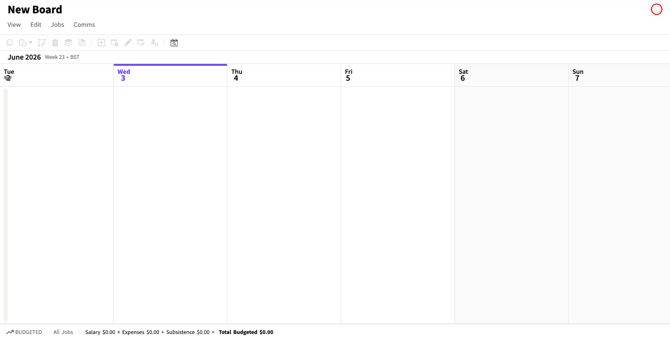
*New Boards Card View by default*
To change to Rota View, click VIEW
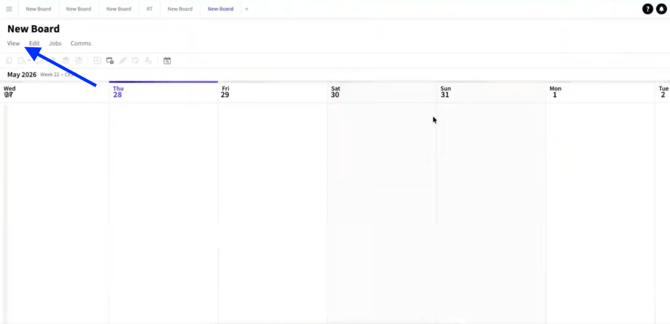
*VIEW button*
Select Rota View.
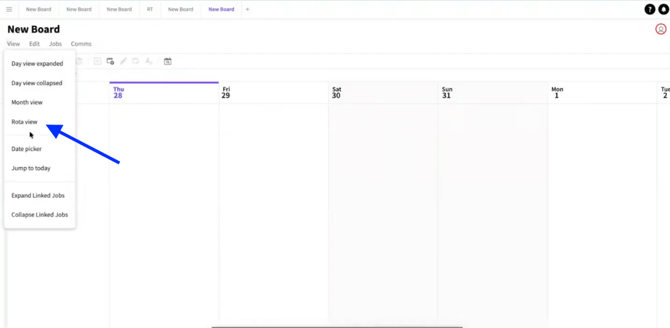
*Rota View*
To select an entire Job, click the Job header.
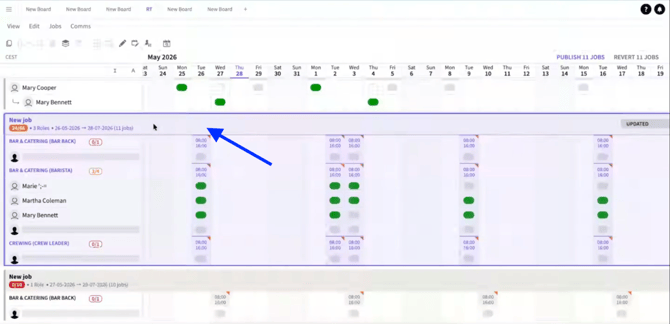
*Click Job header*
To select a single Role, click the Role.
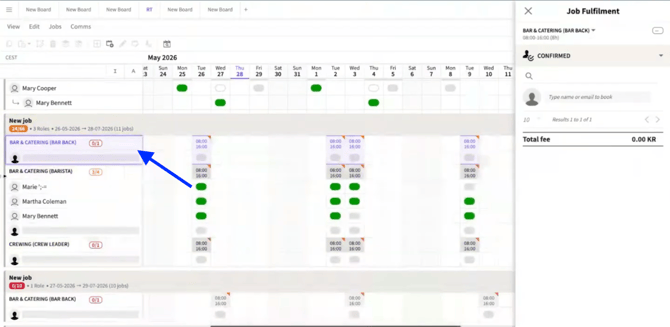
*Click Role*
To select a single day Job click the Row Header
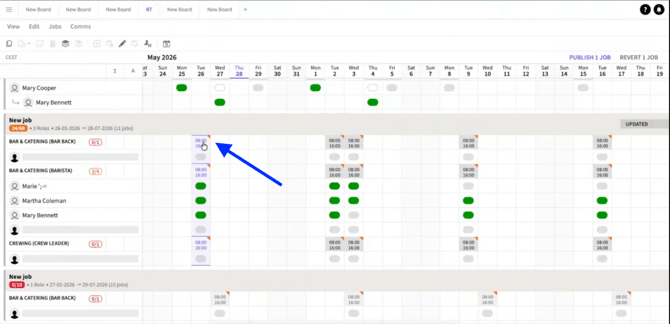
*Click Row Header*
To edit a single day Job, click the day header, then click the EDIT icon.
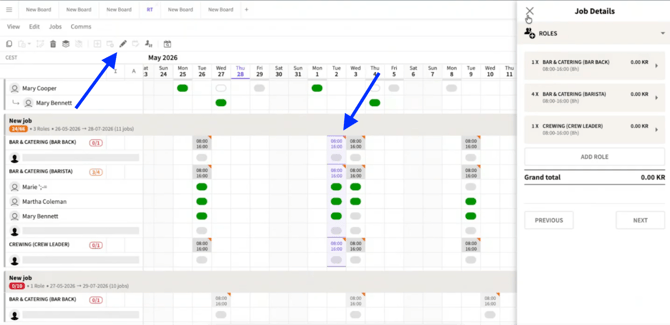
*Edit single day Job*
To edit multiple days, select the required days and click the EDIT icon.
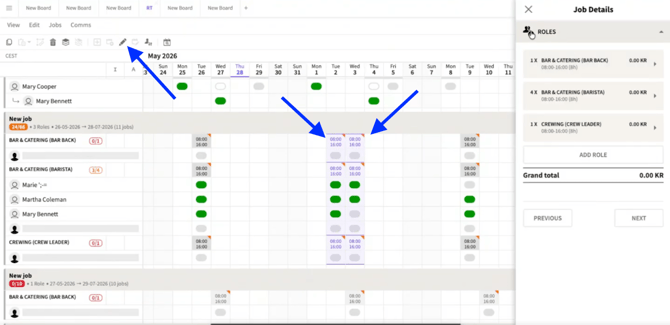
*Edit multiple days*
To create a Multi-Day Job, select a start date from the calendar header and click the Linked Job icon.
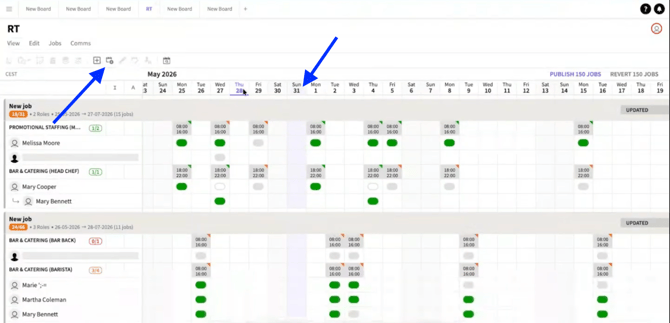
*Linked Job icon*
Enter the Job details and click ADD JOB.
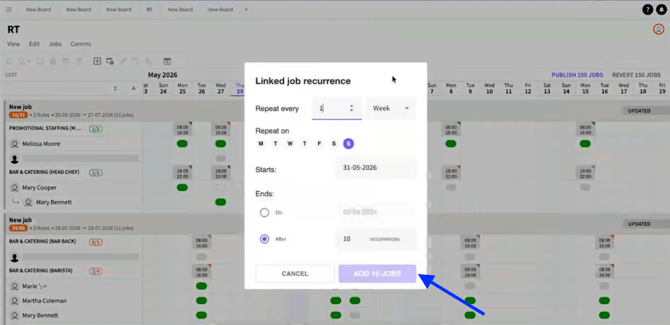
*Click ADD JOB*
To create a linked Multi-Day Job without pre-selecting dates, click the Linked Job icon.
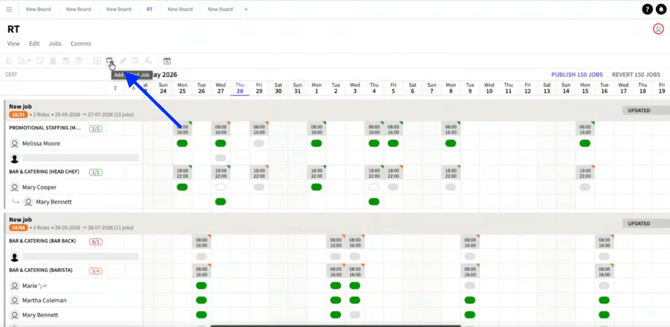
*Click Linked Job icon*
Enter the Job details and click ADD JOB.
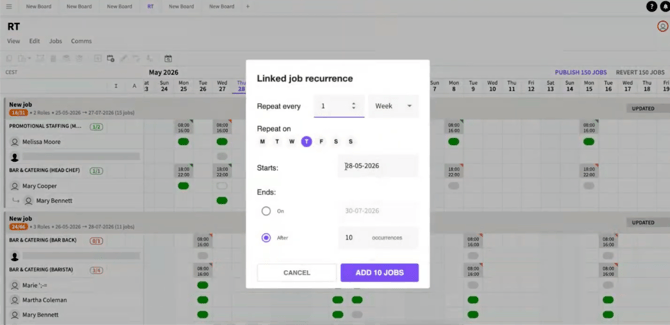
*Click ADD JOB*
The new Job will be created without Group or Set.
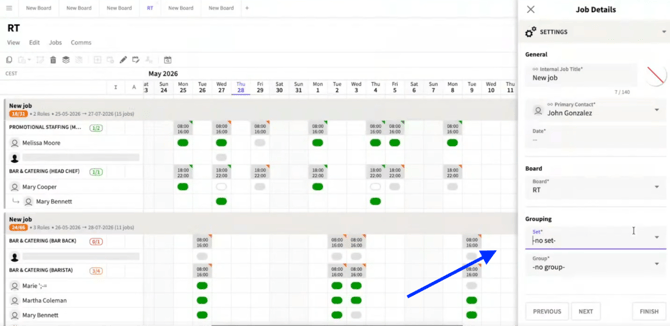
*Job created*
To add Crew to a Role, click the required Role.
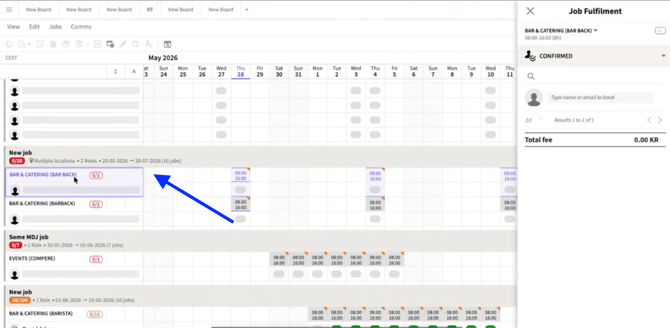
*Role selected*
Search for the Crew member in the Job Fulfilment pop in and select the Crew Member.
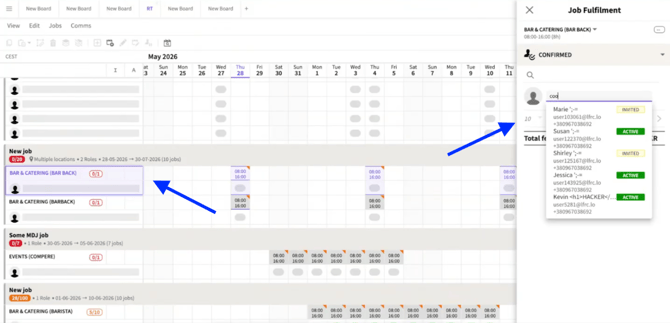
*Select Crew*
Confirm the Crew member.
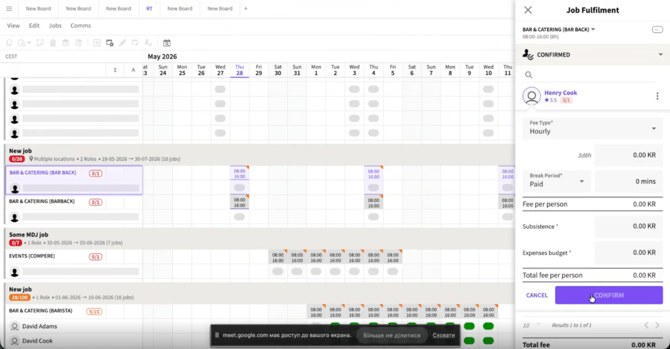
*Confirm Crew*
The Crew member is added to all selected dates.
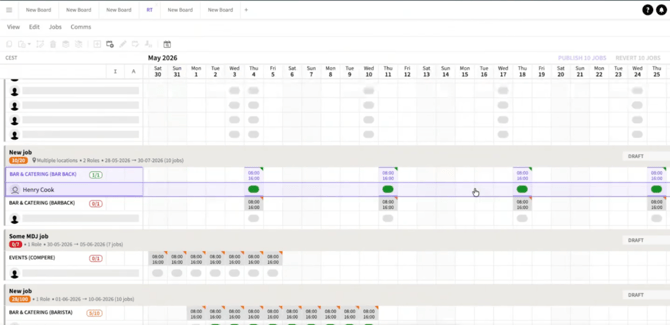
*Crew added to all dates*
To highlight a Crew member assigned to a Role, click their name to view the days they are working.
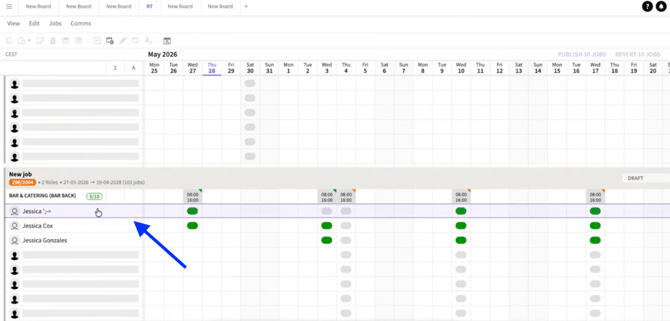
*Crew member highlighted*
If different Crew members are assigned across a Multi-Day Job, the Crew member assigned to the first day is shown as Primary. Other Crew members are shown as Secondary.
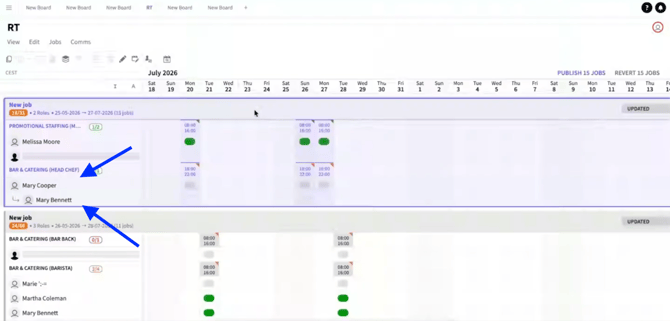
*Primary and Secondary Crew*
- [Training Academy](https://help.liveforce.co/en/admin/training-academy?hsLang=en)
- [The Basics](https://help.liveforce.co/en/admin/the-basics?hsLang=en)
- [Boards](https://help.liveforce.co/en/admin/boards?hsLang=en#main-content)
- [Timezones](https://help.liveforce.co/en/admin/boards?hsLang=en#timezones)
- [Job Scheduling](https://help.liveforce.co/en/admin/job-scheduling?hsLang=en#main-content)
- [Multiple Day Jobs](https://help.liveforce.co/en/admin/job-scheduling?hsLang=en#multiple-day-jobs)
- [Basics](https://help.liveforce.co/en/admin/job-scheduling?hsLang=en#basics)
- [Managing](https://help.liveforce.co/en/admin/job-scheduling?hsLang=en#managing)
- [Job Fulfilment](https://help.liveforce.co/en/admin/job-fulfilment?hsLang=en#main-content)
- [Methods](https://help.liveforce.co/en/admin/job-fulfilment?hsLang=en#methods)
- [Multi Day Jobs (1)](https://help.liveforce.co/en/admin/job-fulfilment?hsLang=en#multi-day-jobs-1)
- [Portfolio Sharing](https://help.liveforce.co/en/admin/job-fulfilment?hsLang=en#portfolio-sharing)
- [Basics](https://help.liveforce.co/en/admin/job-fulfilment?hsLang=en#basics)
- [Workforce Management](https://help.liveforce.co/en/admin/workforce-management?hsLang=en#main-content)
- [Managing](https://help.liveforce.co/en/admin/workforce-management?hsLang=en#managing)
- [Profiles](https://help.liveforce.co/en/admin/workforce-management?hsLang=en#profiles)
- [Data Validation](https://help.liveforce.co/en/admin/workforce-management?hsLang=en#data-validation)
- [Tags](https://help.liveforce.co/en/admin/workforce-management?hsLang=en#tags)
- [Status Page](https://help.liveforce.co/en/admin/status-page?hsLang=en)
- [Communications](https://help.liveforce.co/en/admin/communications?hsLang=en)
- [Tables](https://help.liveforce.co/en/admin/tables?hsLang=en)
- [Platform Set Up](https://help.liveforce.co/en/admin/platform-set-up?hsLang=en#main-content)
- [General](https://help.liveforce.co/en/admin/platform-set-up?hsLang=en#general)
- [Workforce Configuration](https://help.liveforce.co/en/admin/platform-set-up?hsLang=en#workforce-configuration)
- [Profiles](https://help.liveforce.co/en/admin/profiles?hsLang=en#main-content)
- [Settings](https://help.liveforce.co/en/admin/profiles?hsLang=en#settings)
- [Reports](https://help.liveforce.co/en/admin/profiles?hsLang=en#reports)
- [Data](https://help.liveforce.co/en/admin/profiles?hsLang=en#data)
- [Timesheets and Payments](https://help.liveforce.co/en/admin/timesheets-and-payments?hsLang=en)
- [Invoicing](https://help.liveforce.co/en/admin/invoicing?hsLang=en#main-content)
- [Payment Reports](https://help.liveforce.co/en/admin/invoicing?hsLang=en#payment-reports)
- [Getting Started](https://help.liveforce.co/en/admin/invoicing?hsLang=en#getting-started)
- [Approval Process](https://help.liveforce.co/en/admin/invoicing?hsLang=en#approval-process)
- [Invoicing Section](https://help.liveforce.co/en/admin/invoicing?hsLang=en#invoicing-section)
- [Invoicing Submission Types](https://help.liveforce.co/en/admin/invoicing?hsLang=en#invoicing-submission-types)
- [Contact Support](https://help.liveforce.co/en/admin/contact-support?hsLang=en)
- [FAQs](https://help.liveforce.co/en/admin/faqs?hsLang=en)
[](https://liveforce.co/)
Admin App | Knowledge Base