---
title: Provisional Invites
description: Provisional Invites allow you to hold a Crew member for a Job before they are fully confirmed.
---
[Skip to content](https://help.liveforce.co/en/admin/provisional-invites#main-content)
[](https://liveforce.co/)
Open main navigation
Close main navigation
- [Log In](https://admin.liveforce.co/)
[Log In](https://admin.liveforce.co/)
Admin Knowledge Base
- There are no suggestions because the search field is empty.
1. [Admin App](https://help.liveforce.co/en/admin?hsLang=en)
2. [Job Fulfilment](https://help.liveforce.co/en/admin/job-fulfilment?hsLang=en)
June 23, 2026
# Provisional Invites
## Provisional Invites Allow You To Hold A Crew Member For A Job Before They Are Fully Confirmed.
Go to the relevant Job and click on the Role
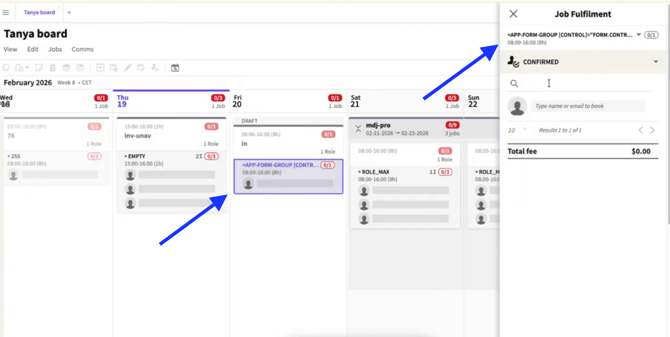
*Selected Job Role*
Click on the CONFIRMED dropdown menu and click on INVITED
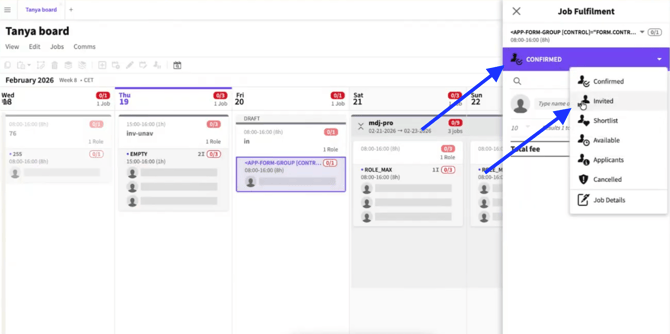
*Application Status dropdown menu*
Search for the Crew member and click on them.
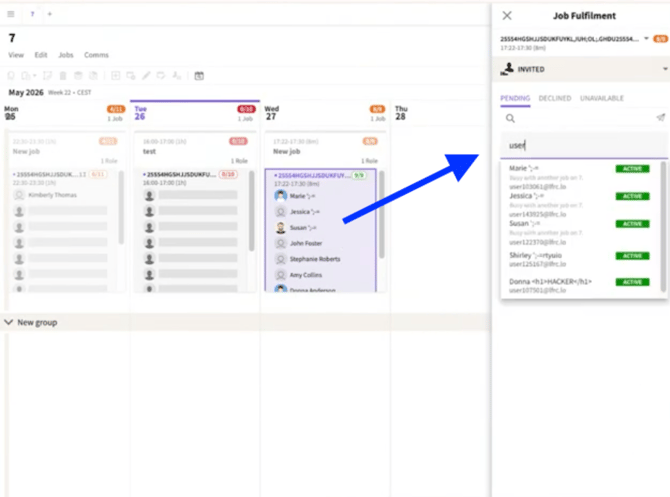
*Search for Crew*
On the edit fee tab, tick the PROVISIONALLY INVITED checkbox.
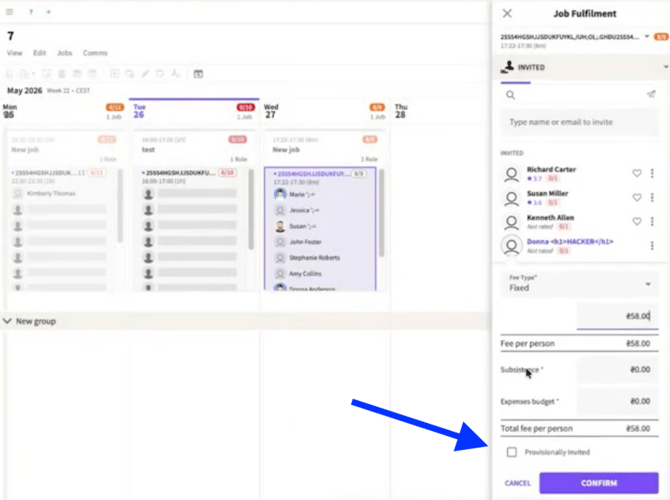
*Provisionally Invited checkbox*
Click CONFIRM.
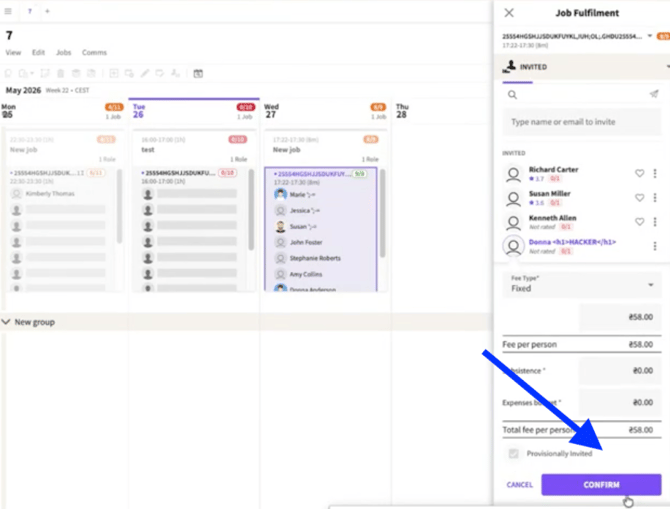
*Confirm Button*
The Invited tab is divided into two lists: Invited and Provisional Invite.
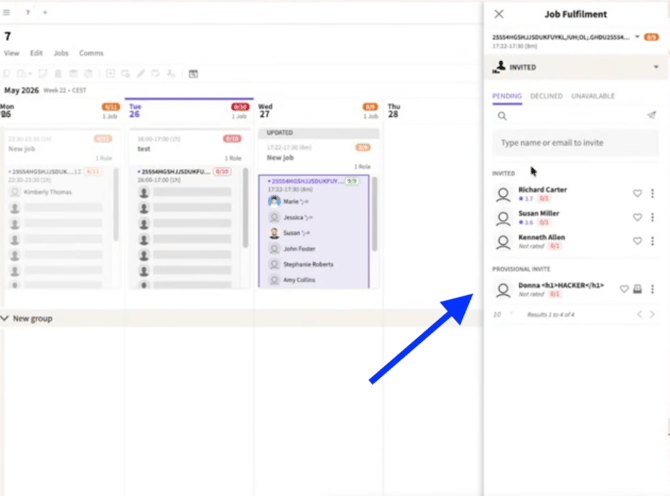
*Invited and Provisional Invite lists*
Once a Crew member accepts the Provisional Invite, they are moved to Provisionally Confirmed under the CONFIRMED tab.
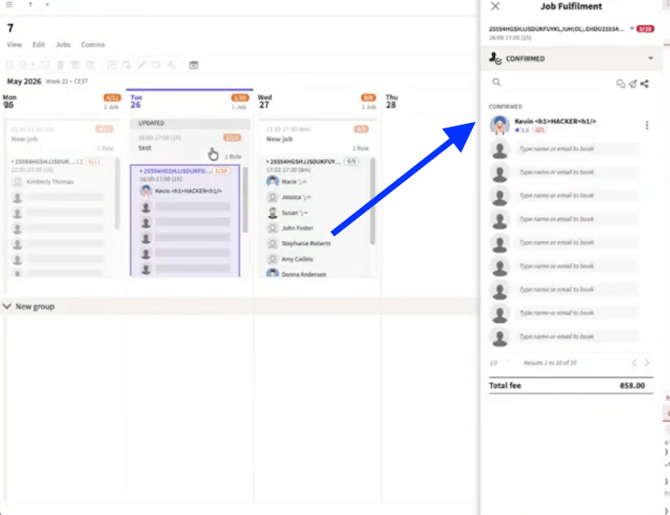
*Accepted Provisional Invite*
To fully confirm a Crew member, click the check button next to their name.
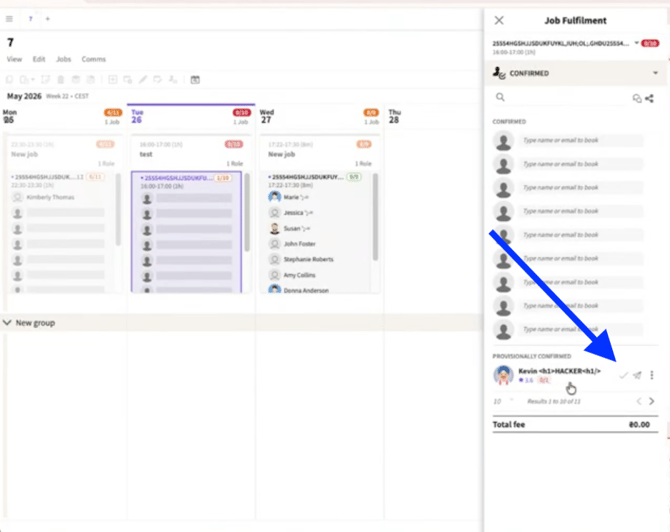
*Confirm Button*
Crew is confirmed

*Confirmed Crew*
Booking or Inviting Crew who are Provisionally Invited follow the standard steps.
Crew can either accept or decline the Provisional Invite on the Crew App.
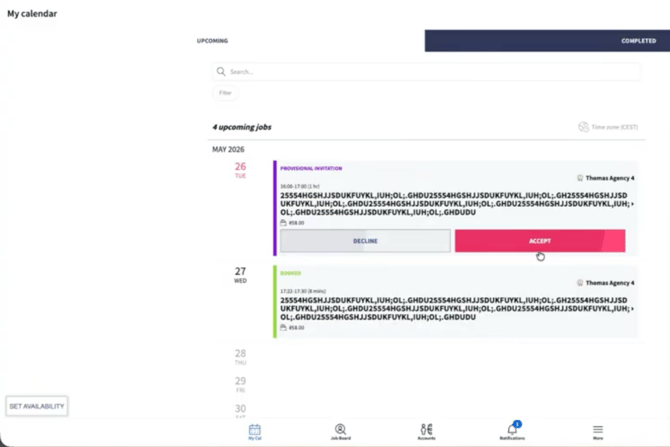
*Crew Calendar options*
If accepted, the status changes to Provisional Booking.
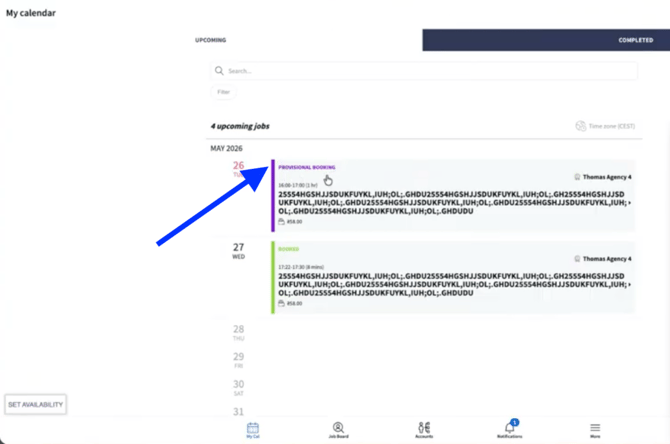
*Crew accepted Provisional Invite*
If a Crew member is fully confirmed, they can click CONFIRM ATTENDANCE in the Crew App.
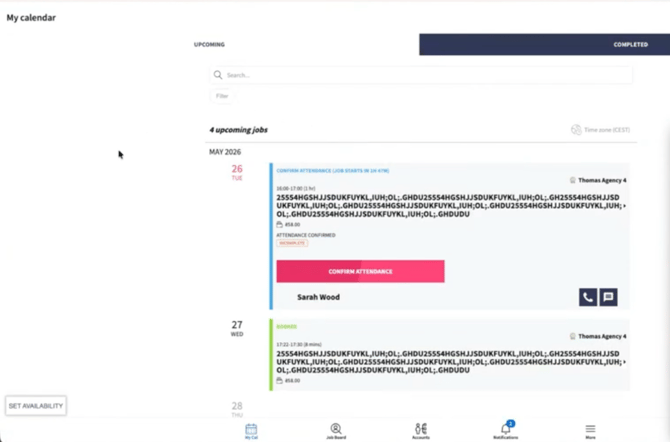
*Crew Confirmed on Provisional Invite*
Crew is fully Booked
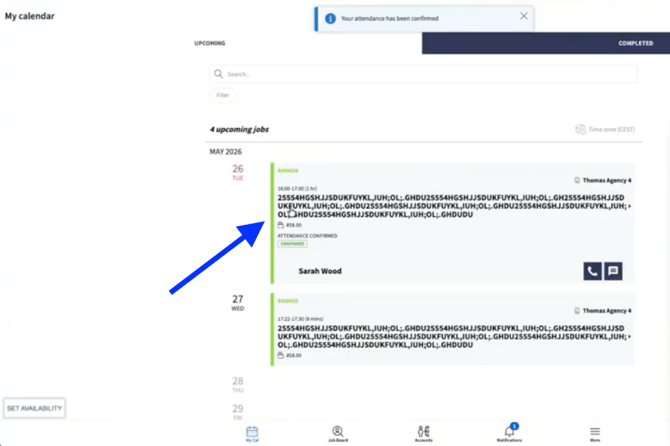
*Crew is fully Booked*
- [Training Academy](https://help.liveforce.co/en/admin/training-academy?hsLang=en)
- [The Basics](https://help.liveforce.co/en/admin/the-basics?hsLang=en)
- [Boards](https://help.liveforce.co/en/admin/boards?hsLang=en#main-content)
- [Timezones](https://help.liveforce.co/en/admin/boards?hsLang=en#timezones)
- [Job Scheduling](https://help.liveforce.co/en/admin/job-scheduling?hsLang=en#main-content)
- [Multiple Day Jobs](https://help.liveforce.co/en/admin/job-scheduling?hsLang=en#multiple-day-jobs)
- [Basics](https://help.liveforce.co/en/admin/job-scheduling?hsLang=en#basics)
- [Managing](https://help.liveforce.co/en/admin/job-scheduling?hsLang=en#managing)
- [Job Fulfilment](https://help.liveforce.co/en/admin/job-fulfilment?hsLang=en#main-content)
- [Methods](https://help.liveforce.co/en/admin/job-fulfilment?hsLang=en#methods)
- [Multi Day Jobs (1)](https://help.liveforce.co/en/admin/job-fulfilment?hsLang=en#multi-day-jobs-1)
- [Portfolio Sharing](https://help.liveforce.co/en/admin/job-fulfilment?hsLang=en#portfolio-sharing)
- [Basics](https://help.liveforce.co/en/admin/job-fulfilment?hsLang=en#basics)
- [Workforce Management](https://help.liveforce.co/en/admin/workforce-management?hsLang=en#main-content)
- [Managing](https://help.liveforce.co/en/admin/workforce-management?hsLang=en#managing)
- [Profiles](https://help.liveforce.co/en/admin/workforce-management?hsLang=en#profiles)
- [Tags](https://help.liveforce.co/en/admin/workforce-management?hsLang=en#tags)
- [Status Page](https://help.liveforce.co/en/admin/status-page?hsLang=en)
- [Communications](https://help.liveforce.co/en/admin/communications?hsLang=en)
- [Tables](https://help.liveforce.co/en/admin/tables?hsLang=en)
- [Platform Set Up](https://help.liveforce.co/en/admin/platform-set-up?hsLang=en#main-content)
- [General](https://help.liveforce.co/en/admin/platform-set-up?hsLang=en#general)
- [Workforce Configuration](https://help.liveforce.co/en/admin/platform-set-up?hsLang=en#workforce-configuration)
- [Profiles](https://help.liveforce.co/en/admin/profiles?hsLang=en#main-content)
- [Settings](https://help.liveforce.co/en/admin/profiles?hsLang=en#settings)
- [Reports](https://help.liveforce.co/en/admin/profiles?hsLang=en#reports)
- [Data](https://help.liveforce.co/en/admin/profiles?hsLang=en#data)
- [Timesheets and Payments](https://help.liveforce.co/en/admin/timesheets-and-payments?hsLang=en)
- [Invoicing](https://help.liveforce.co/en/admin/invoicing?hsLang=en#main-content)
- [Payment Reports](https://help.liveforce.co/en/admin/invoicing?hsLang=en#payment-reports)
- [Getting Started](https://help.liveforce.co/en/admin/invoicing?hsLang=en#getting-started)
- [Approval Process](https://help.liveforce.co/en/admin/invoicing?hsLang=en#approval-process)
- [Invoicing Section](https://help.liveforce.co/en/admin/invoicing?hsLang=en#invoicing-section)
- [Invoicing Submission Types](https://help.liveforce.co/en/admin/invoicing?hsLang=en#invoicing-submission-types)
- [Contact Support](https://help.liveforce.co/en/admin/contact-support?hsLang=en)
- [FAQs](https://help.liveforce.co/en/admin/faqs?hsLang=en)
[](https://liveforce.co/)
Admin App | Knowledge Base