
Admins can manually Promote Roles to Crew via push notifications, email or SMS. Crew that receive the notification can then Apply to that Role even if it’s set to not appear on the Job Board.
It’s important to note that the Job needs to have been published for the Promote button to appear.
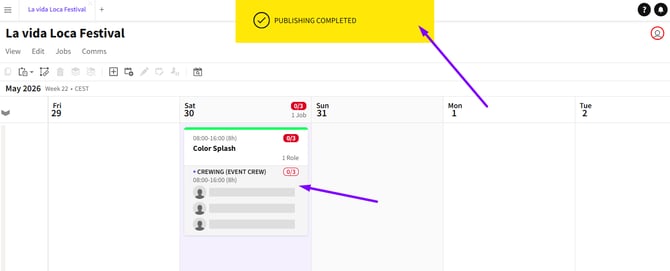
Published Job
Getting Started
To get started, click on the Role that you want to Promote.
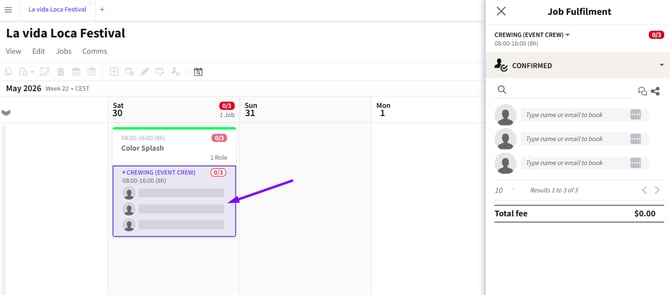
Role Selected
There are two ways to Promote a Role. To promote a Role from the Job Board, click JOBS and select PROMOTE ROLE.
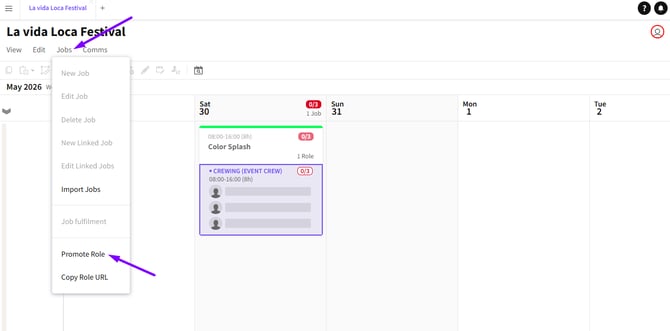
Published Job
To promote a Role from the Job Card Fulfilment section, click the Role, expand the JOB FULFILMENT section, then click PROMOTE and select CREATE NOTIFICATION.
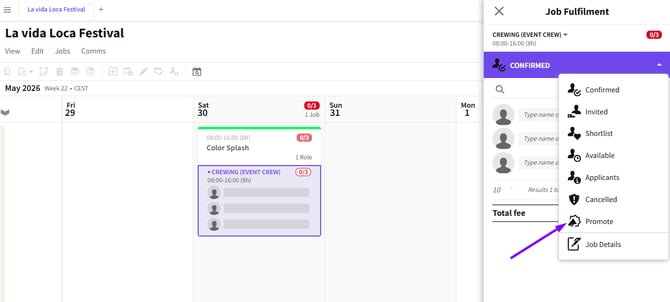
Click Promote Tab
The targeting settings will automatically use any Requirements configured on the Role.
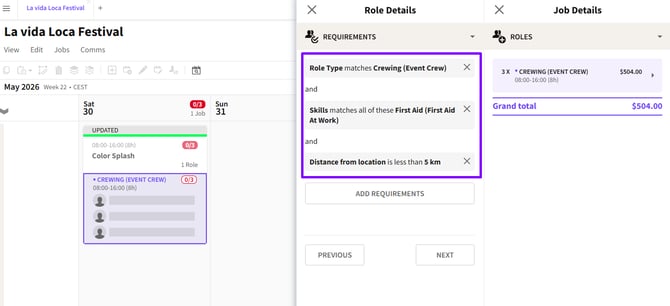
Added Requirements
If you want to target specific Crew, apply filters such as Role Type, Tags, or availability.
So if location targeting is required, set a distance radius around the Job location.
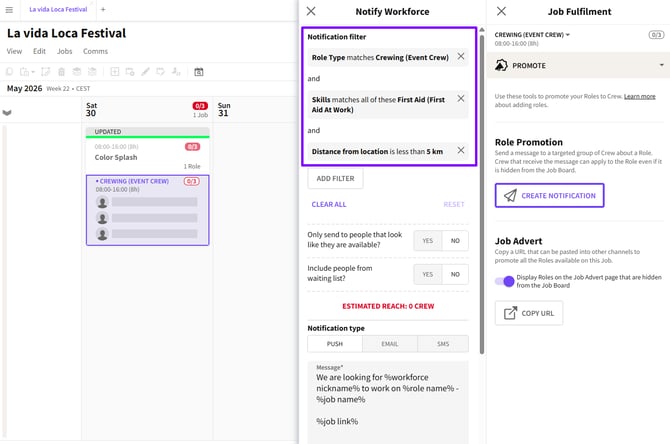
Distance from Location Requirement
If you have a Data Type that has a drop-drown or list, you can use this as a requirement on a job
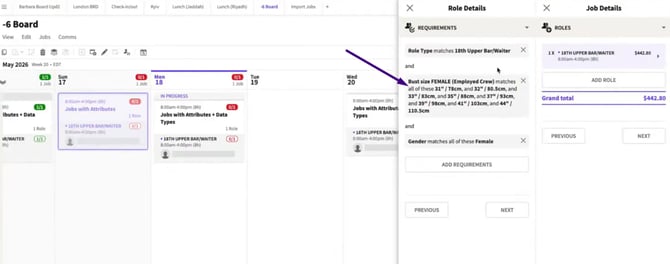
Setting Data Types
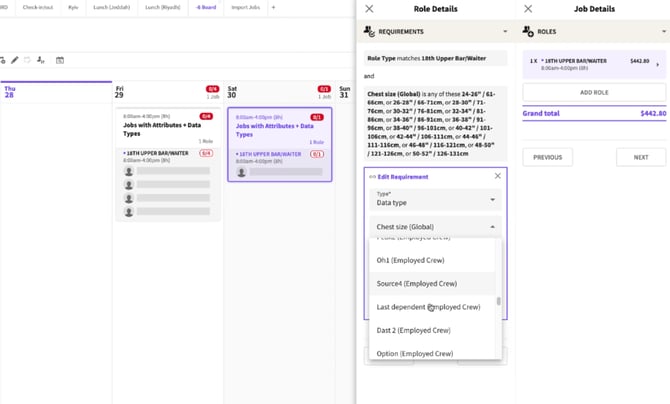
Editing Data Types
These requirements will then be automatically applied as filters for Role Promotion
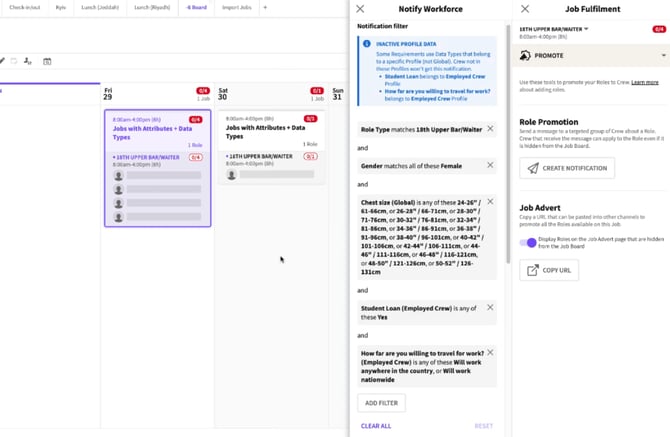
Automatically applied Requirements
If you amend the targeting settings and want to return to the default targeting, click RESET.
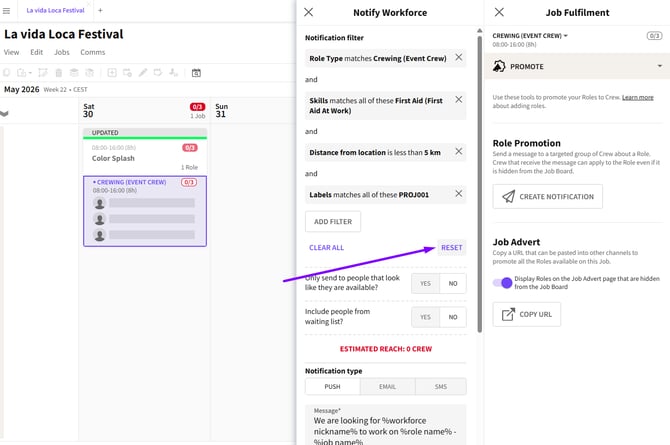
Reset Button
Customise the notification message if required.
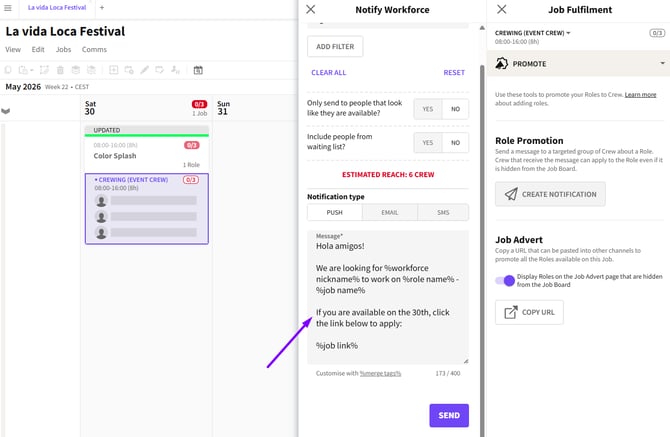
Message Customisation
The estimated Crew reach will update as you amend the filters
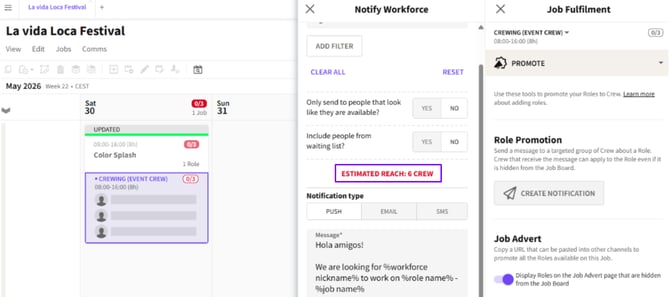
Crew Count
Merge Tags
Merge tags within the message are used to automatically pull through data about the Role. This data is not visible in the preview. For example %job link% will be replaced with a link to the Role.
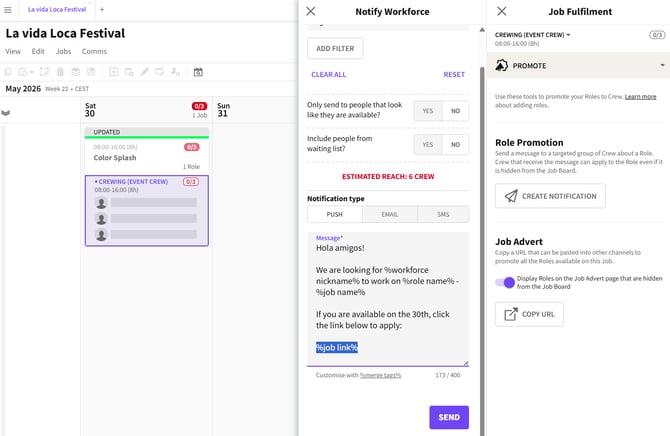
Merge Tags
Review the targeted Crew count to confirm how many Crew members will receive the promotion as this will update as you adjust any filters.
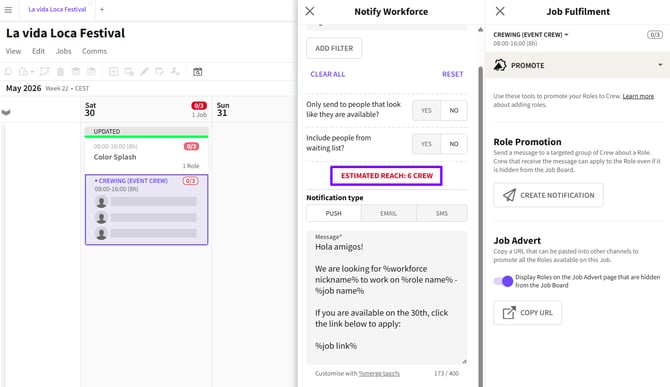
Crew Count
Delivery Methods
Select the preferred delivery method:
-
SMS
-
Push Notification
-
Email
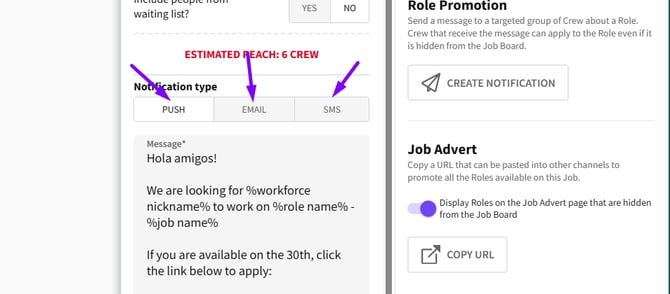
Notification Types
If notifying by Email, you can add a reply-to address, a subject header, and attachments, if required or send yourself a preview of the Email before sending it out to Crew.
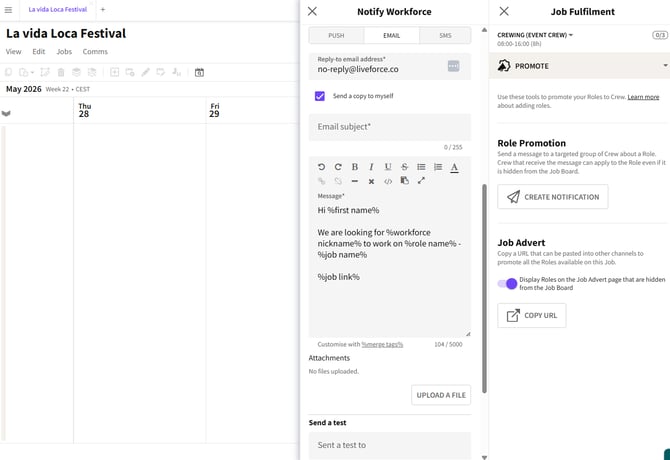
Notification by Email
Click SEND to promote the Role to Crew.
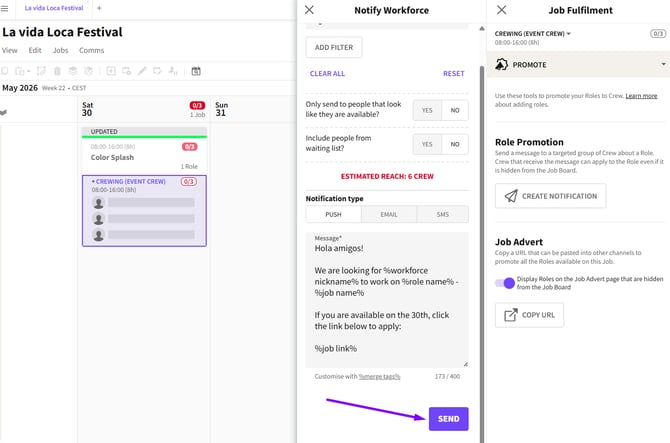
Push Notifications
If you only need to share the Role link, click COPY URL and send it through your preferred private channels.
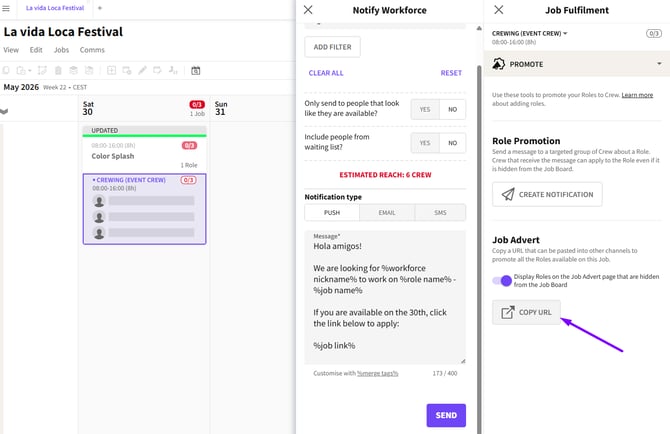
Copy Job URL button