
Platform-Wide Profile Settings
Go to PLATFORM SETTINGS and select PROFILES
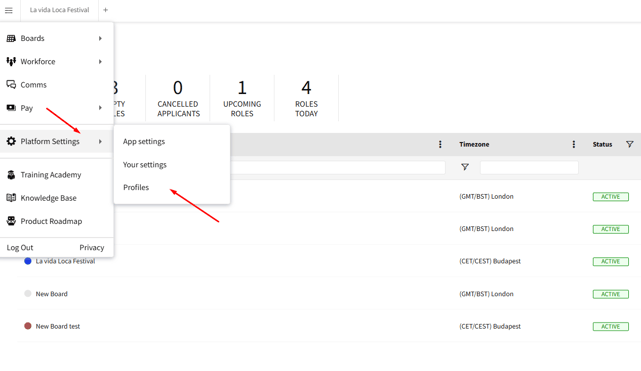
Profile Settings
Select the Profile you wish to edit.
It is important to note that each profile has its own settings, as the requirements may be different for each Profile and changes will apply only to Crew registered under that profile.
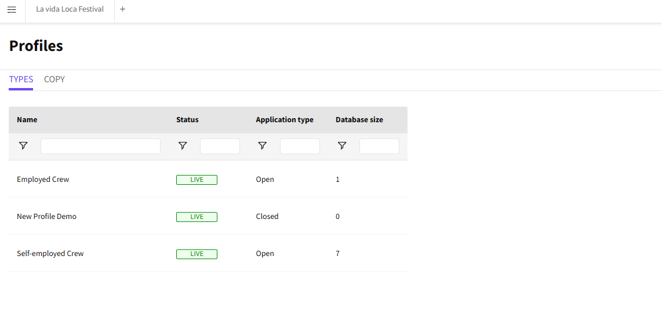
Profile Type Selection
Locate the No Show Notification section under Check-in settings
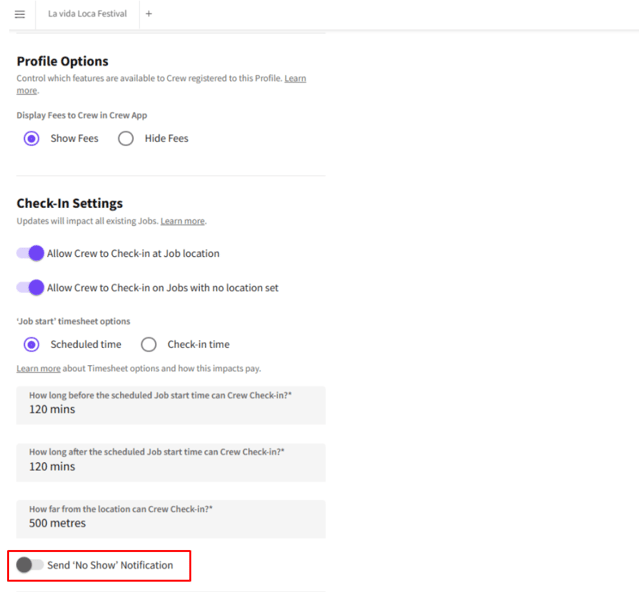
Toggle Button for No Show Notifications
Toggle the feature to ON and set the trigger timing.
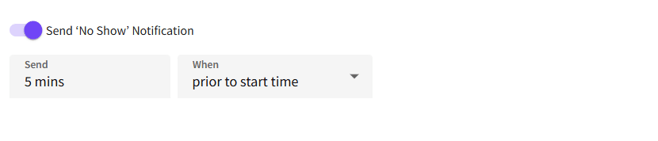
No Show Notifications Option
Define how long prior to the shift start time, or after the shift start time, the system should alert the Job’s Primary Contact that a Crew member is a No Show.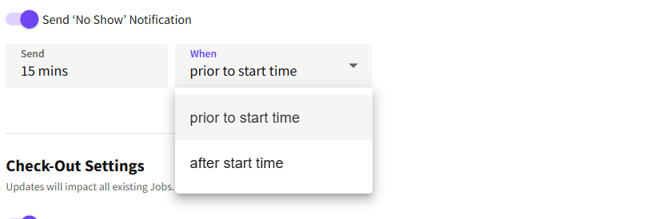
Configuration Settings
Board Overrides
The setting can also be overridden at a Board level and cascade to all Jobs on that Board.
Navigate to a Board, click on the BOARD NAME to open the Board settings.
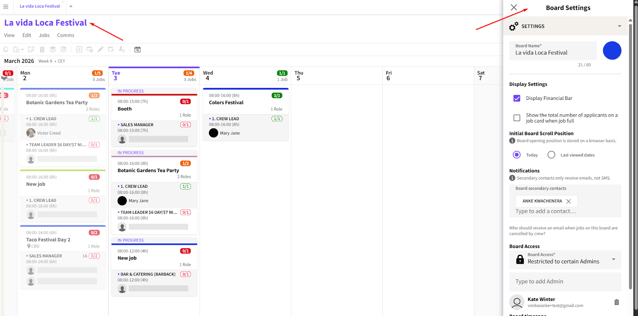 Board Settings Popin
Click on the SETTINGS tab to expand the menu and select BOARD-LEVEL-OVERRIDES.
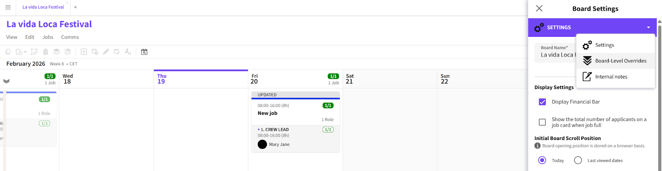
Board-Level-Overrides
Toggle ON the Check-in overrides to override any platform-wide settings.
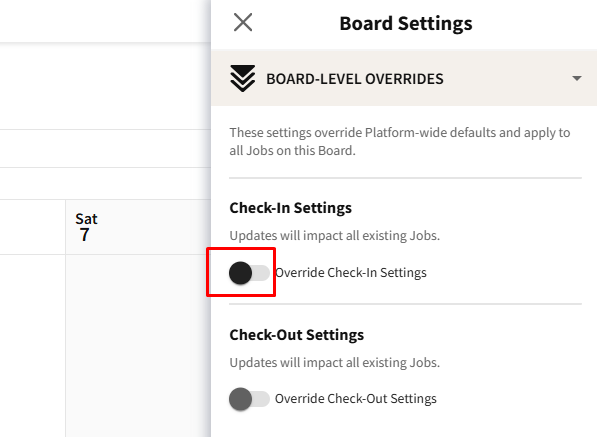
Toggle Button for Check-in Settings
You also need to turn ON the setting for No Show Notifications
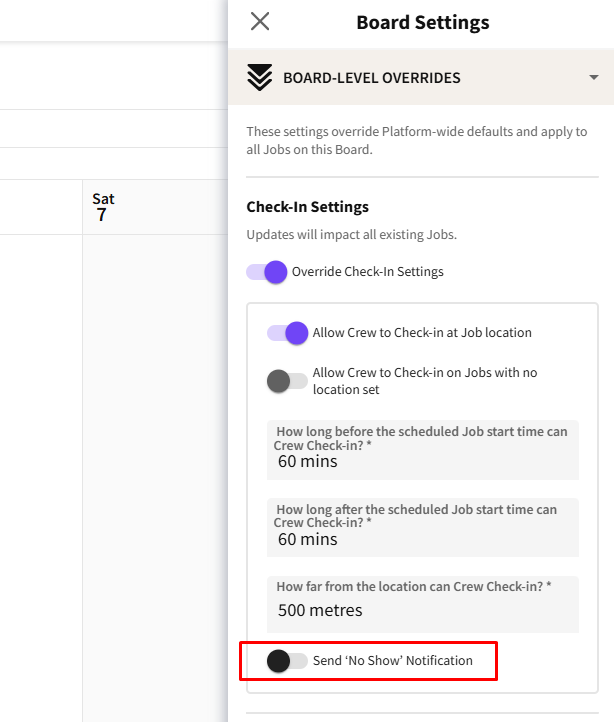
Toggle Button for No Show Notifications
After turning on the setting, you can proceed with configuring the timings for the notification.
Any changes you made at a Board level will cascade down to all Jobs on that Board.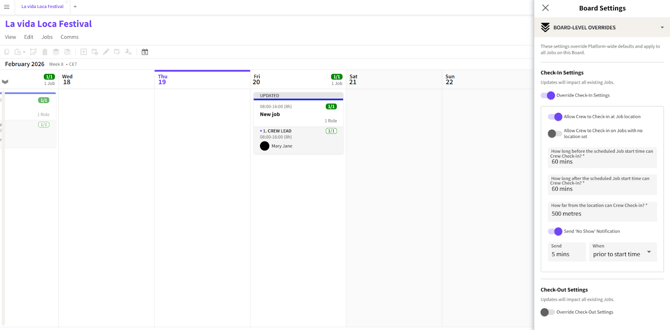
Board-Level-Override Settings
Job Overrides
The setting can also be overridden on a specific Job.
Select a Job, and click on ROLES to expand the section.
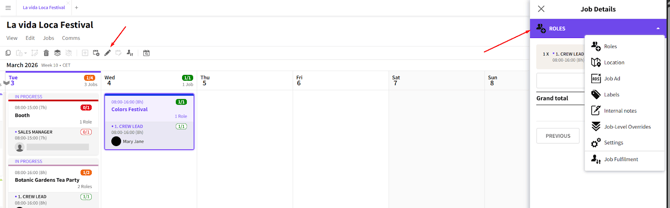
Job Selection
Select JOB-LEVEL-OVERRIDES
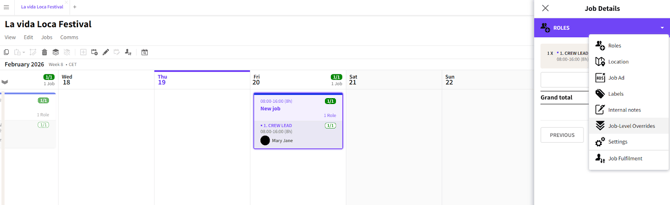
Job-Level-Overrides
Toggle ON the Check-in overrides and turn ON the setting for No Show notifications to override any platform-wide settings
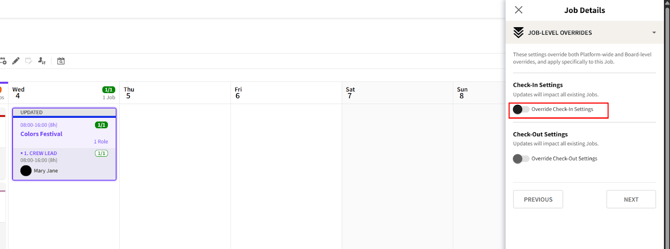
Toggle Button for Check-in Settings
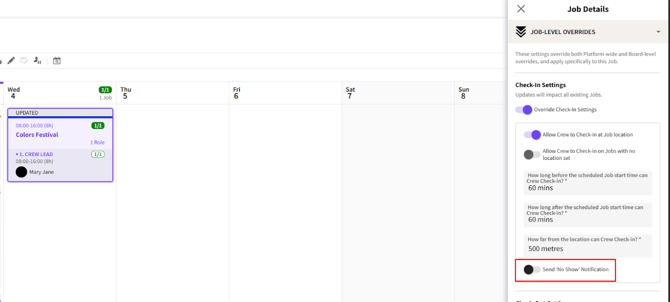
Toggle Button for No Show Notifications
Configure the timings for the notification for this specific Job
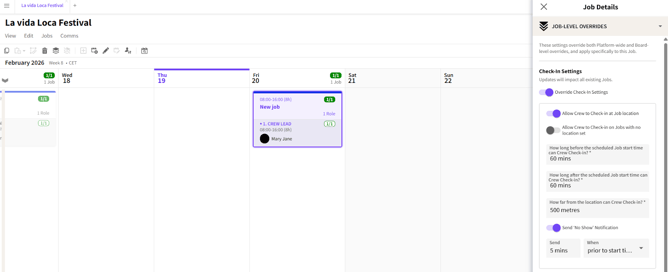
Configuration Settings
PUBLISH the Job to save the changes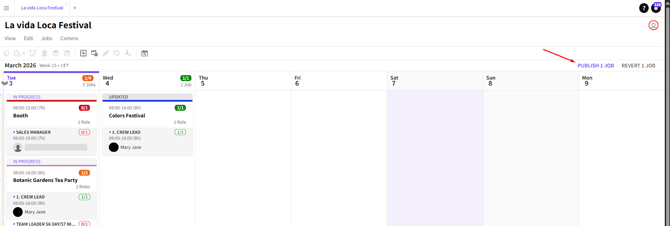
Publish Button
Notifications
No Show Notifications are automatically sent to the Job’s Primary Contact when a Crew member fails to check-in within the configured time. The Primary Contact (and any Secondary Contacts) will receive the following notifications:
Personal browser notification (if enabled):
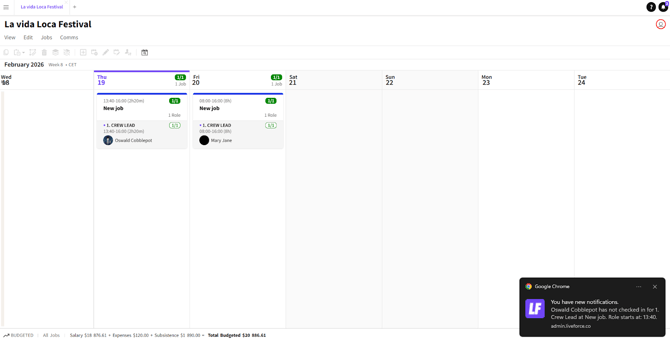
Desktop Notification
A platform system notification:
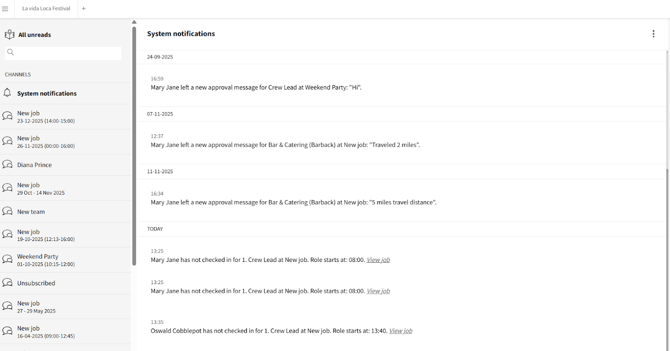
Platform System Notification
And via an email: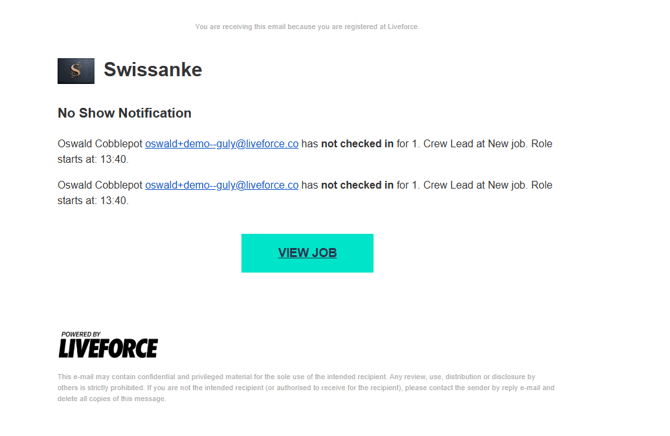 Email Notification