---
title: Maximum Working Conditions
description: Adding Maximum Working Conditions to Crew Profile settings allows Admins to ensure Crew are scheduled within safe and realistic limits.
---
[Skip to content](https://help.liveforce.co/en/admin/maximum-working-conditions#main-content)
[](https://liveforce.co/)
Open main navigation
Close main navigation
- [Log In](https://admin.liveforce.co/)
[Log In](https://admin.liveforce.co/)
Admin Knowledge Base
- There are no suggestions because the search field is empty.
1. [Admin App](https://help.liveforce.co/en/admin?hsLang=en)
2. [Profiles](https://help.liveforce.co/en/admin/profiles?hsLang=en)
3. [Settings](https://help.liveforce.co/en/admin/profiles?hsLang=en#settings)
March 18, 2026
# Maximum Working Conditions
## Adding Maximum Working Conditions To Crew Profile Settings Allows Admins To Ensure Crew Are Scheduled Within Safe And Realistic Limits.
### Introduction
Admins can add Maximum Working Condition Groups to Profiles.
Adding Maximum Working Conditions to Crew Profile settings allows Admins to ensure Crew are scheduled within safe and realistic limits.
These settings allow Admins to define constraints—such as maximum shift length, total hours, or workload limits—directly within a crew profile.
By setting these limits in advance, scheduling becomes smarter, Crew fatigue is reduced, and compliance requirements are easier to maintain.
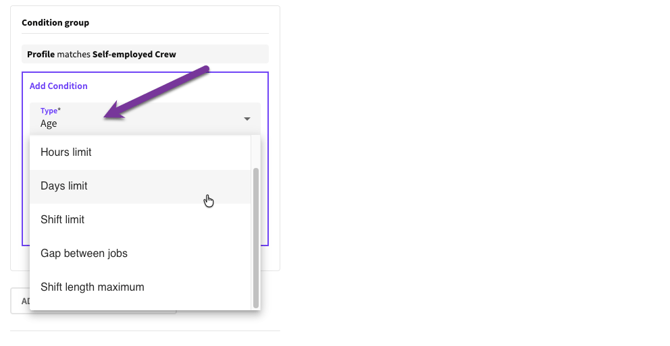
*Conditions*
### Creating Condition Groups
This section explains how to set up and create Max Working Conditions in your Profile.
From the main menu, navigate to Platform Settings \> Profiles.
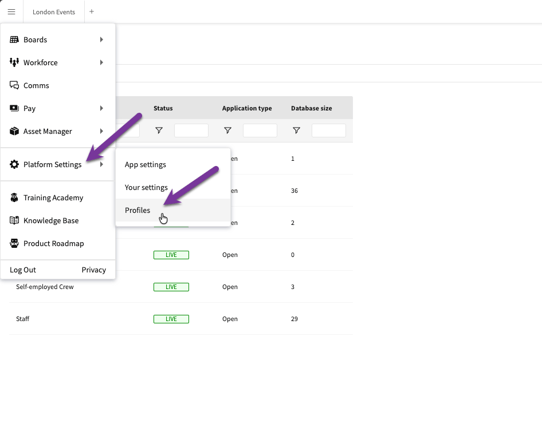
*Navigation*
Select the Profile you want to apply working conditions to.
Note that any Conditions set are only relevant for Crew registered to this specific Profile.
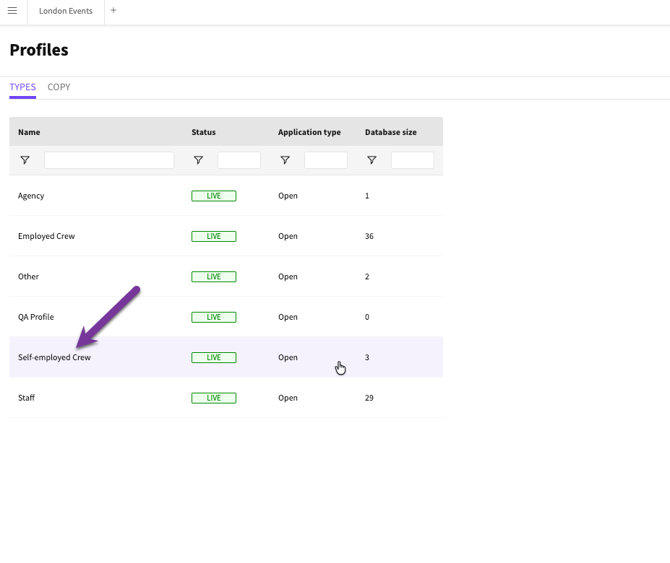
*Profile*
On the Profile Settings tab, scroll down to Max Working Conditions.
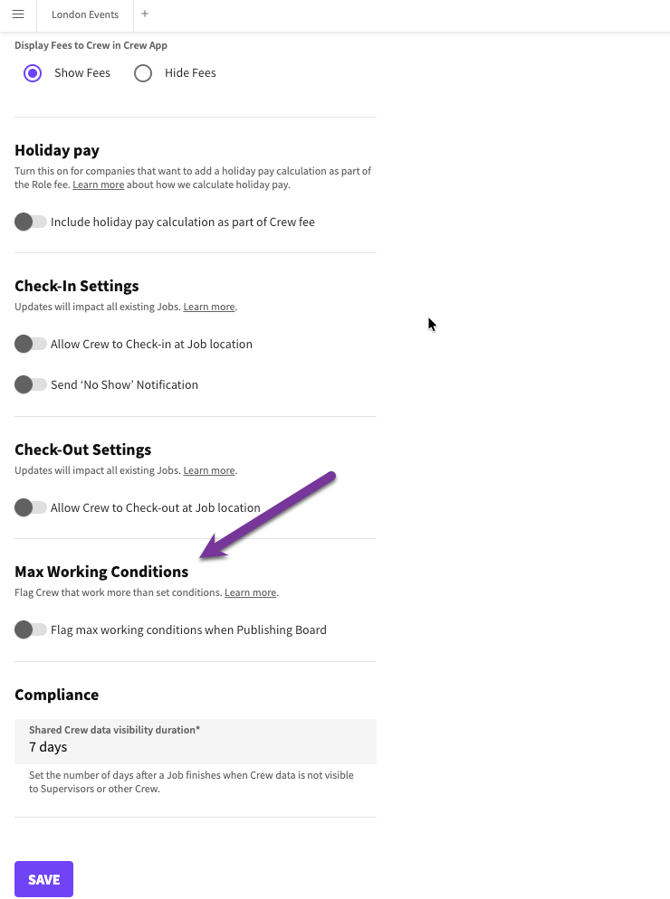
*Profiles \> Settings*
Enable Working Conditions by clicking the toggle.
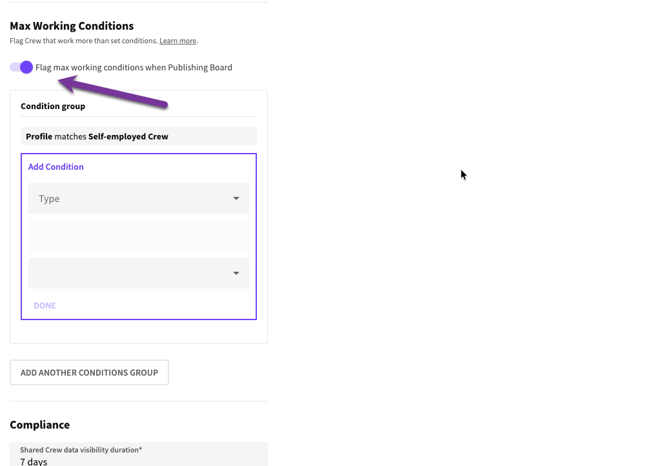
*Toggle*
Once enabled, a Condition Group appears, allowing you to add working condition rules.
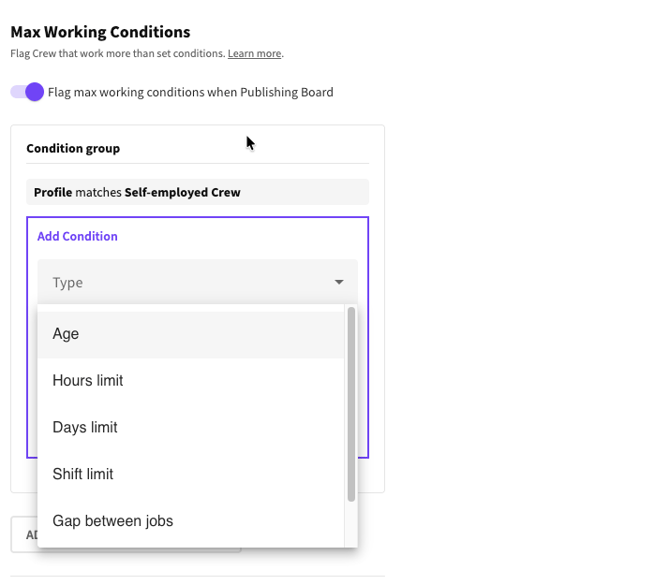
*Condition Group*
In this example, the Admin sets the maximum shift length for this Profile to 8 hours, then clicks DONE.
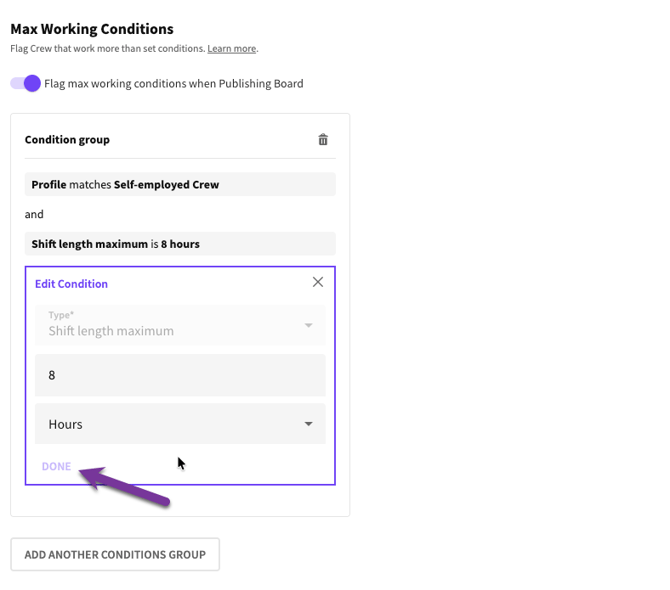
*Set condition*
Admins can add additional rules by clicking Add Condition.
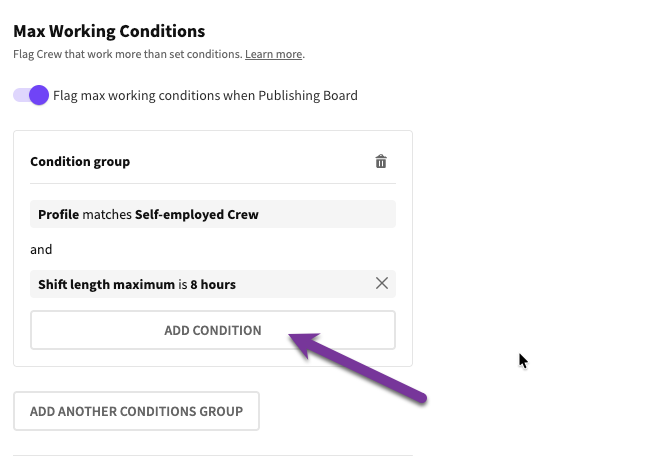
*ADD CONDITION button*
To remove a condition, click the X icon.
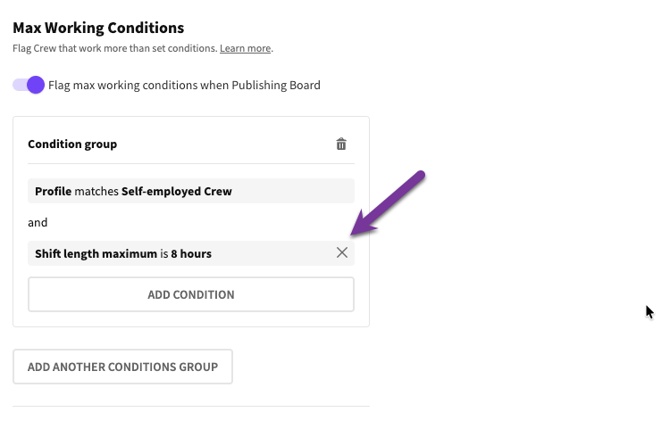
*Removing condition*
To remove an entire Condition Group, click the delete icon.
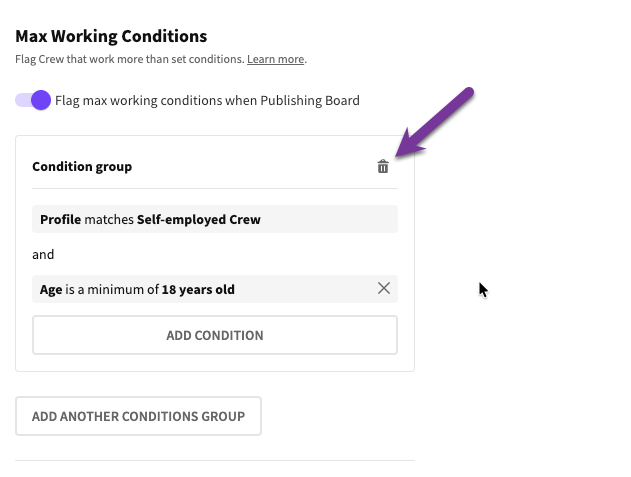
*Removing a Condition Group*
Admins can also create additional condition groups by selecting Add Another Conditions Group.
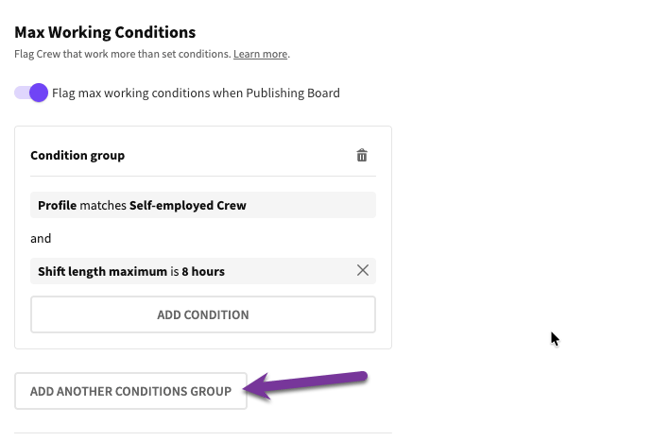
*Adding another Condition Group*
##### MULTIPLE CONDITION GROUPS
Multiple Condition Groups are used when Crew may legally or operationally work under different rule sets depending on the situation.
Each group represents a separate set of limits. If any one of the group’s conditions is satisfied, the Crew can be scheduled.
For example:
Condition Group 1
Age: 16–17
Maximum Shift Length: 4 hours
Maximum Hours Per Day: 4
OR
Condition Group 2
Age: 18+
Maximum Shift Length: 10 hours
Maximum Hours Per Day: 10
**When publishing a Board, the system checks the Crew’s details—such as age—and automatically applies the correct rule set.**
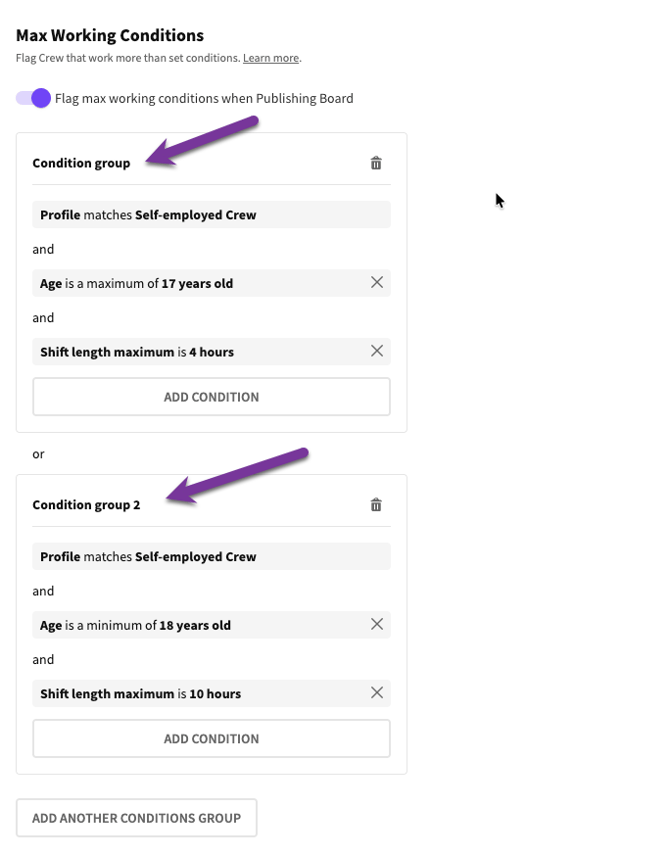
*Multiple Conditions Groups*
When finished, Admin clicks the SAVE button.
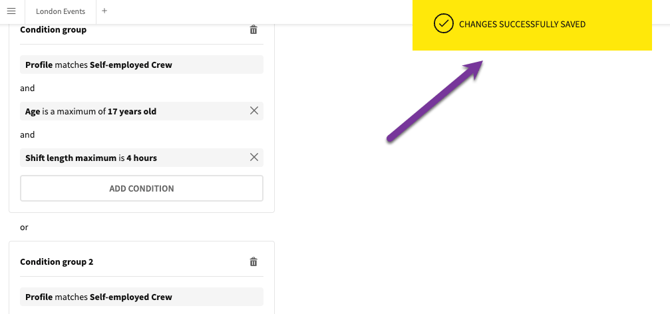
*Changes saved*
### Checking Conditions
When a Board is Published the system checks that Max Working Conditions are met, and any conflicts are highlighted.
Navigate to the Job Board. In this example, we want to assign the Crew to the two roles.
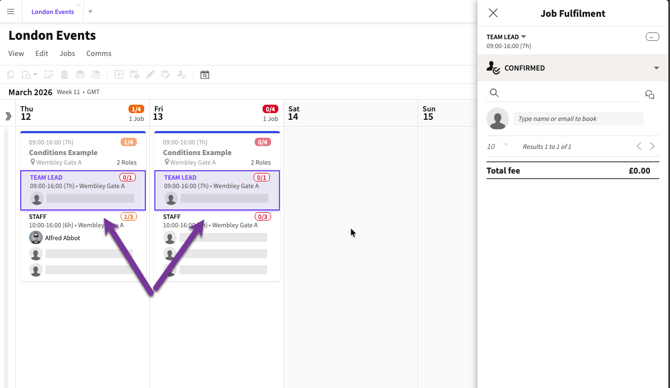
*Roles*
Add the Crew to the Roles, confirm the selection, and click PUBLISH.
Two error messages appear.
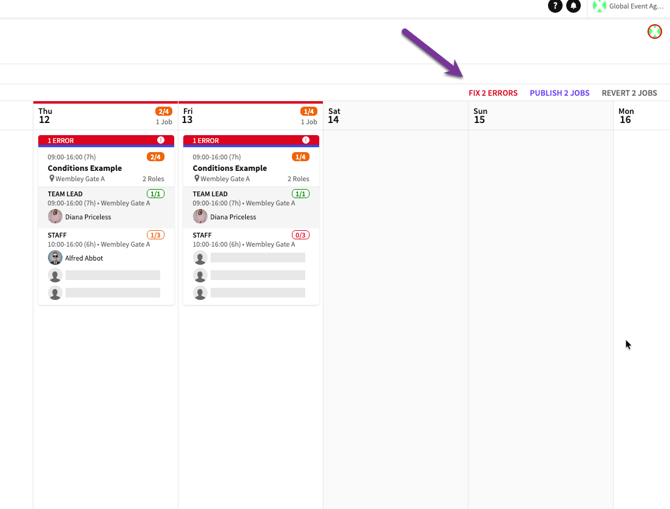
*Error messages*
By opening the message details, the Admin can see why the assignment failed.
In this case, there are two issues:
1. The shift is longer than 4 hours
2. The crew member is under 18 years of age
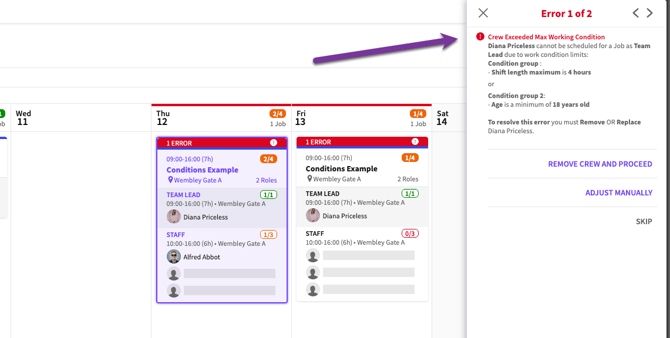
*Message details*
If we adjust the shift to 4 hours and publish again, the issue is resolved, and the Crew can be successfully booked onto the Role.
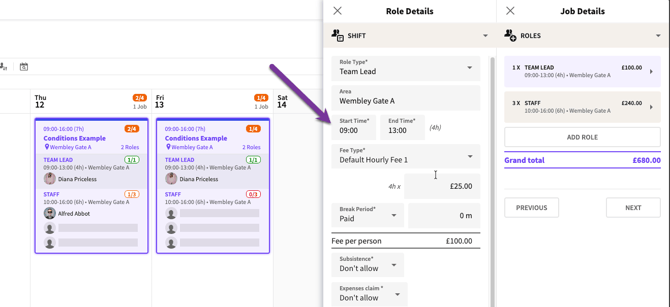
*Adjusting hours*
- [Training Academy](https://help.liveforce.co/en/admin/training-academy?hsLang=en)
- [The Basics](https://help.liveforce.co/en/admin/the-basics?hsLang=en)
- [Boards](https://help.liveforce.co/en/admin/boards?hsLang=en#main-content)
- [Timezones](https://help.liveforce.co/en/admin/boards?hsLang=en#timezones)
- [Job Scheduling](https://help.liveforce.co/en/admin/job-scheduling?hsLang=en#main-content)
- [Multiple Day Jobs](https://help.liveforce.co/en/admin/job-scheduling?hsLang=en#multiple-day-jobs)
- [Basics](https://help.liveforce.co/en/admin/job-scheduling?hsLang=en#basics)
- [Managing](https://help.liveforce.co/en/admin/job-scheduling?hsLang=en#managing)
- [Job Fulfilment](https://help.liveforce.co/en/admin/job-fulfilment?hsLang=en#main-content)
- [Methods](https://help.liveforce.co/en/admin/job-fulfilment?hsLang=en#methods)
- [Multi Day Jobs (1)](https://help.liveforce.co/en/admin/job-fulfilment?hsLang=en#multi-day-jobs-1)
- [Portfolio Sharing](https://help.liveforce.co/en/admin/job-fulfilment?hsLang=en#portfolio-sharing)
- [Basics](https://help.liveforce.co/en/admin/job-fulfilment?hsLang=en#basics)
- [Workforce Management](https://help.liveforce.co/en/admin/workforce-management?hsLang=en#main-content)
- [Managing](https://help.liveforce.co/en/admin/workforce-management?hsLang=en#managing)
- [Profiles](https://help.liveforce.co/en/admin/workforce-management?hsLang=en#profiles)
- [Tags](https://help.liveforce.co/en/admin/workforce-management?hsLang=en#tags)
- [Status Page](https://help.liveforce.co/en/admin/status-page?hsLang=en)
- [Communications](https://help.liveforce.co/en/admin/communications?hsLang=en)
- [Tables](https://help.liveforce.co/en/admin/tables?hsLang=en)
- [Platform Set Up](https://help.liveforce.co/en/admin/platform-set-up?hsLang=en#main-content)
- [General](https://help.liveforce.co/en/admin/platform-set-up?hsLang=en#general)
- [Workforce Configuration](https://help.liveforce.co/en/admin/platform-set-up?hsLang=en#workforce-configuration)
- [Profiles](https://help.liveforce.co/en/admin/profiles?hsLang=en#main-content)
- [Settings](https://help.liveforce.co/en/admin/profiles?hsLang=en#settings)
- [Reports](https://help.liveforce.co/en/admin/profiles?hsLang=en#reports)
- [Data](https://help.liveforce.co/en/admin/profiles?hsLang=en#data)
- [Timesheets and Payments](https://help.liveforce.co/en/admin/timesheets-and-payments?hsLang=en)
- [Invoicing](https://help.liveforce.co/en/admin/invoicing?hsLang=en#main-content)
- [Payment Reports](https://help.liveforce.co/en/admin/invoicing?hsLang=en#payment-reports)
- [Getting Started](https://help.liveforce.co/en/admin/invoicing?hsLang=en#getting-started)
- [Approval Process](https://help.liveforce.co/en/admin/invoicing?hsLang=en#approval-process)
- [Invoicing Section](https://help.liveforce.co/en/admin/invoicing?hsLang=en#invoicing-section)
- [Invoicing Submission Types](https://help.liveforce.co/en/admin/invoicing?hsLang=en#invoicing-submission-types)
- [Contact Support](https://help.liveforce.co/en/admin/contact-support?hsLang=en)
- [FAQs](https://help.liveforce.co/en/admin/faqs?hsLang=en)
[](https://liveforce.co/)
Admin App | Knowledge Base