
By the end of this guide, you will be able to set a Board's default time zone and set or override an individual Job's time zone
Each Board can have a different time zone. Jobs within a Board can also have a different time zone.
Setting a Boards time zone
When creating a new Board, you can set its time zone.
Start creating a new Board.
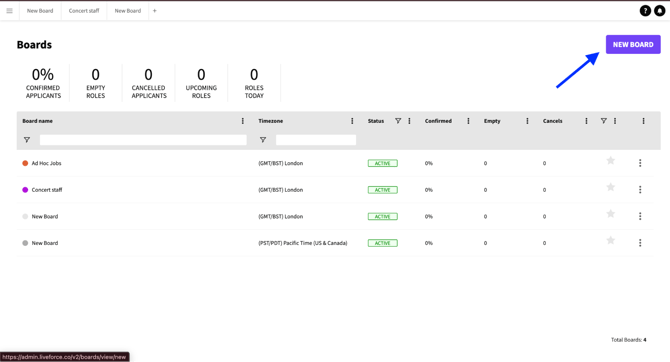
New Board Button
Go to the Board and click the Board title.
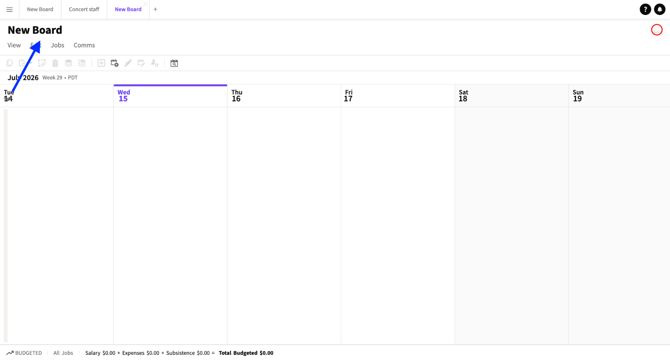
Board Title
Select the timezone from the Default Job time zone section of the popin.
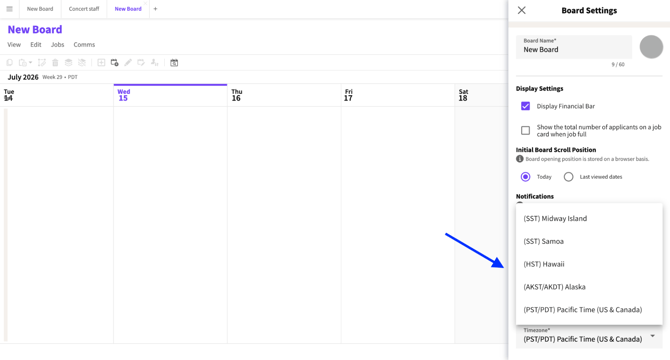
Default Board Timezone
Note: any new Job created on this Board will use this time zone by default.
Setting or Overriding a Job's Time Zone
Each Job has its own time zone, which can be changed individually.
Open the Job.
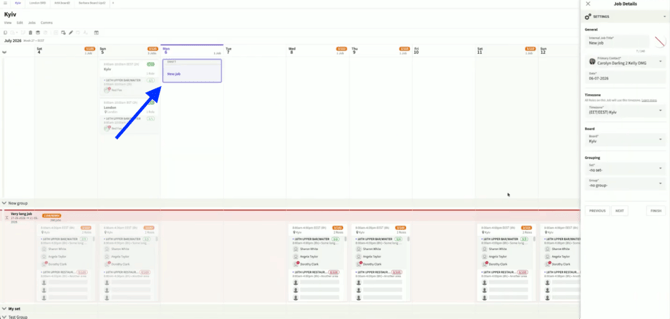
New Job
Go to the Settings section of Job Details and click the time zone dropdown.
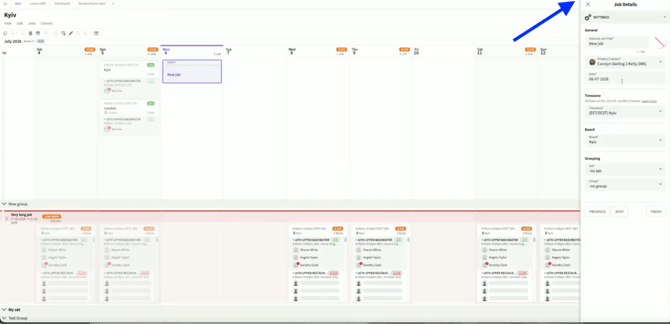
Job-level Timezone
Search for and select the time zone you want.
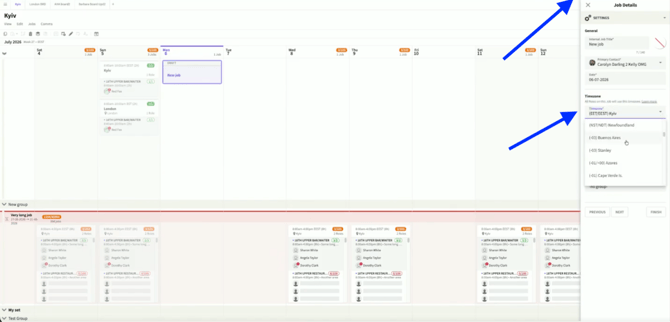
Job-level Timezone
Matching a Job's Time Zone to Its Location
When you set a Job's location, the system automatically detects its time zone.
Open the Job and Role Details.
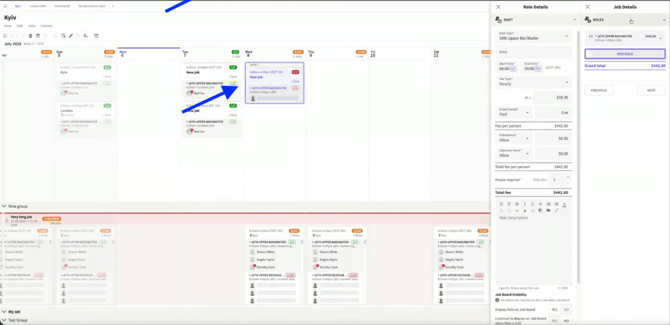
Job details
Click Location from the Roles dropdown menu.
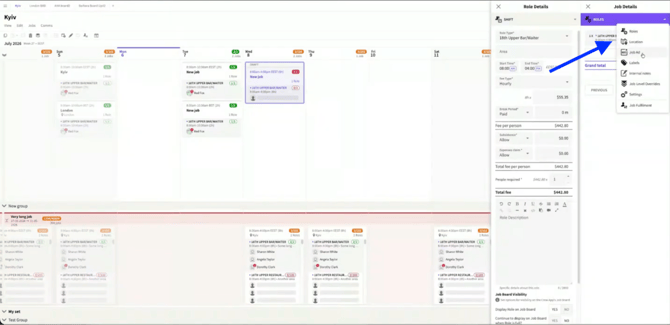
Location menu
Type the desired location in the space.
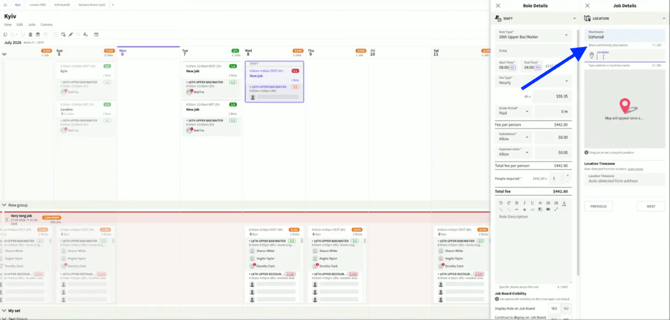
Type in desired Location
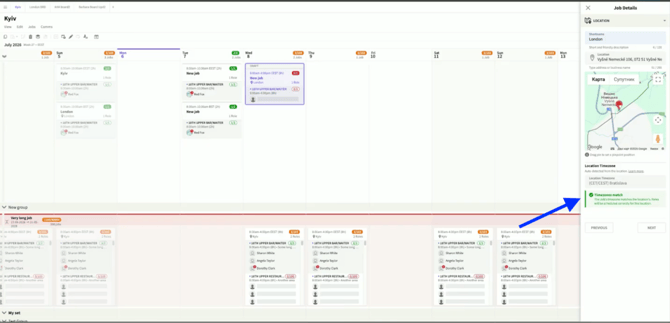
If the location's time zone matches the Job's time zone, a green pop-up appears confirming the match.
Location Timezone
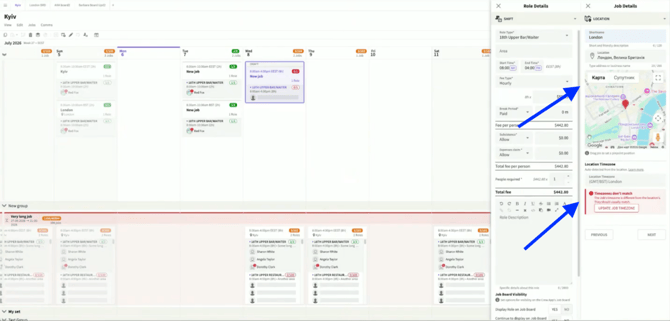
If the location's time zone doesn't match the Job's time zone, a warning pop-up appears.
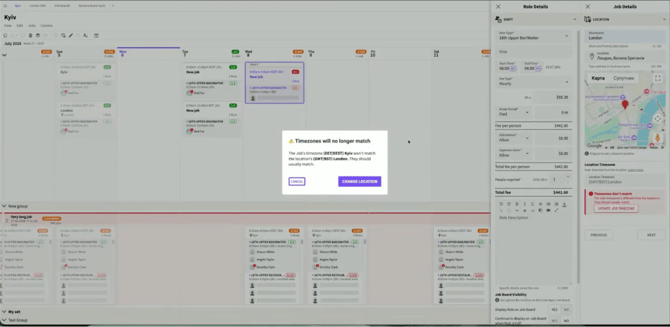
Mismatched Timezone warning
In the warning pop-up, choose Cancel to keep the current location, or Change Location to continue with the new one.
Mismatched Timezone warning
If you click Change Location, a warning message stays showing on the Job.
Mismatched Timezone warning
Click Update Job time zone in the warning message to update the Job's time zone to match the location.
Matching Timezone
Bulk-Changing Time Zones
Select the Jobs you want to update and click EDIT.
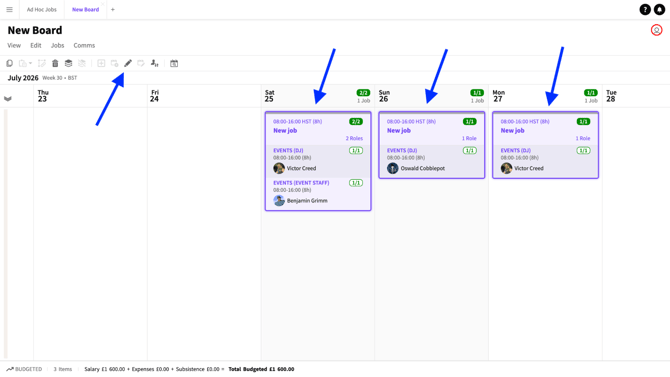
Multiple Jobs selected
Click the time zone drop down menu on the Settings page.
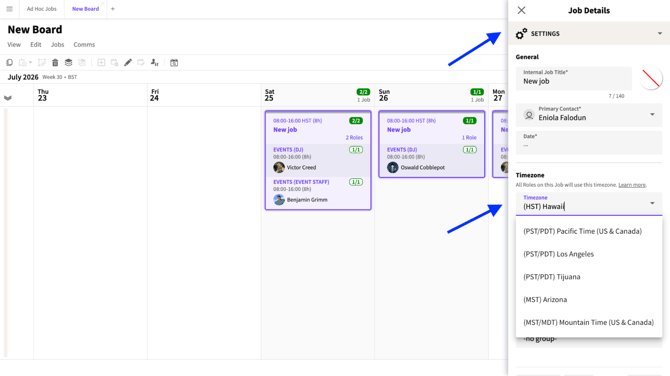
Job-level Timezone dropdown menu
Confirm the change when prompted.
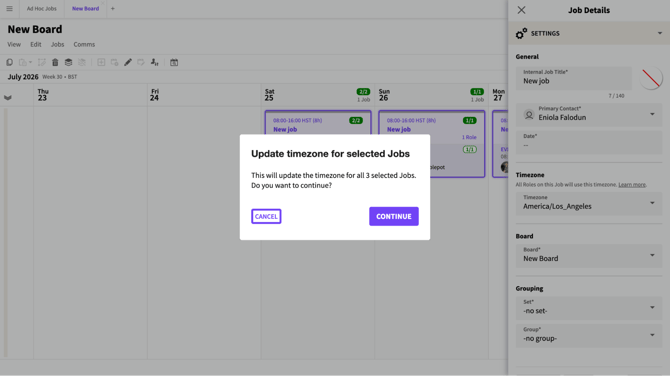
Confirm Changes
Don't forget to publish the Jobs when done.
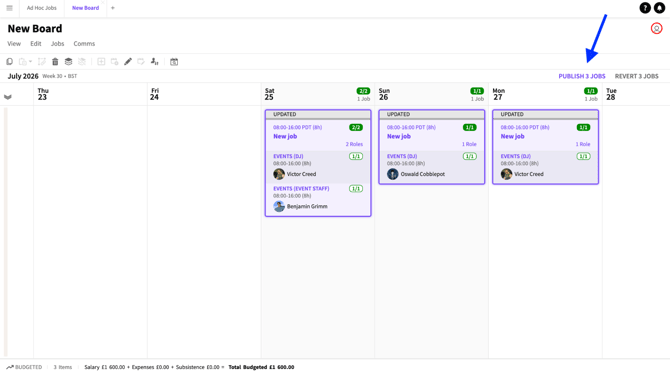
Publish Job changes
Crew View
Crew see each Job displayed in the time zone the Admin selected, shown at the top of the Job.
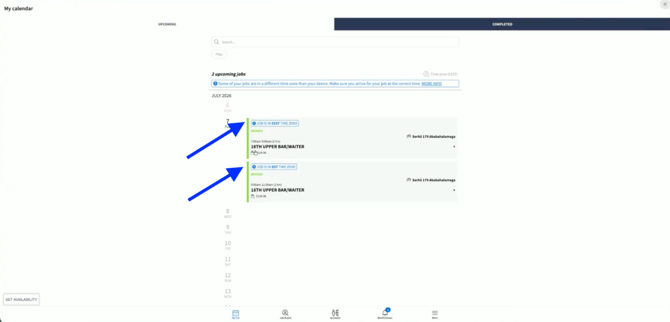
Crew view
If the Job's date, in that time zone, doesn't match the date in the Crew member's own time zone, the Job will show on a different date for Crew.
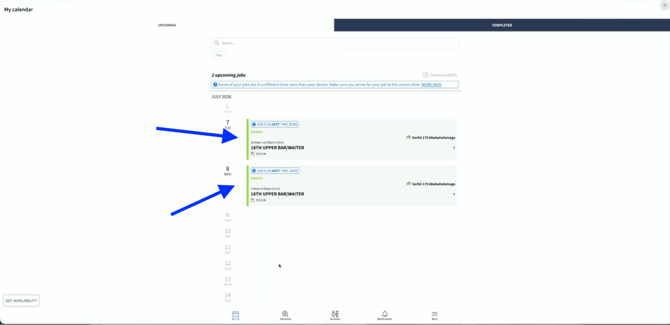
Crew view
Notifications to Crew are relative and labelled to the time zone they've set in their app.
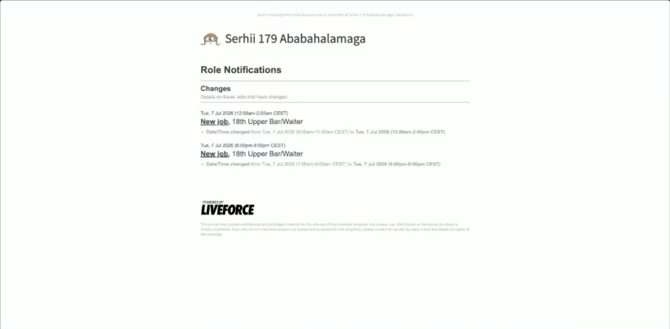
Crew Notifications