---
title: Job Application Process
description: Roles that are visible on the Job Board have a purple dot next to the Role Type on the Board.
---
[Skip to content](https://help.liveforce.co/en/admin/job-application-process#main-content)
[](https://liveforce.co/)
Open main navigation
Close main navigation
- [Log In](https://admin.liveforce.co/)
[Log In](https://admin.liveforce.co/)
Admin Knowledge Base
- There are no suggestions because the search field is empty.
1. [Admin App](https://help.liveforce.co/en/admin?hsLang=en)
2. [Job Fulfilment](https://help.liveforce.co/en/admin/job-fulfilment?hsLang=en)
3. [Methods](https://help.liveforce.co/en/admin/job-fulfilment?hsLang=en#methods)
March 10, 2025
# Job Application Process
## Roles that are visible on the Job Board have a purple dot next to the Role Type on the Board.
### Job Board Visibility Indication
Roles that are visible on the Job Board have a purple dot next to the Role Type on the Board.
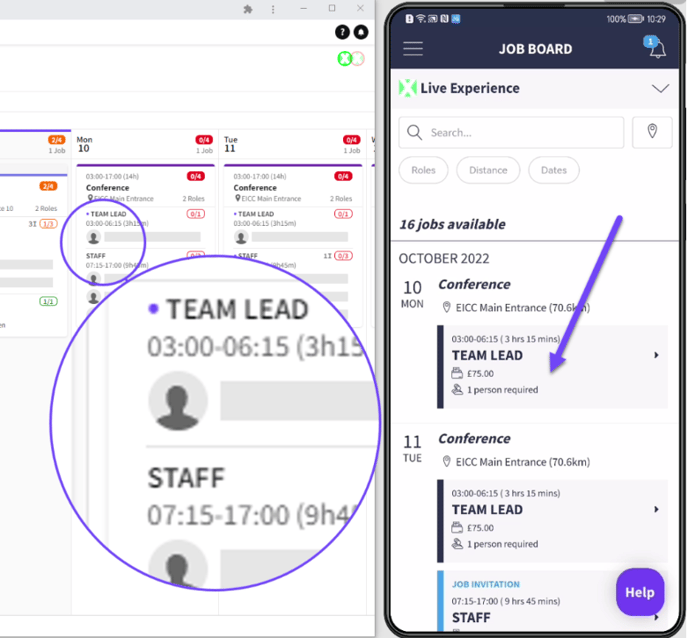*Indication that a Role is visible on the Job Board*
#### Application Process
- Crew can see Roles on their Job Board within the Crew App
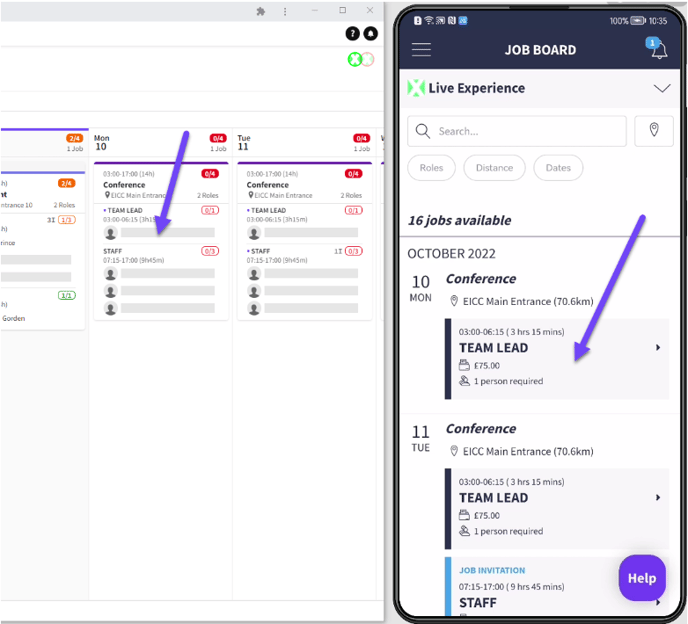
*Crews Job Board in Crew App*
- Crew can be considered for this by clicking the APPLY button
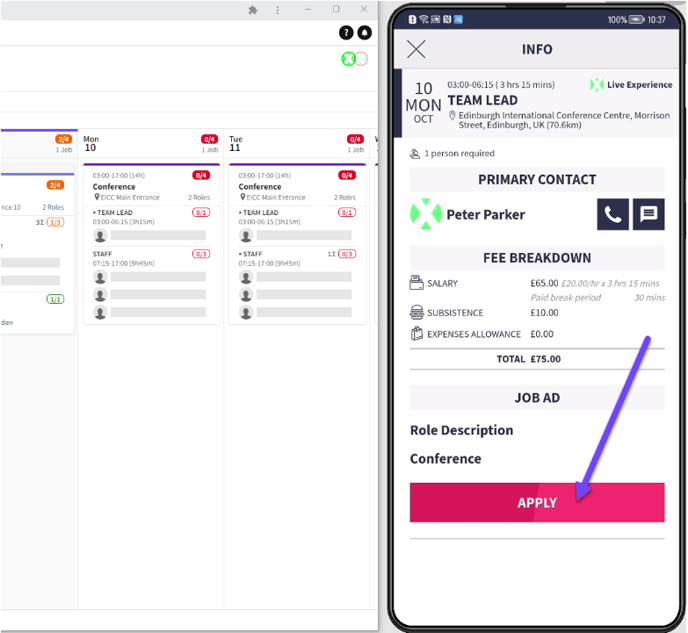
*Job Board Apply Button*
- That Role will turn orange to indicate that their application is pending
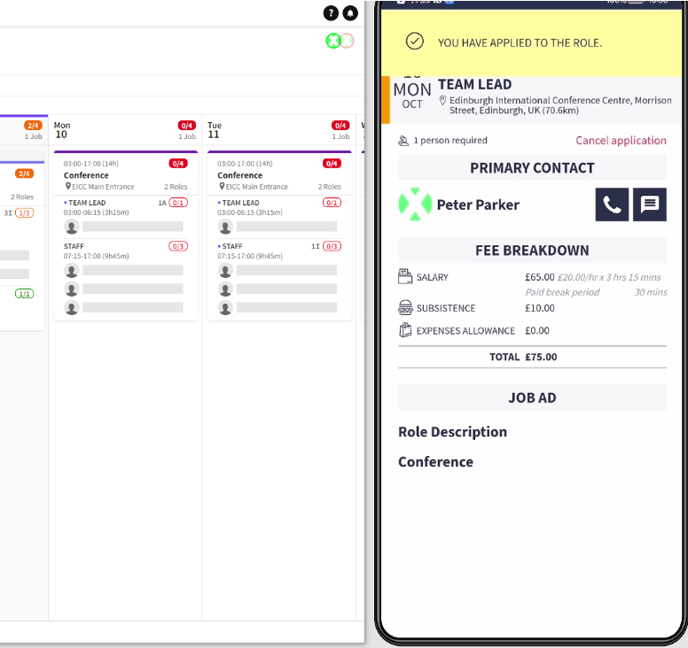*Applied success message*
*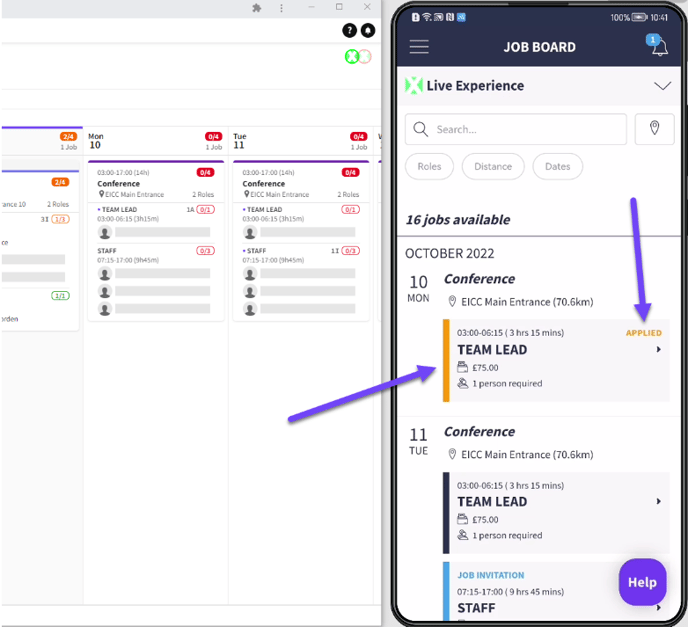*
*Applied Roles are colour coded orange*
- An indicator on each Role displays the number of Applicants that have applied
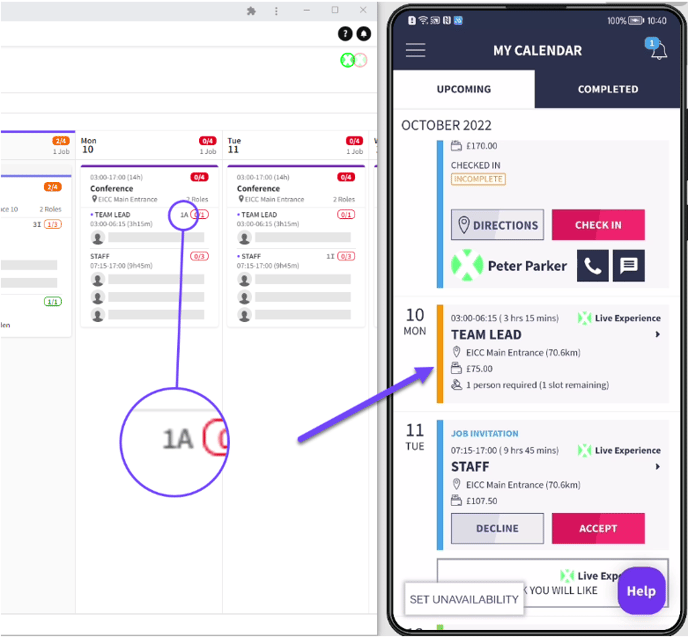
*1A means one Application*
- Click on the Role and select APPLICANTS from the Job Fulfilment tab
- This will list all Applicants for this Role
- It also includes the time and date when they applied
- Applicants can be added to a shortlist by clicking the HEART icon
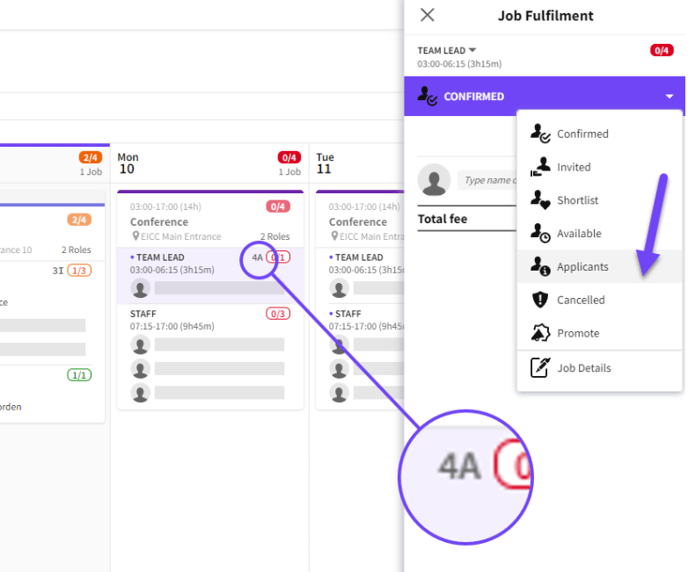
*Applicants tab*
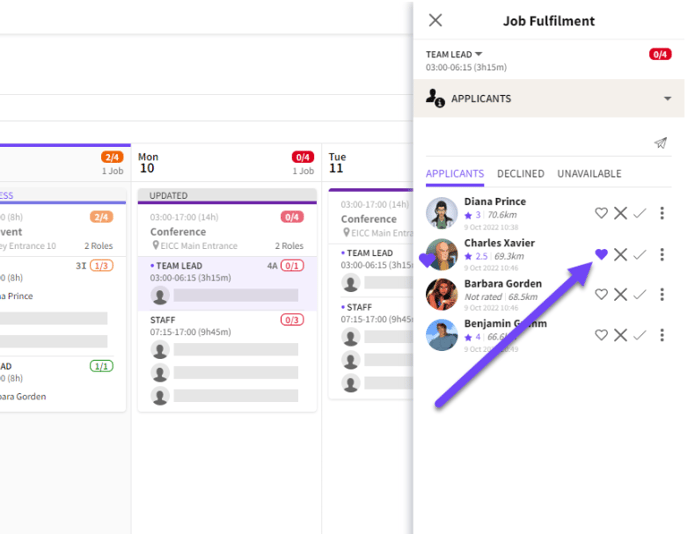
*Add Applicants to the Shortlist*
### Shortlist Tab
- Any Crew that have been Shortlisted appear under on the Shortlist tab
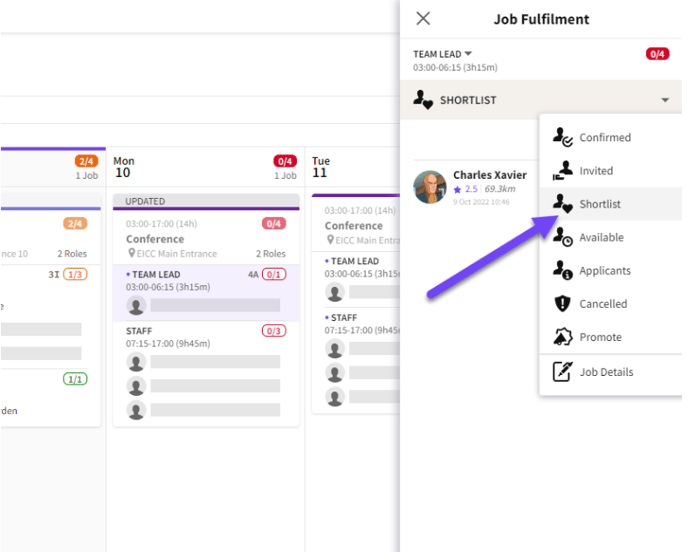*Shortlist tab*
### Declined Applicants
- Click the CROSS icon to Decline an Applicant
- When Published Crew will be sent an email and be moved to the DECLINED list
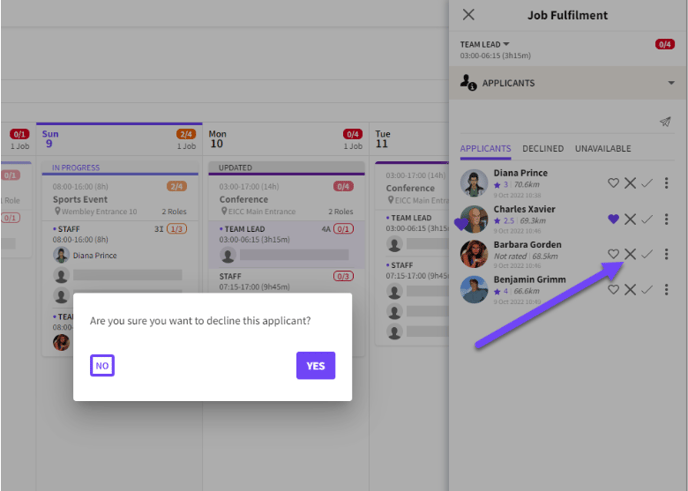*Declining an Applicant*
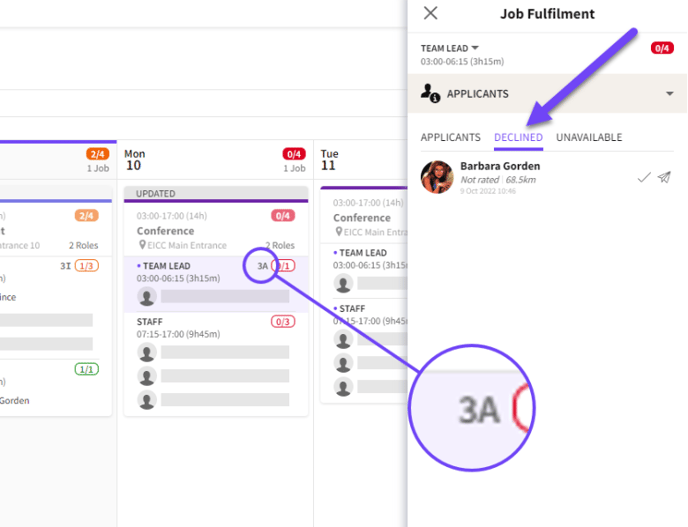
*Declined tab*
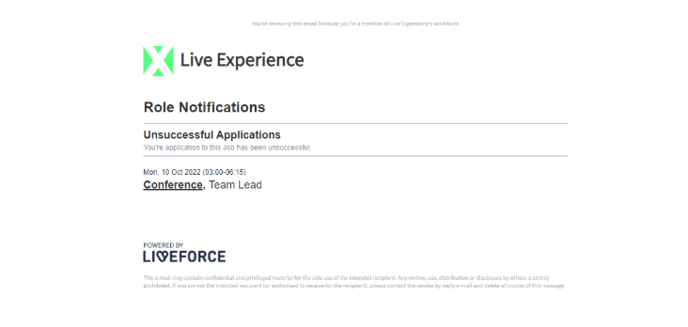*Declined notification email*
### Accept Applicant
- Click the TICK icon to accept a Crew member that has applied
- You can amend their fees on a per Crew basis if required
- Click CONFIRM to accept their application
- Their name and avatar will now appear in that slot
- When Published Crew will be sent an email confirming that their application has been approved
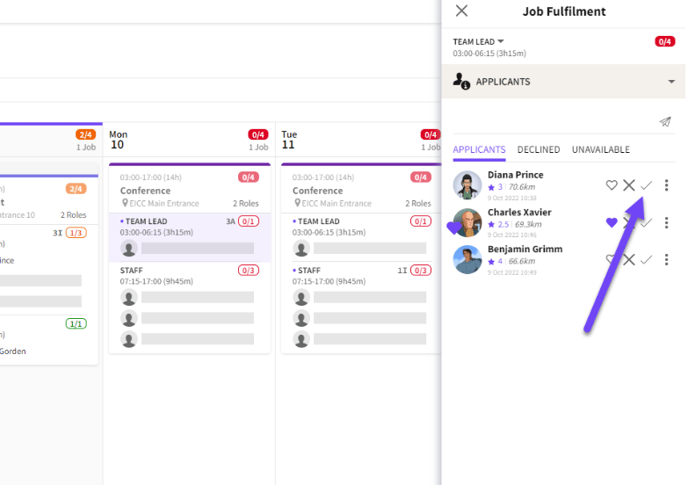*Accepting an Application*
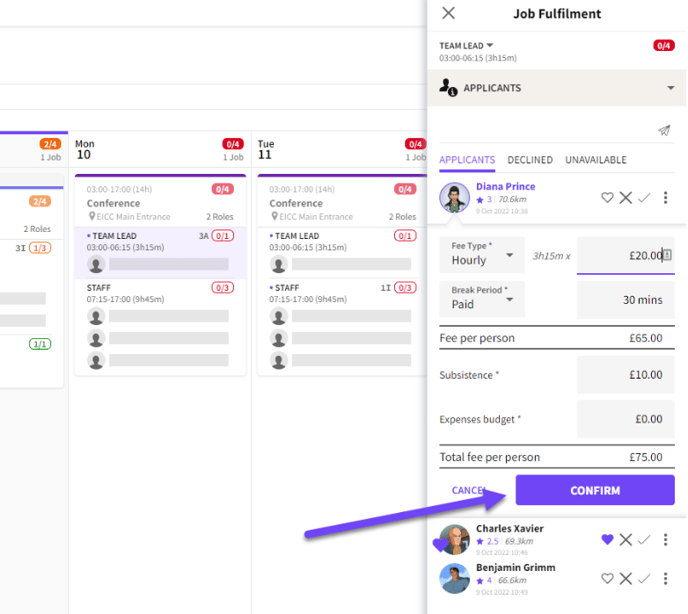
*Alter individual Fees before clicking CONFIRM*
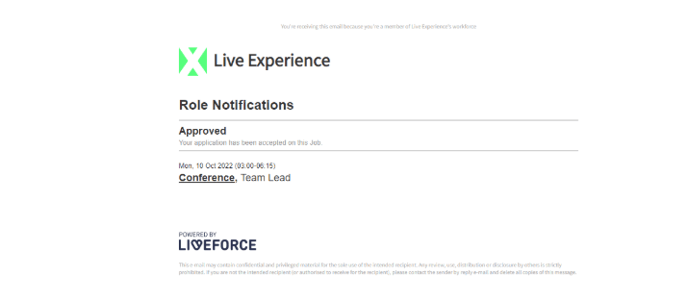
*Email notification*
### Publish All Changes
- Remember to Publish after making any changes for those updates to go live
- Crew emails notifications are sent when Published
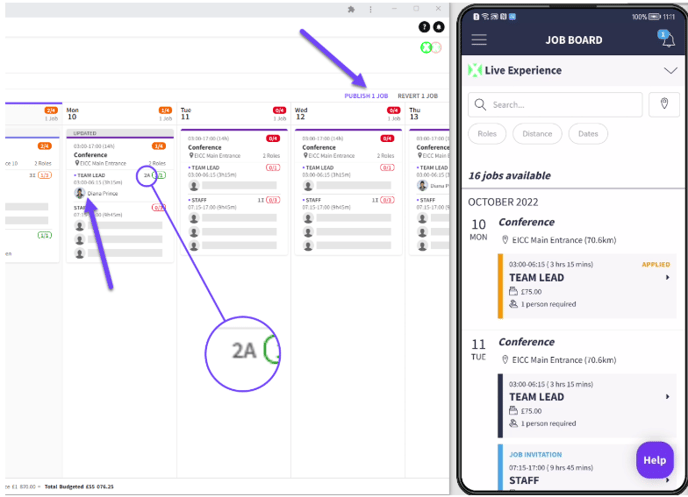
*Remember to PUBLISH*
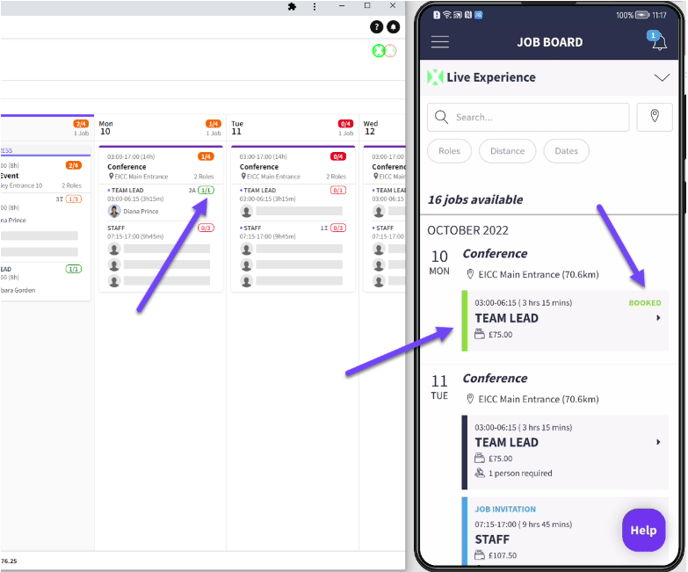*Booked colour code in Crew App*
### Unavailable Crew
- Any Crew that becomes unavailable after applying to a Role will be moved to the Unavailable list
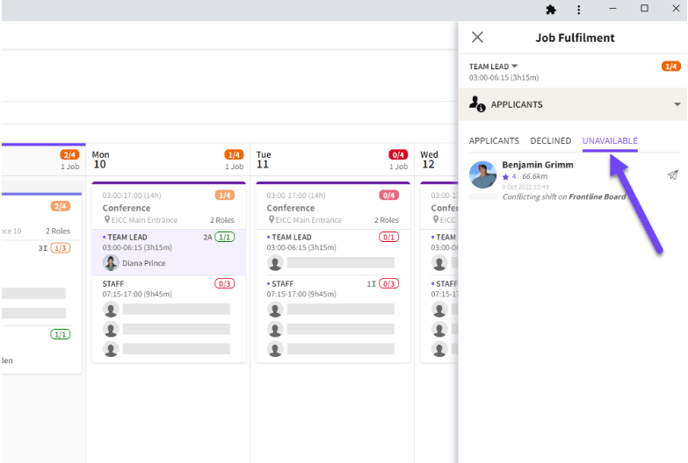*The UNAVAILABLE list*
#### Multiple Applications
- Multiple Roles can be selected to review Applicants
- Crew that applied to more than one Role can be reviewed and accepted
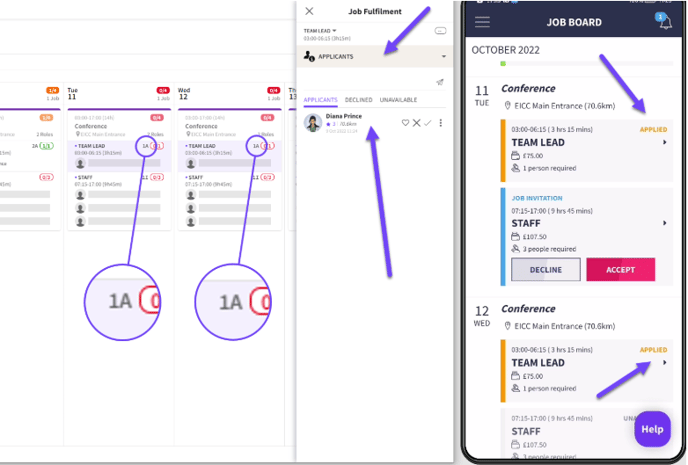
*Accept Applicants across multiple Roles together*
- [Training Academy](https://help.liveforce.co/en/admin/training-academy?hsLang=en)
- [The Basics](https://help.liveforce.co/en/admin/the-basics?hsLang=en)
- [Boards](https://help.liveforce.co/en/admin/boards?hsLang=en#main-content)
- [Timezones](https://help.liveforce.co/en/admin/boards?hsLang=en#timezones)
- [Job Scheduling](https://help.liveforce.co/en/admin/job-scheduling?hsLang=en#main-content)
- [Multiple Day Jobs](https://help.liveforce.co/en/admin/job-scheduling?hsLang=en#multiple-day-jobs)
- [Basics](https://help.liveforce.co/en/admin/job-scheduling?hsLang=en#basics)
- [Managing](https://help.liveforce.co/en/admin/job-scheduling?hsLang=en#managing)
- [Job Fulfilment](https://help.liveforce.co/en/admin/job-fulfilment?hsLang=en#main-content)
- [Methods](https://help.liveforce.co/en/admin/job-fulfilment?hsLang=en#methods)
- [Multi Day Jobs (1)](https://help.liveforce.co/en/admin/job-fulfilment?hsLang=en#multi-day-jobs-1)
- [Portfolio Sharing](https://help.liveforce.co/en/admin/job-fulfilment?hsLang=en#portfolio-sharing)
- [Basics](https://help.liveforce.co/en/admin/job-fulfilment?hsLang=en#basics)
- [Workforce Management](https://help.liveforce.co/en/admin/workforce-management?hsLang=en#main-content)
- [Managing](https://help.liveforce.co/en/admin/workforce-management?hsLang=en#managing)
- [Profiles](https://help.liveforce.co/en/admin/workforce-management?hsLang=en#profiles)
- [Data Validation](https://help.liveforce.co/en/admin/workforce-management?hsLang=en#data-validation)
- [Tags](https://help.liveforce.co/en/admin/workforce-management?hsLang=en#tags)
- [Status Page](https://help.liveforce.co/en/admin/status-page?hsLang=en)
- [Communications](https://help.liveforce.co/en/admin/communications?hsLang=en)
- [Tables](https://help.liveforce.co/en/admin/tables?hsLang=en)
- [Platform Set Up](https://help.liveforce.co/en/admin/platform-set-up?hsLang=en#main-content)
- [General](https://help.liveforce.co/en/admin/platform-set-up?hsLang=en#general)
- [Workforce Configuration](https://help.liveforce.co/en/admin/platform-set-up?hsLang=en#workforce-configuration)
- [Profiles](https://help.liveforce.co/en/admin/profiles?hsLang=en#main-content)
- [Settings](https://help.liveforce.co/en/admin/profiles?hsLang=en#settings)
- [Reports](https://help.liveforce.co/en/admin/profiles?hsLang=en#reports)
- [Data](https://help.liveforce.co/en/admin/profiles?hsLang=en#data)
- [Timesheets and Payments](https://help.liveforce.co/en/admin/timesheets-and-payments?hsLang=en)
- [Invoicing](https://help.liveforce.co/en/admin/invoicing?hsLang=en#main-content)
- [Payment Reports](https://help.liveforce.co/en/admin/invoicing?hsLang=en#payment-reports)
- [Getting Started](https://help.liveforce.co/en/admin/invoicing?hsLang=en#getting-started)
- [Approval Process](https://help.liveforce.co/en/admin/invoicing?hsLang=en#approval-process)
- [Invoicing Section](https://help.liveforce.co/en/admin/invoicing?hsLang=en#invoicing-section)
- [Invoicing Submission Types](https://help.liveforce.co/en/admin/invoicing?hsLang=en#invoicing-submission-types)
- [Contact Support](https://help.liveforce.co/en/admin/contact-support?hsLang=en)
- [FAQs](https://help.liveforce.co/en/admin/faqs?hsLang=en)
[](https://liveforce.co/)
Admin App | Knowledge Base