
Formatting the CSV File
When importing jobs into Liveforce, the system uses CSV (Comma-Separated Values) files to process job, role, and crew data. Proper formatting is essential to ensure that jobs are created correctly and any updates are applied without errors.
Click DOWNLOAD AN EXAMPLE CSV in the pop-up
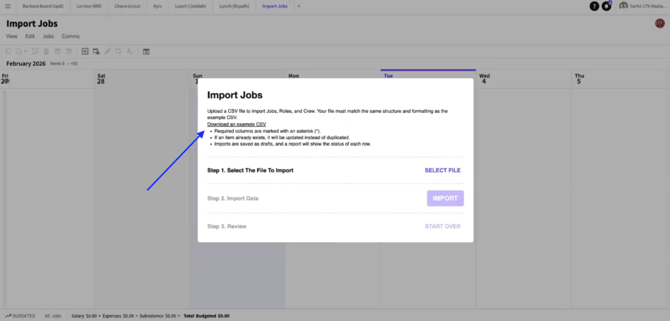 Import Jobs
Job Columns like Job Internal Title, Job Date marked with * are required
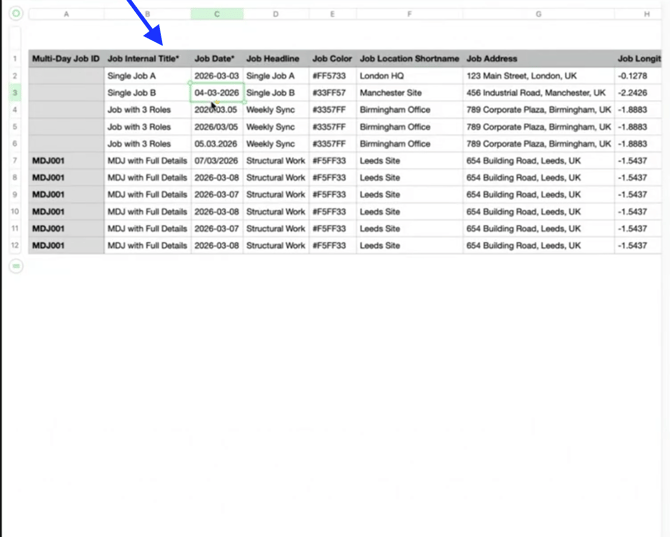 Import File Columns
Jobs with the same Job Internal Title and Job Date are considered a single Job. Different Role Types are allowed if Role names differ.
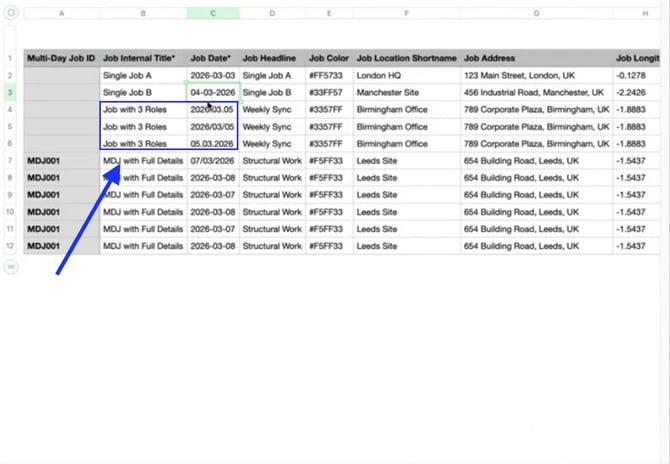 Job Title Column
Columns like Job Headline, Job Colour, and Job Location Shortname use the value from the first row of the Job.
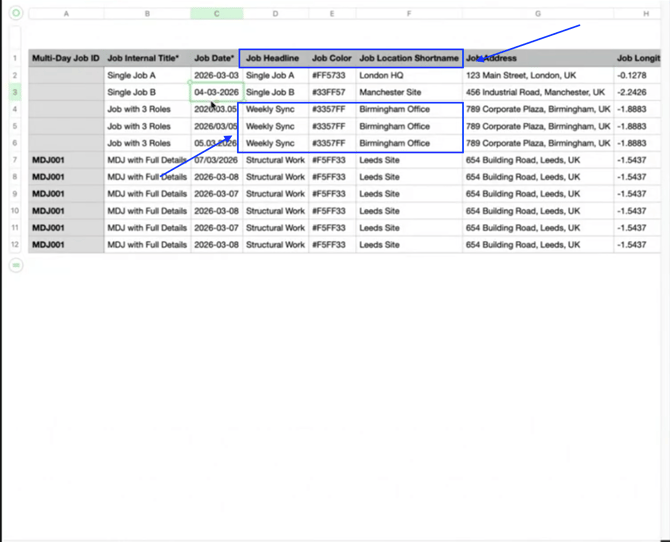 Additional Job Detail Columns
Use DD-MM-YYY format for Job Date.
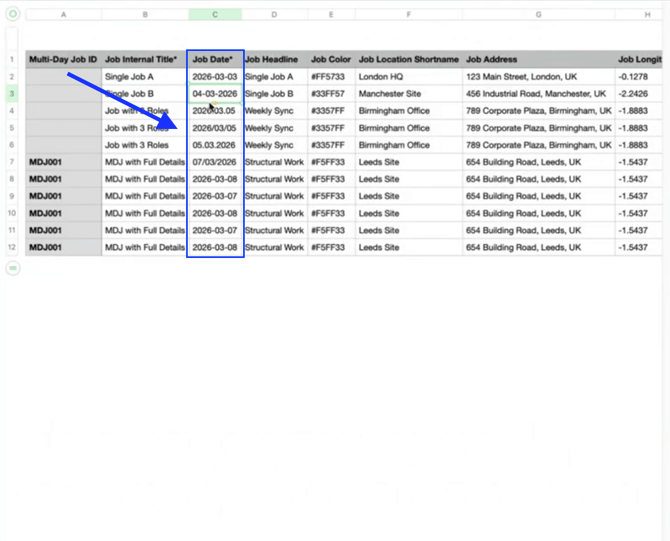 Date Format
For Multi-day Jobs, fill in the Multi Day Job ID column. Use the same ID for all rows of the Job.
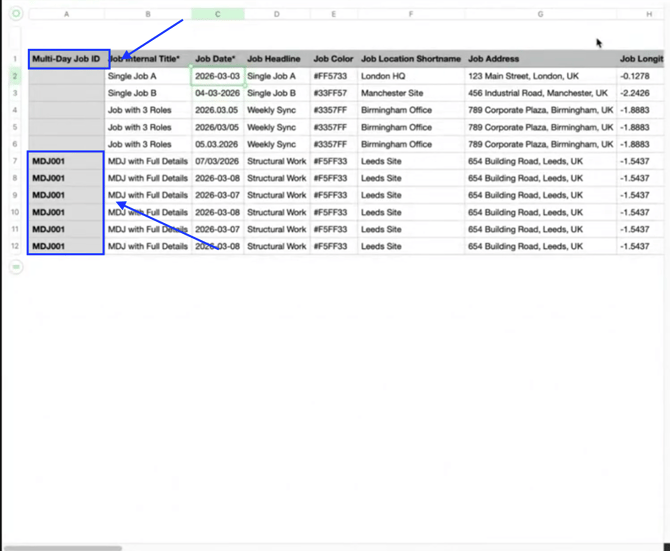 Multi-Day Job Inputs
Multi-day Jobs should have the same data in columns like Address; if not, the system uses the first row.
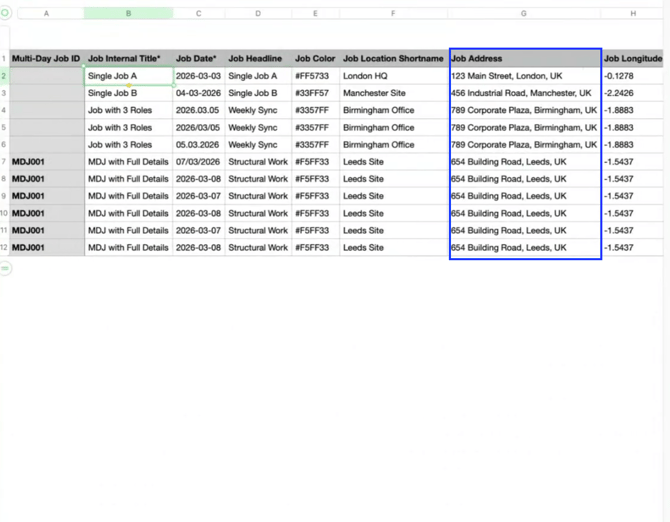 Job Address
Job Internal Titles must match exactly for grouping.
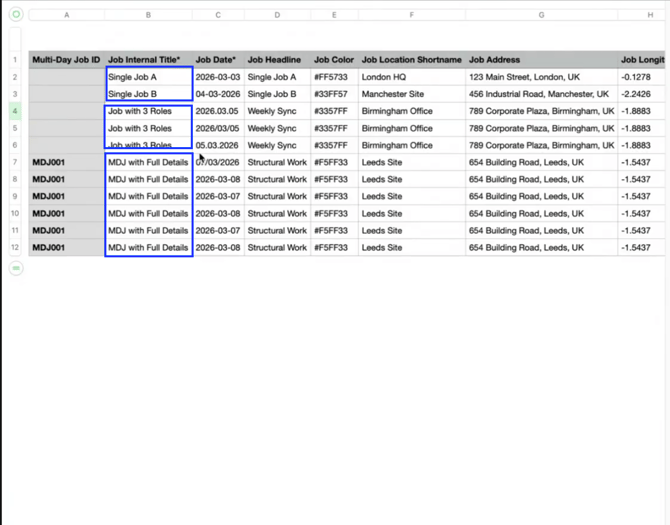 Job Internal Titles
Columns like Role Type*, Role Start Time*, Role End Time* are required if you are adding a Role.
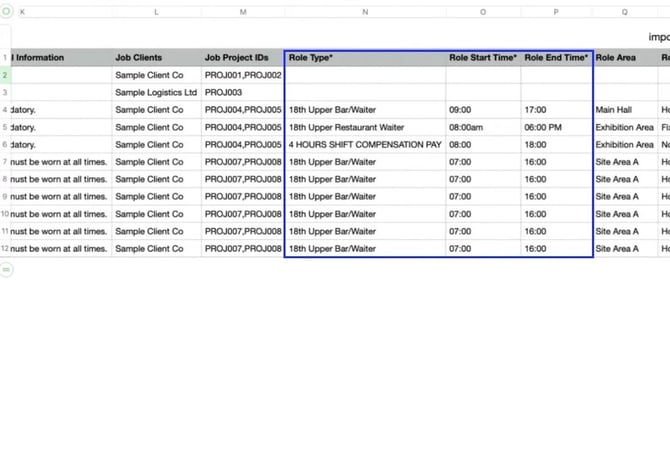 Role Details
For Role Fee Type & Amount enter values, or leave blank to use the default fee from Role settings.
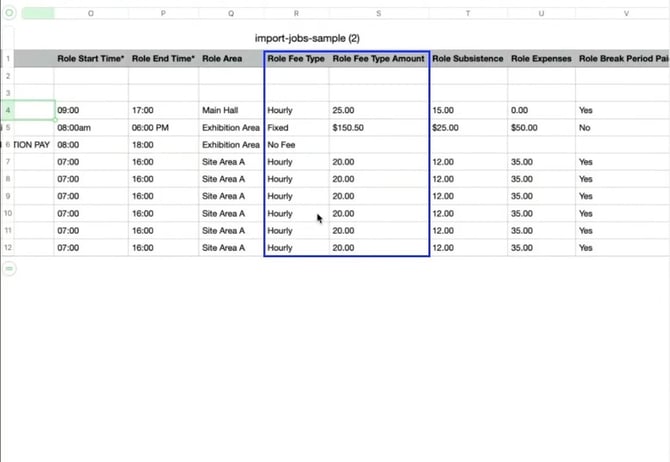 Role Fees
For Role Description, the maximum character limit is 2000.
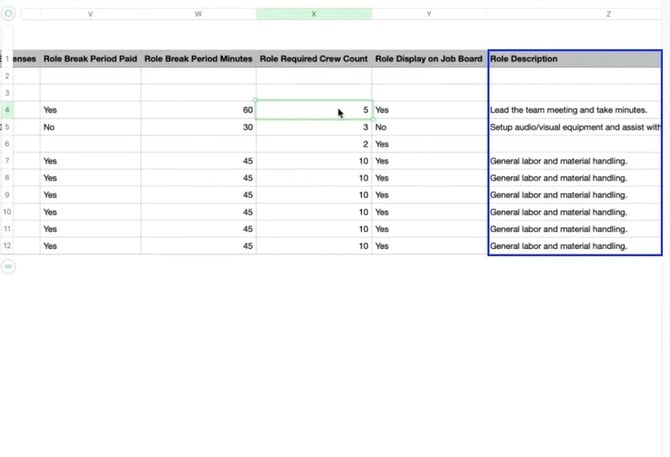 Role Details
For Subsistence & Expenses (Roles & Crew) the claim will be set to Allow if a value is entered. If the field is left blank or the value is 0, it will be set to Do Not Allow.
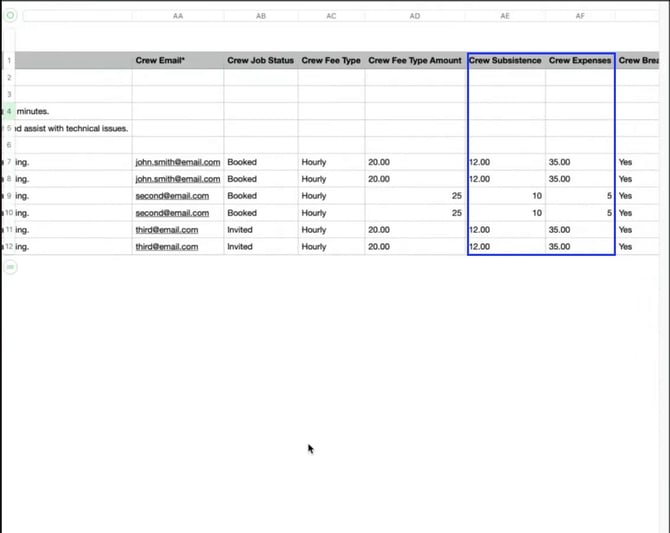
Crew Subsistence & Expenses
Use AM/PM or 24-hour format for Role Start Time and Role End Time.
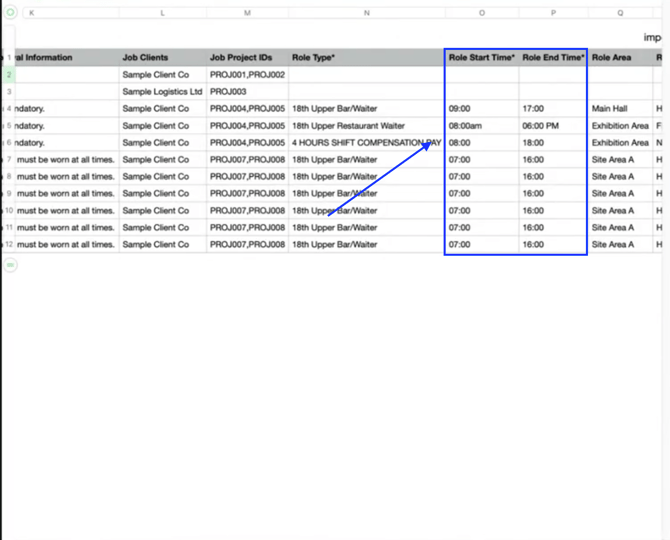
Role Time
Columns like Crew Email* are required if you are adding a Crew.
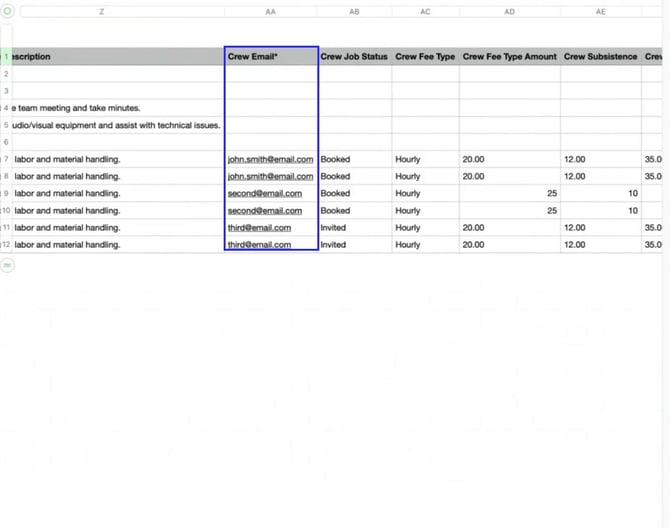
Crew Emails
For Crew Fee Type & Amount enter values, or leave blank to use the default fee from Role settings (or the default Crew fee if set)
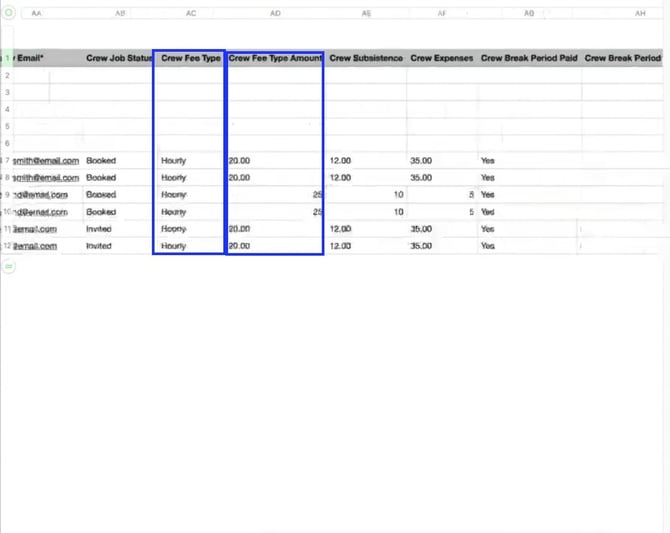
Crew Fees
Only Booked or Invited are supported in the Crew Job Status column.
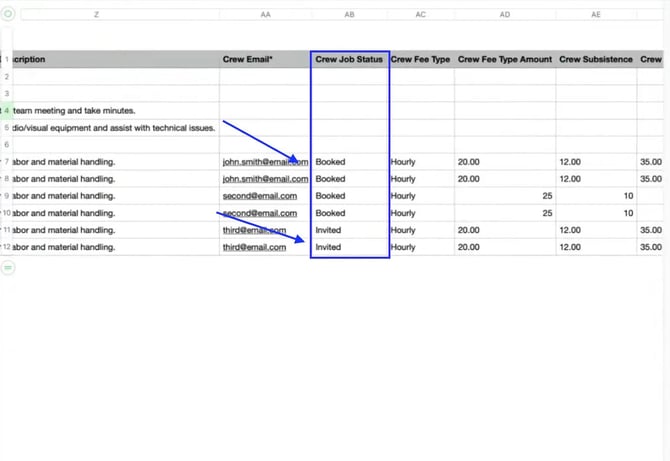
Crew Status
How to Upload a CSV File
Go to the Board where you want to import Jobs.
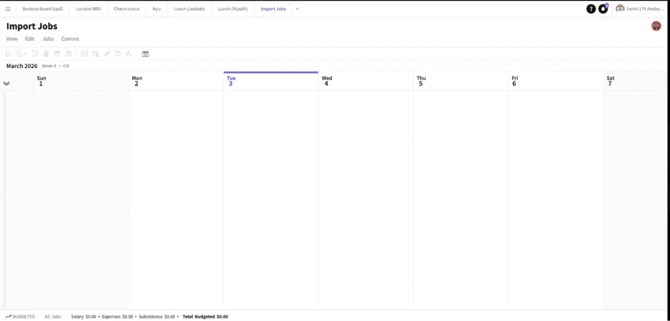 Job Board
Open the Job menu and click IMPORT JOBS .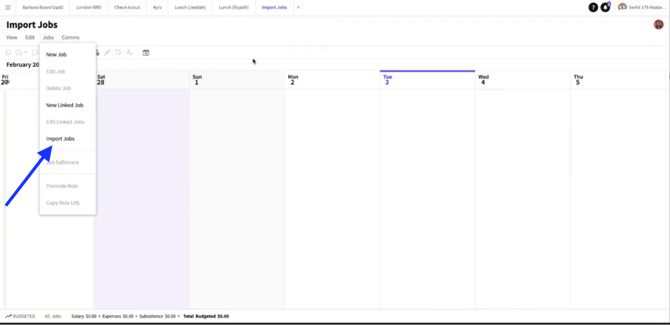 Job Menu
In the pop-up window, click SELECT FILE TO IMPORT.
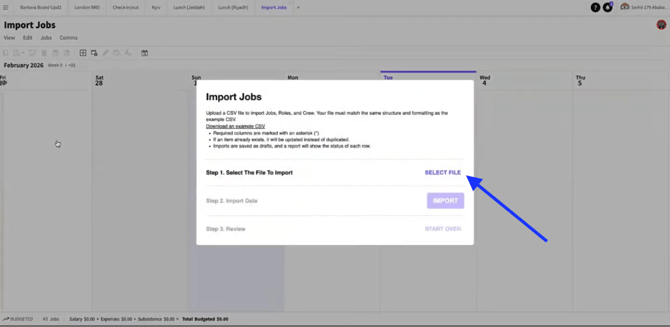
Click Select File
Choose the CSV file you want to import.
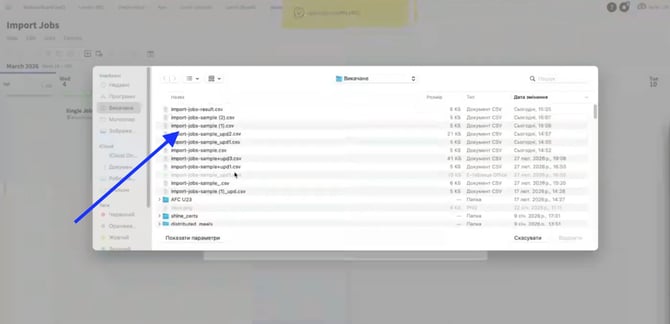 Select File
Click IMPORT.
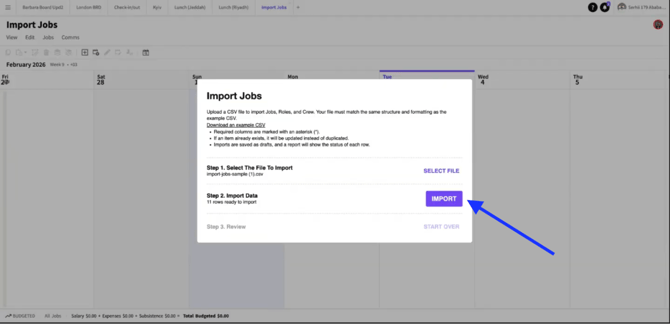
Import Job
Imported Jobs are required to be Published.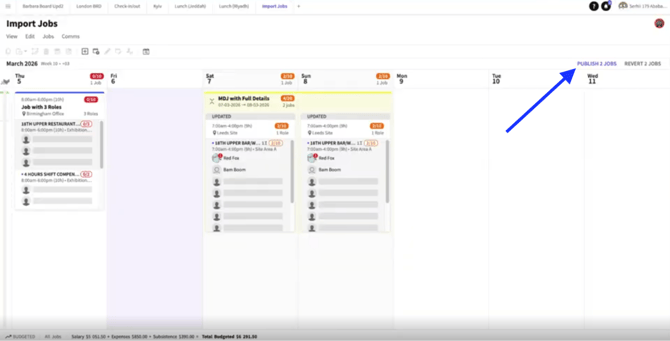
Publish Job
Import Report
Click DOWNLOAD REPORT in the Review section.
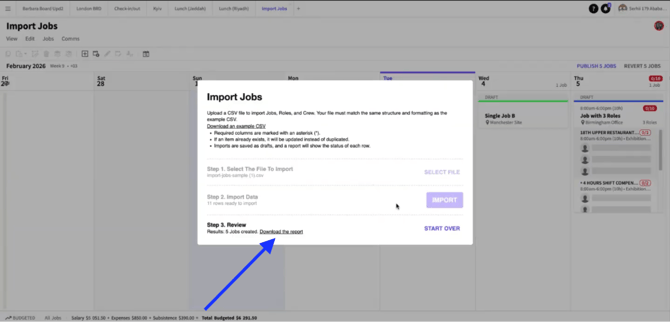
Download Report
Check the Job Import Status, Role Import Status, and Crew Import Status columns.
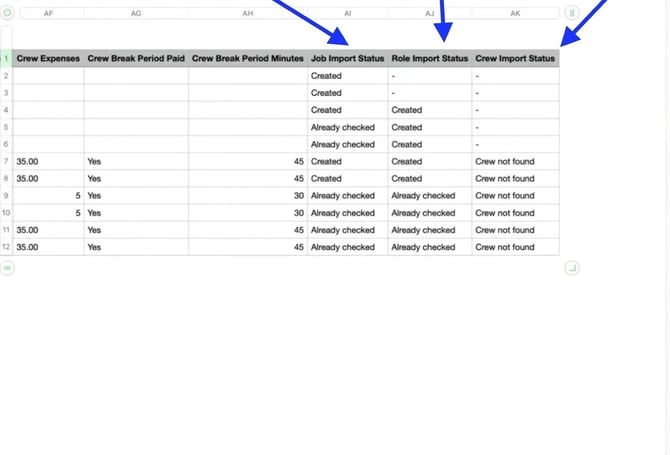
Import Status
Open the Jobs on the Job Board to confirm the import.
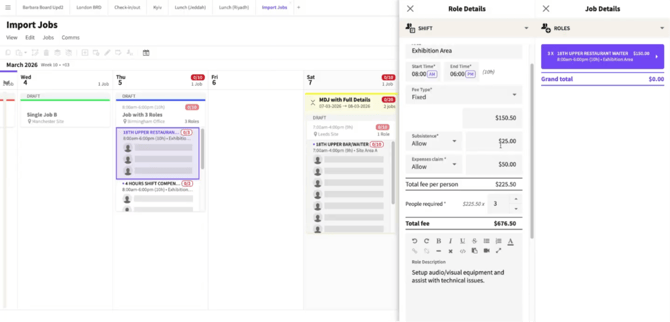
Job Board
Import same Jobs with updated data to update existing jobs. Report shows updated count; existing fields show “Already Exist”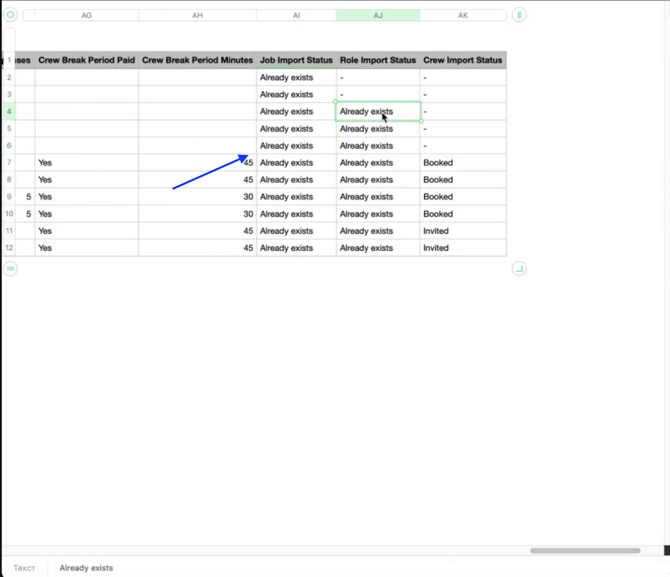
Import Status