
Creating a Global Section
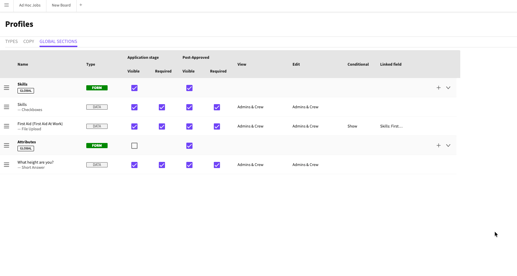
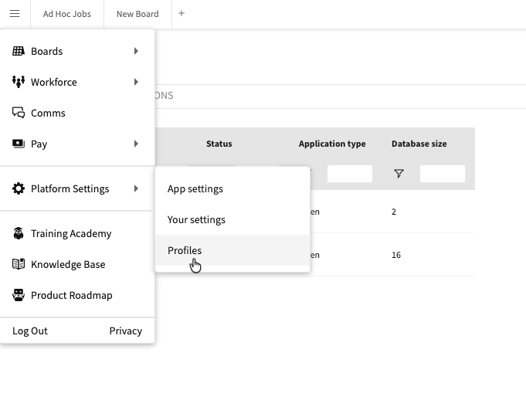
Navigate to the Profiles page.
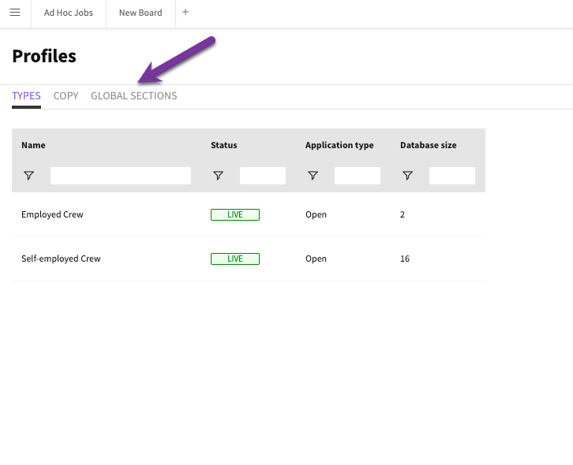
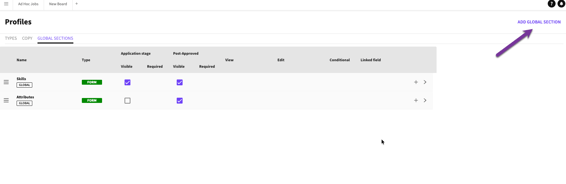
Click ADD GLOBAL SECTION.
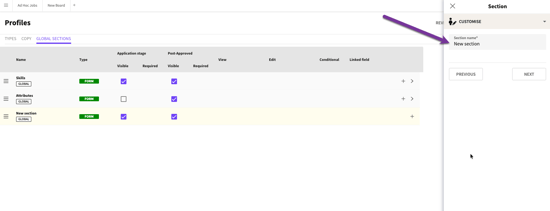
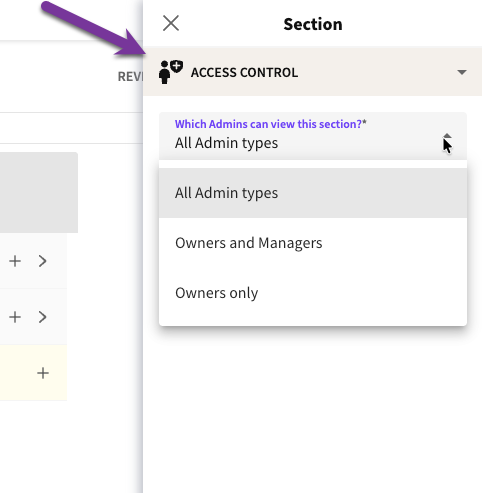
Let’s call the Section ‘Terms’ and allow all Admin types access.
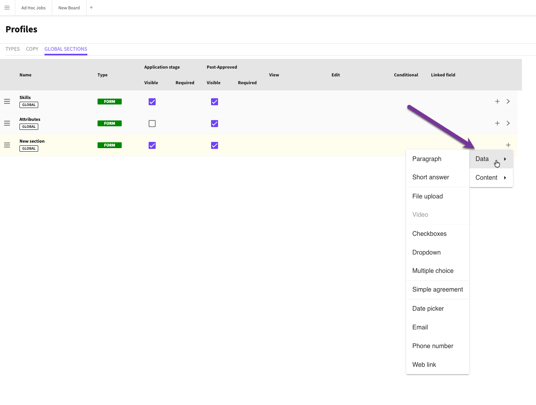
Add Data Types as required.
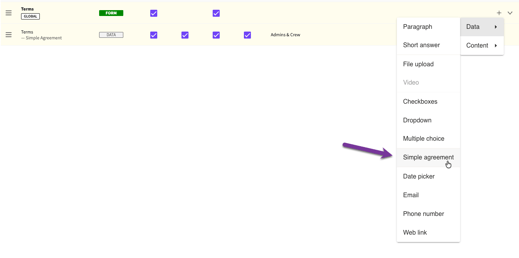
In this quick example let’s add a Simple Agreement.
Click PUBLISH CHANGES.
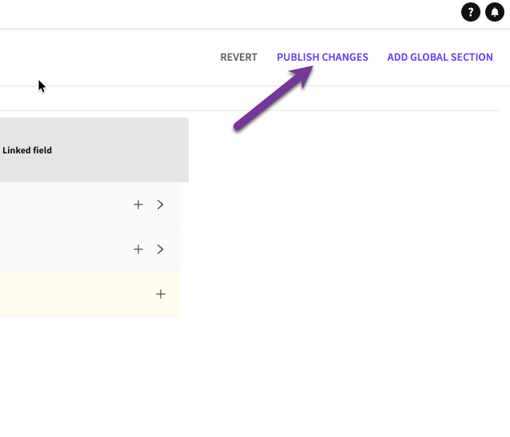
Publishing changes
adding a Global Section to a Profile
Global Sections can be added to a Profile and configured from the Profile Data page.
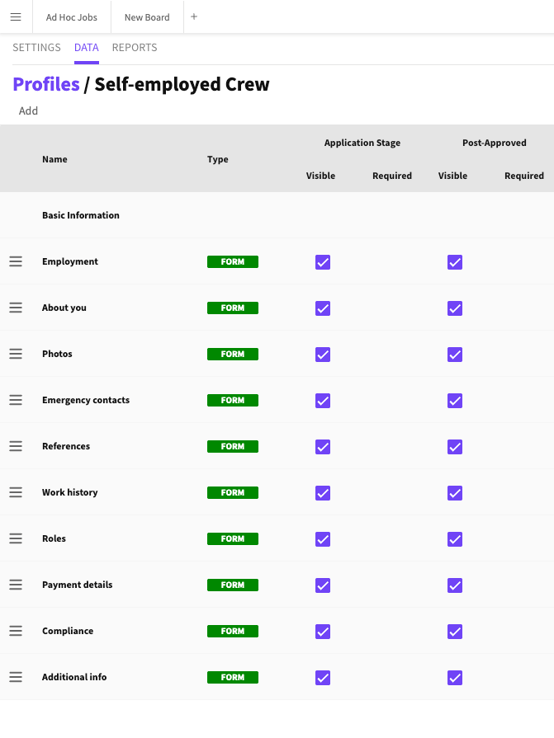
Navigate to the Profile Data page.
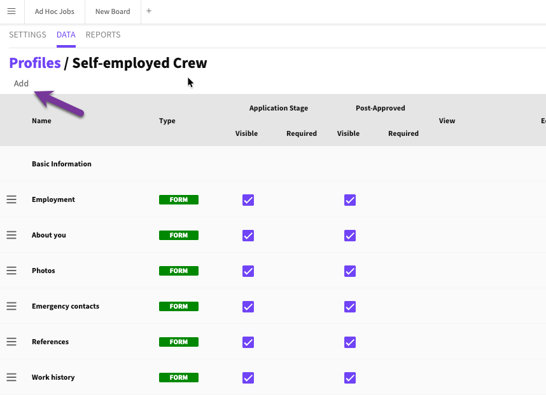
Click ADD.
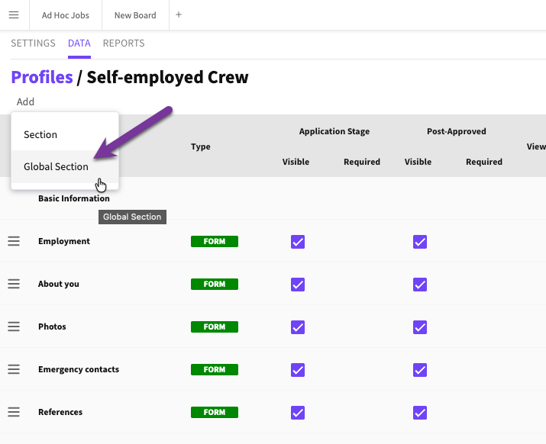
Click GLOBAL SECTION.
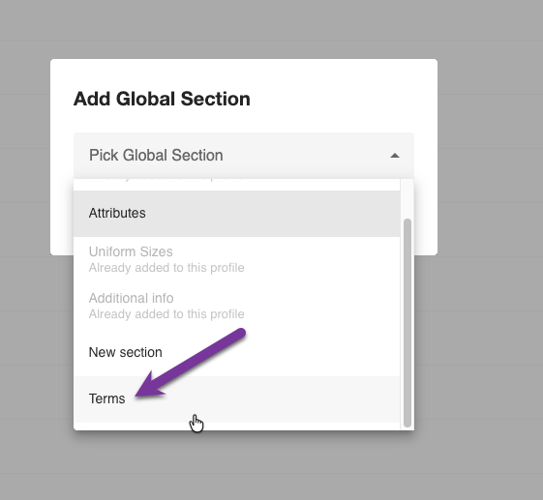
Select an existing Global Section. Let’s select the section we just made, Terms.
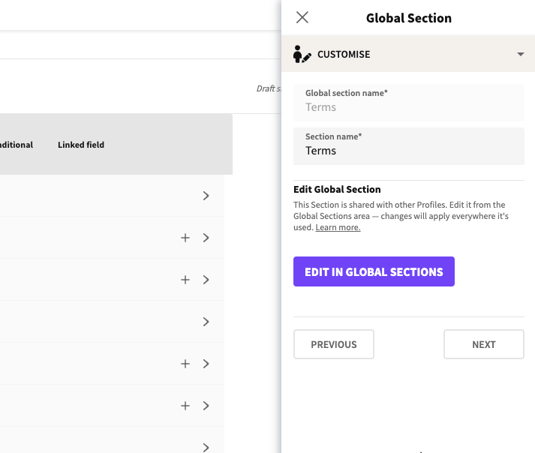
Update the Section settings if required.
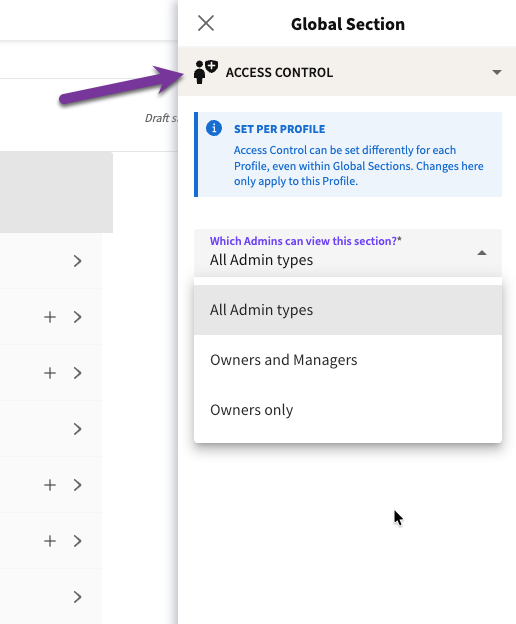
Certain settings can be customised at the Profile level, including Section name and Access Control.
Changes here only apply to this Profile.
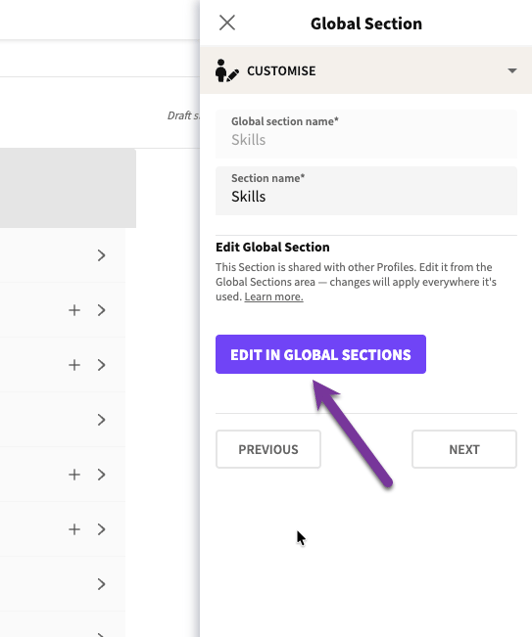
If you need to make wholesale changes, clicking EDIT IN GLOBAL SECTIONS takes you to the Global Sections page
Remember — once published, edits made on the Global Sections page apply everywhere the Section is used.
In this case we will keep everything as is and PUBLISH the changes.
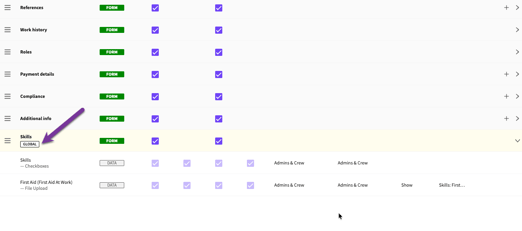
Global Sections are displayed with a GLOBAL label under the Section name.
converting a Profile Section into a Global Section
A Profile Section can be converted into a Global Section from within the Profile.
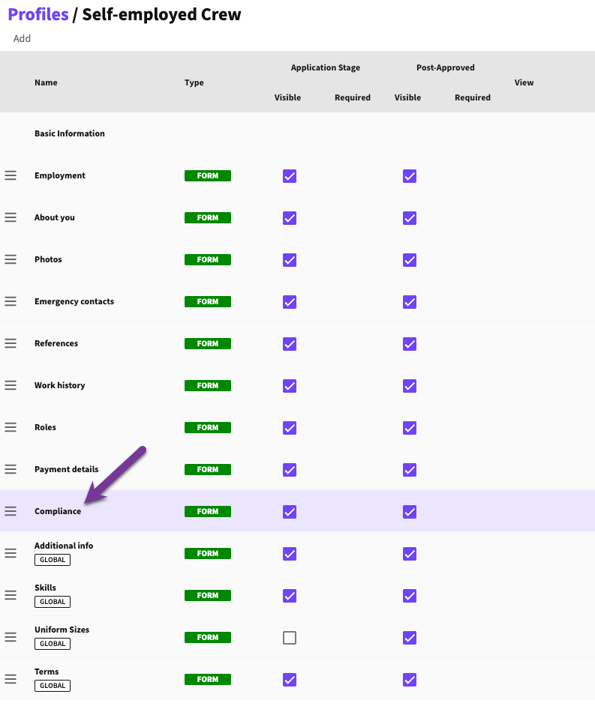
Click the Profile Section that you want to convert. Let’s select the Compliance section.
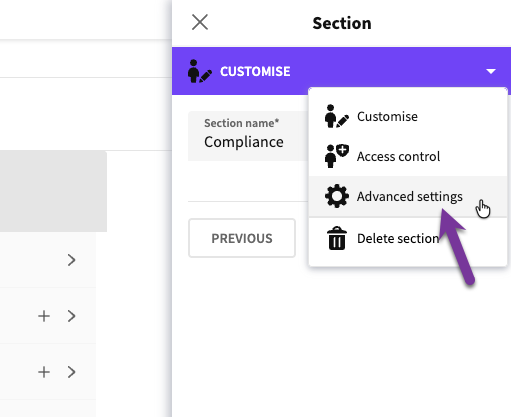
From the CUSTOMISE tab click ADVANCED SETTINGS
Click SAVE AS GLOBAL SECTION
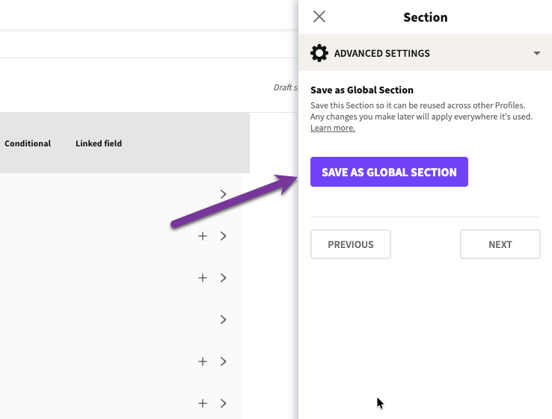
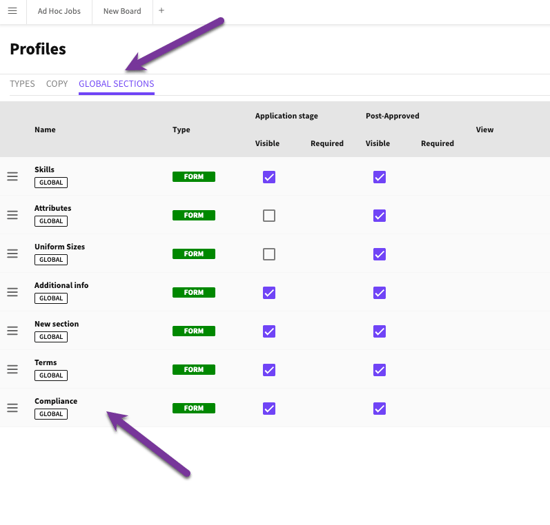
The Section is now a Global Section and is available on the Global Sections page and can be added to multiple Profiles.
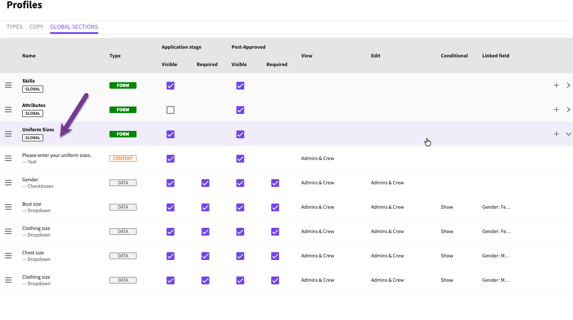
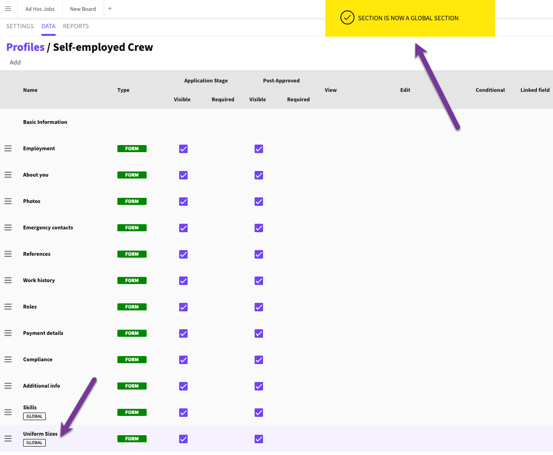
From now on, make any changes to this section from the Global Sections page.
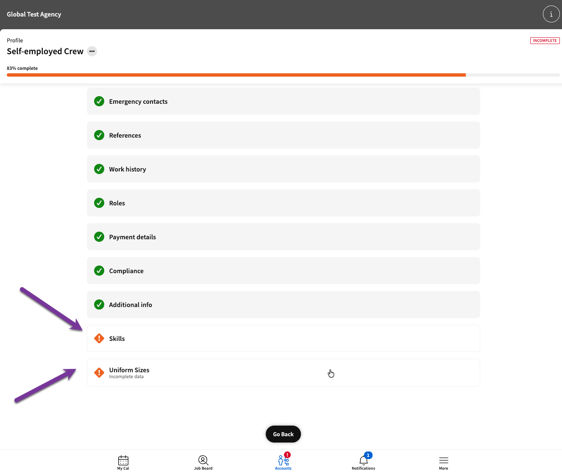
Crew members attached to the Profile will see the new Section in their app. They'll be prompted to complete any new fields.
reverting a Global Section
A Global Section can be reverted to a Profile Section if it is only assigned to one Profile.
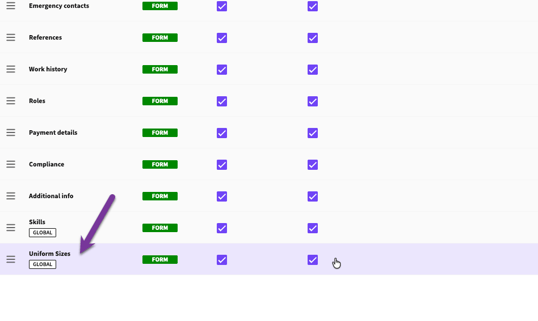
On the Profile Data page click the Section. Let’s choose the Uniform Sizes section.
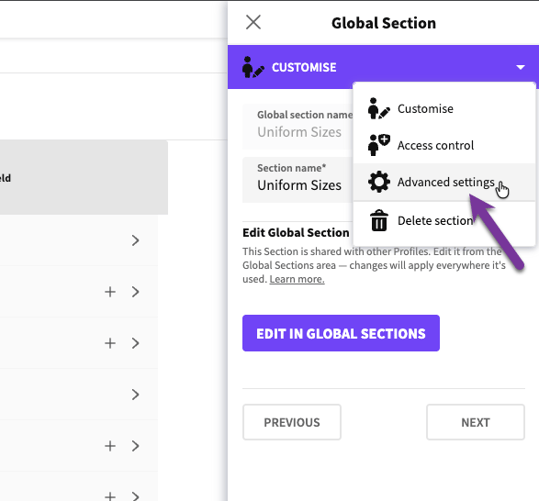
From the CUSTOMISE tab click ADVANCED SETTINGS.
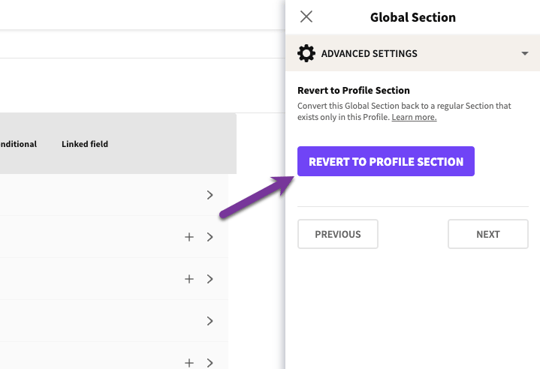
Click REVERT TO PROFILE SECTION.
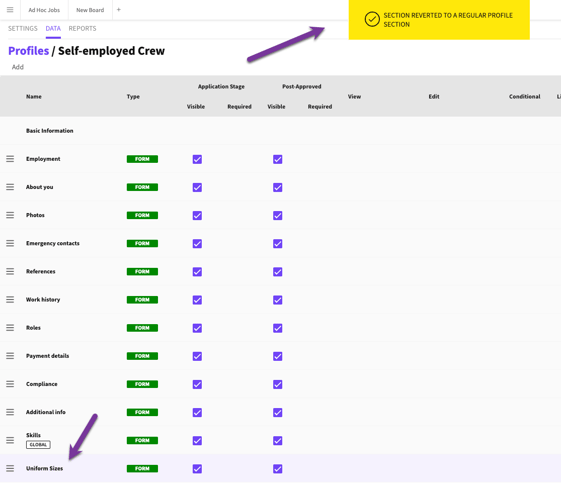
You'll see a confirmation that the Section has been reverted.
Deleting A Global Section
Let's delete the 'Terms' Section from this Profile. Select it, click the CUSTOMISE tab, then DELETE SECTION — and publish the changes. The section will still be available in the Global Sections page.
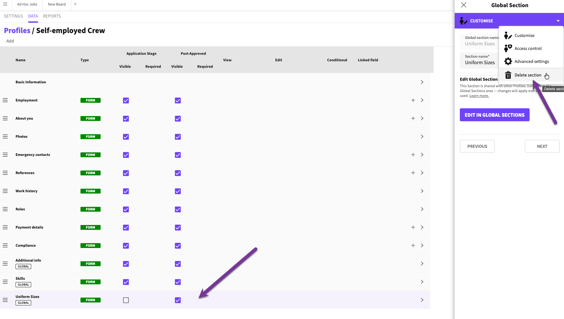
Deleting a Profile Global Section
To delete a Global Section entirely, make sure the section is not added to any Profile, select the section in the Global Sections page, click the CUSTOMISE tab then DELETE SECTION.
Remember to PUBLISH the changes.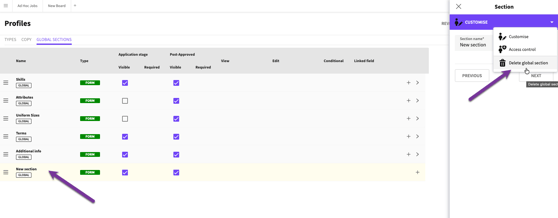
Deleting a Global Section entirely
Made a mistake? Before you publish, click REVERT — next to PUBLISH CHANGES — then click YES to confirm, and the Section won't be deleted.
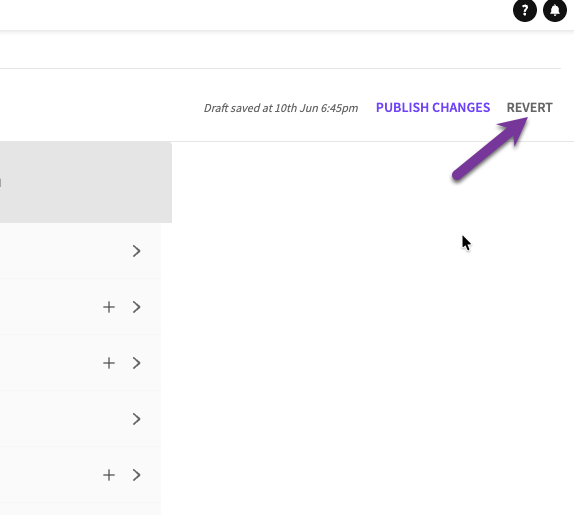
Revert button
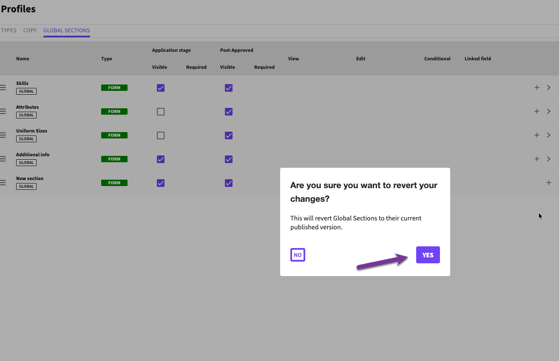
Click YES to confirm