
Data Validation
Data Validation settings can only be applied at the Sub-section level. A Sub-section sits inside a Section and can only be added one level deep.
When you enable VALIDATE SUB-SECTION DATA, Admins need to manually check each Sub-section's data for accuracy.
To validate expiry dates or references, choose either TRACK EXPIRY DATE or COLLECT REFERENCE. Only one option can be selected at a time.
How to Add a Sub-section
First, add a Sub-section for the data you want to validate.
Go to the Profile Data page and click the + icon on the Profile Data or Global Data section, then click SUB-SECTION.
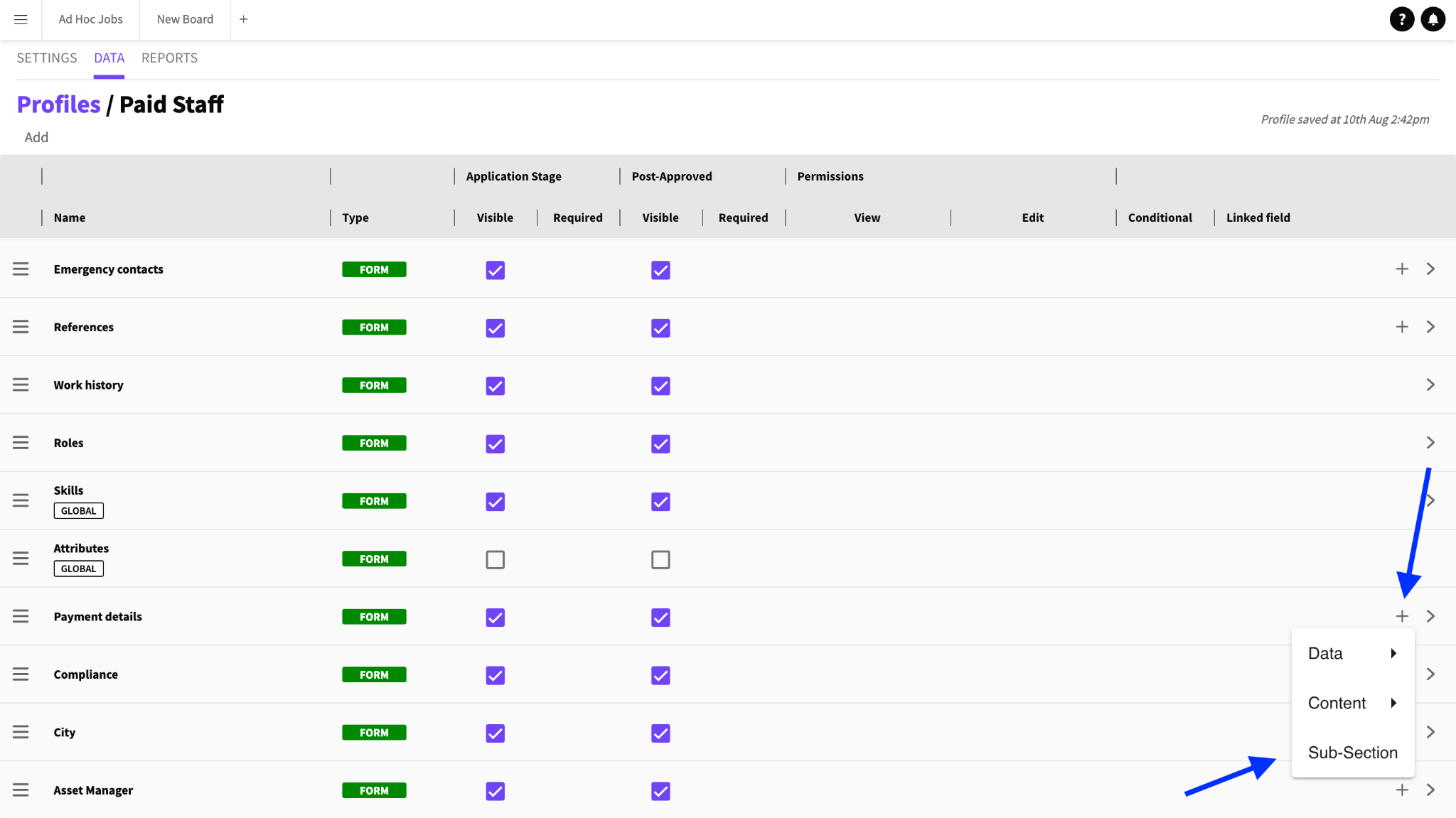
Profile Data Sub-section
Customise the Sub-section.
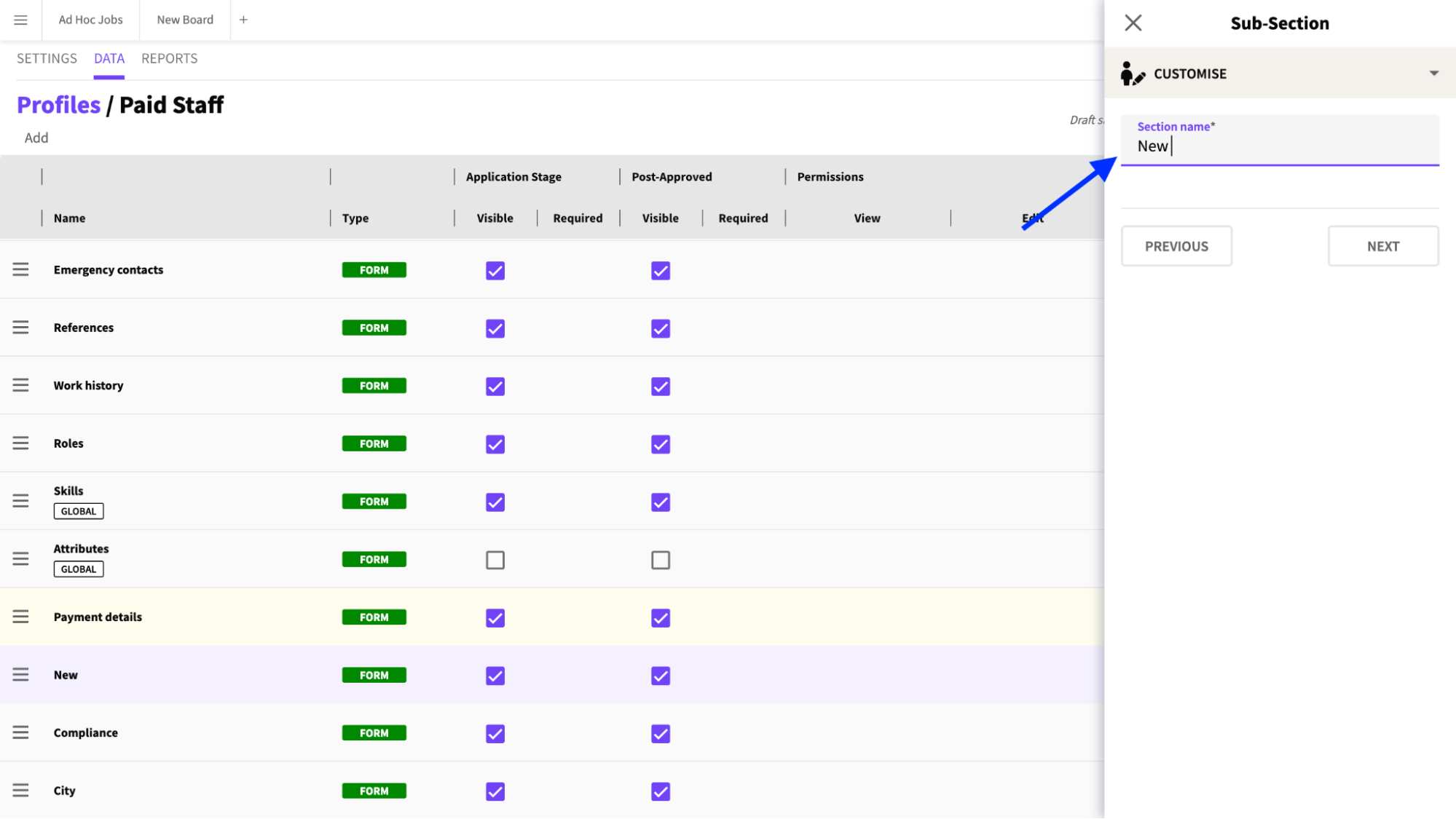
Customise New Sub-section
Click NEXT then FINISH.
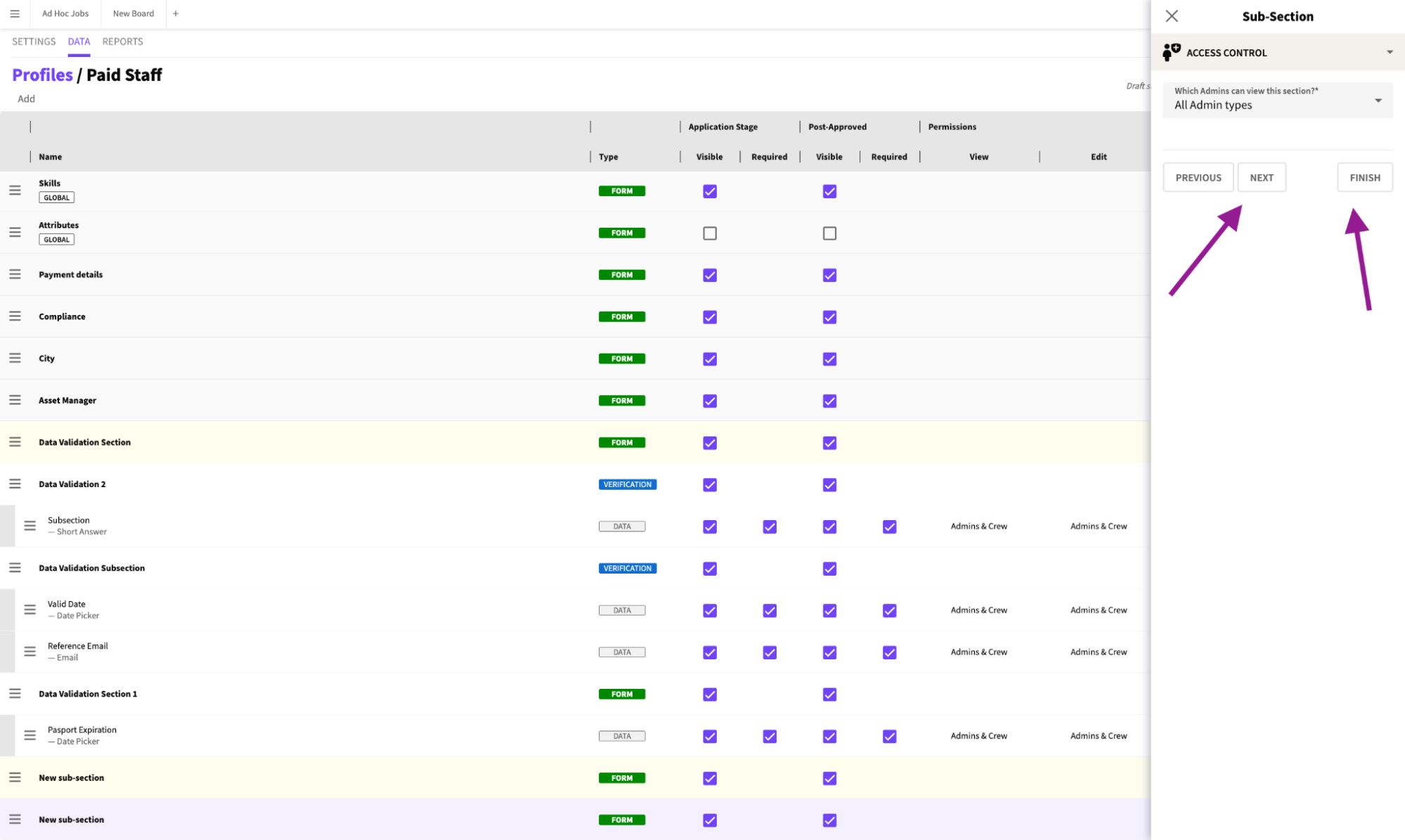
Click Next then Finish
The Sub-section is now visible to Crew in the Crew App.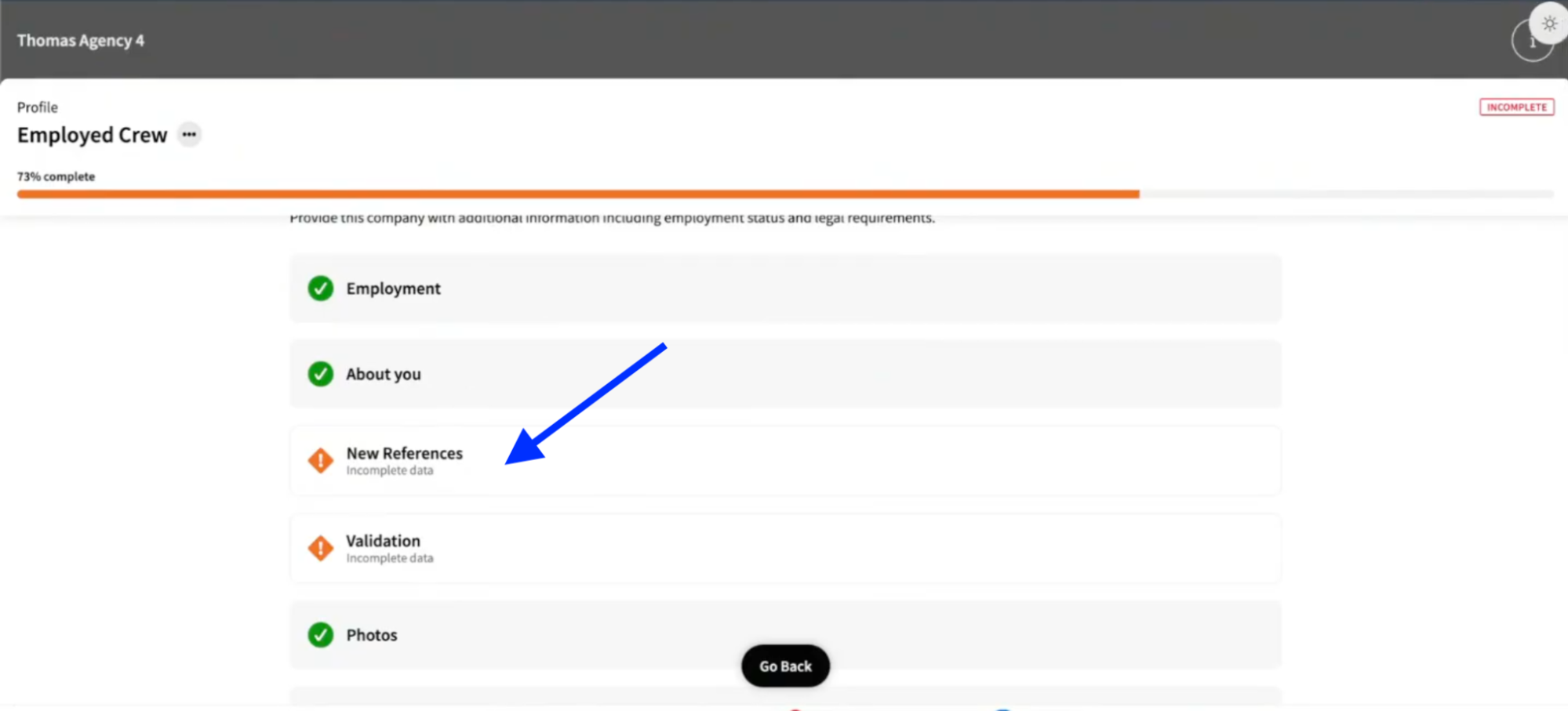 Sub-section Visibility in Crew App
Data Validation Setup
Click the Sub-section you want to configure and open the dropdown menu.
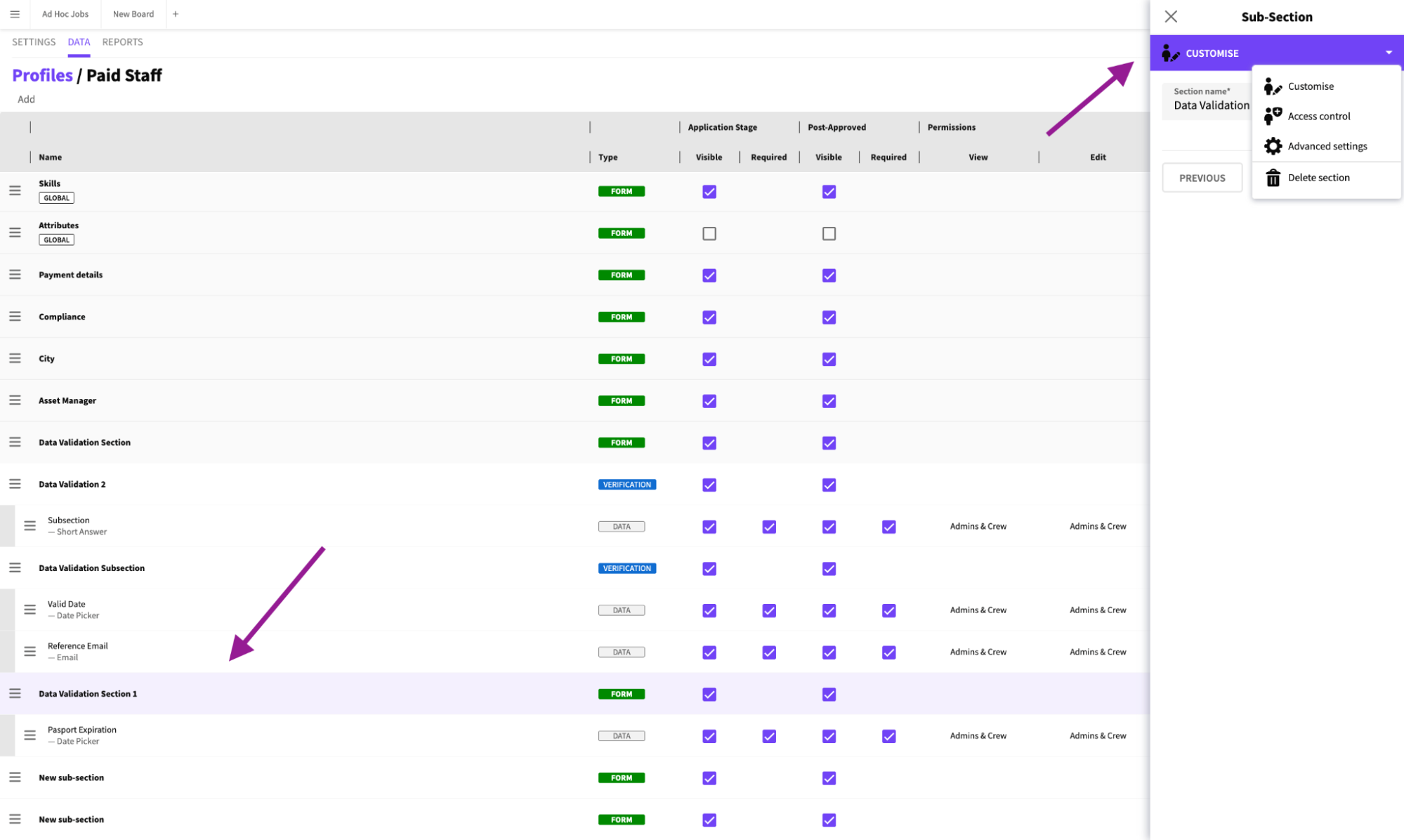
Select Sub-section to Configure
Click ADVANCED SETTINGS and enable VALIDATE SUBSECTION DATA.
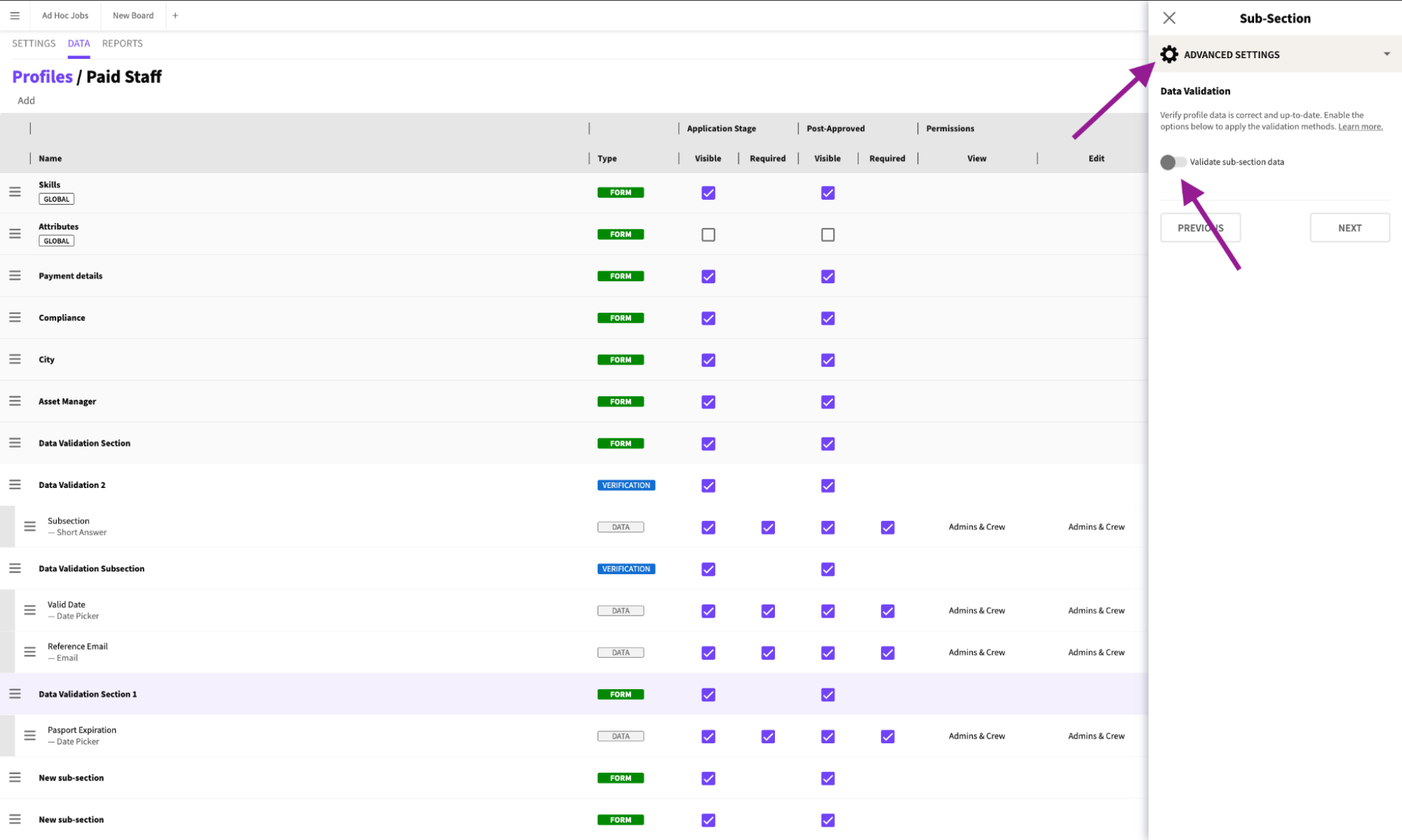
Validate Sub-section Data
Select the toggle for either TRACK EXPIRY DATE or COLLECT REFERENCE.
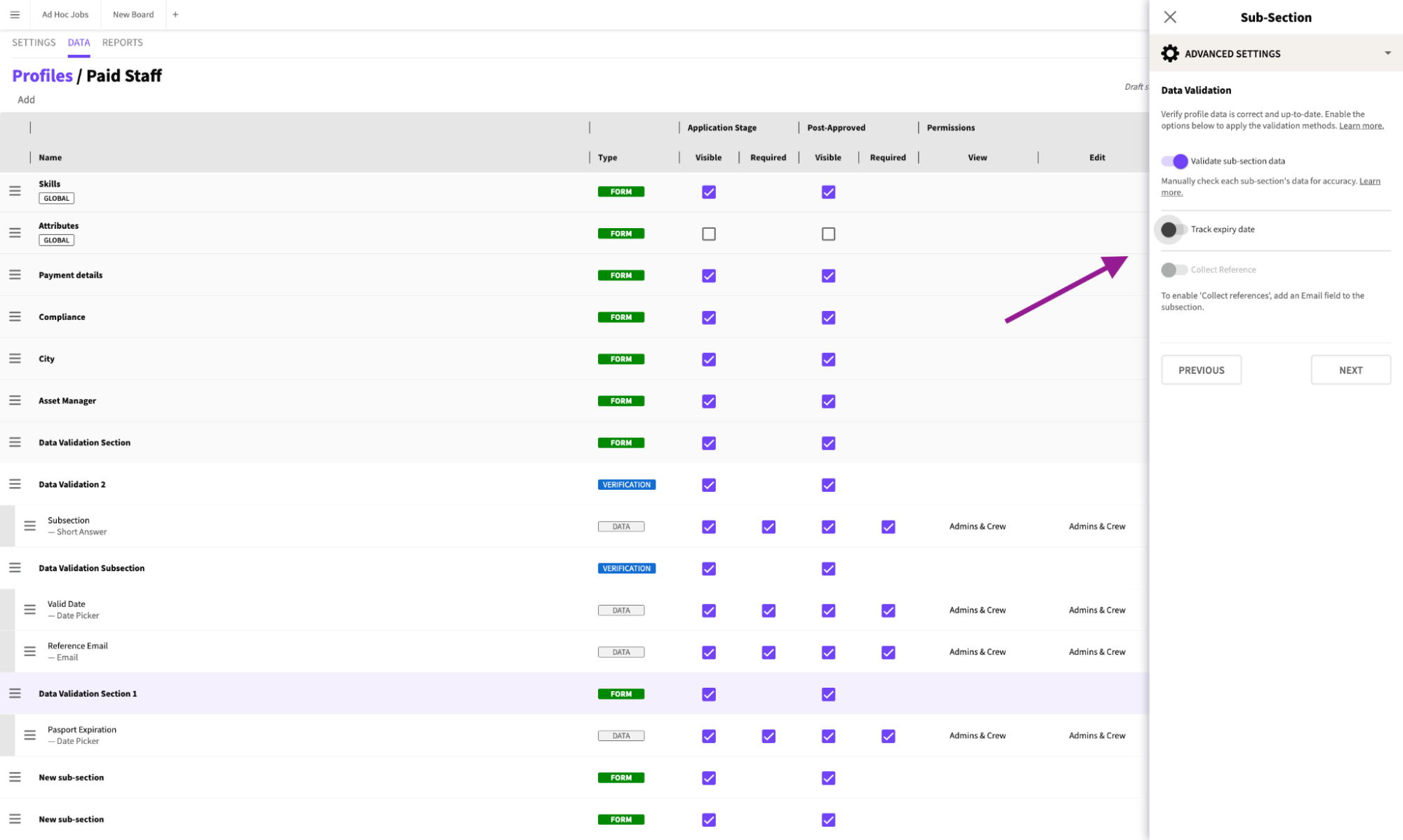
Toggle on Validation Preference
Click NEXT then FINISH
Click Next and Finish
Click PUBLISH CHANGES.
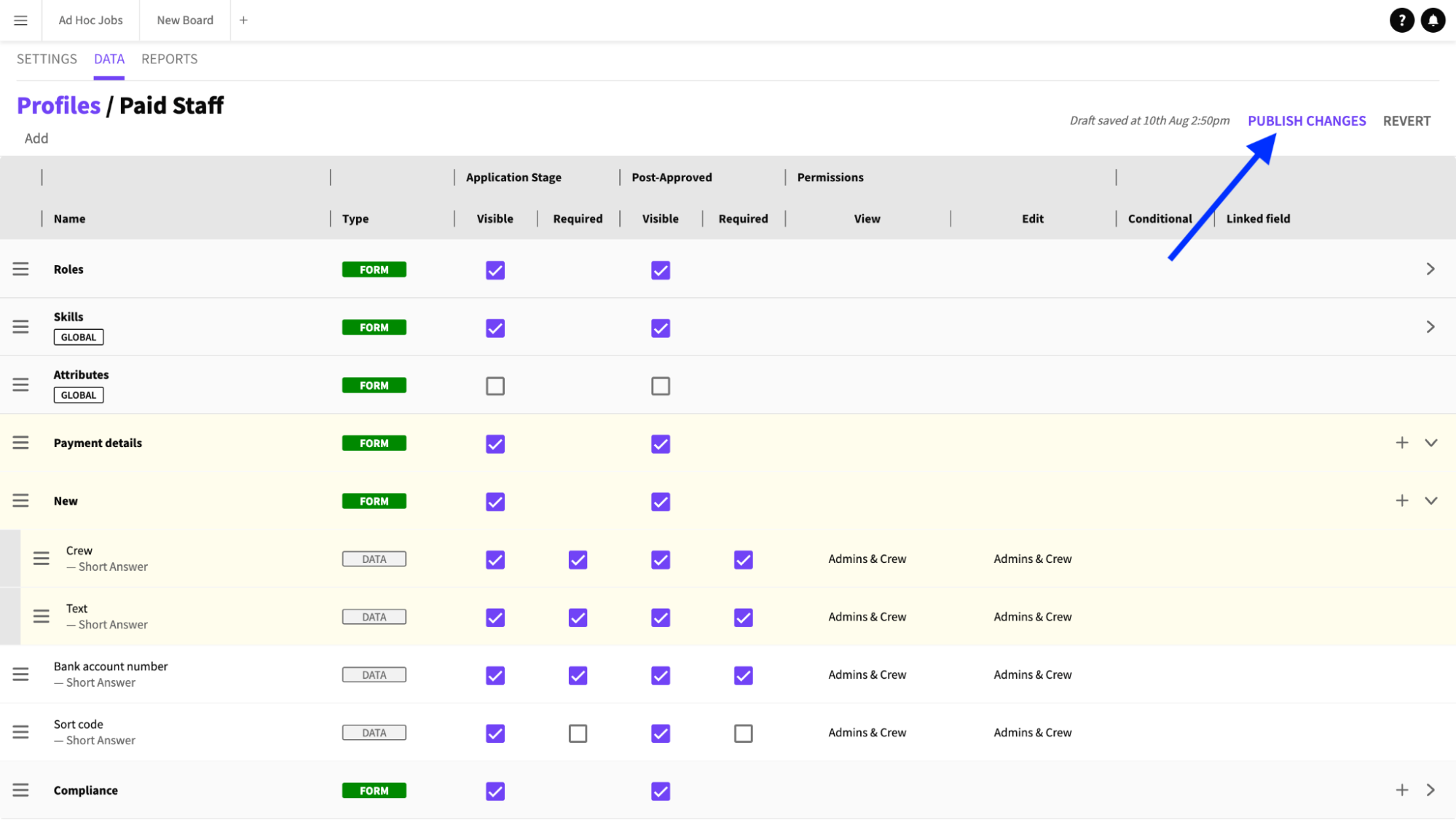
Publish Changes