---
title: Crew Profiles
description: How to edit Crew data.
---
[Skip to content](https://help.liveforce.co/en/admin/crew-profiles#main-content)
[](https://liveforce.co/)
Open main navigation
Close main navigation
- [Log In](https://admin.liveforce.co/)
[Log In](https://admin.liveforce.co/)
Admin Knowledge Base
- There are no suggestions because the search field is empty.
1. [Admin App](https://help.liveforce.co/en/admin?hsLang=en)
2. [Workforce Management](https://help.liveforce.co/en/admin/workforce-management?hsLang=en)
3. [Profiles](https://help.liveforce.co/en/admin/workforce-management?hsLang=en#profiles)
March 11, 2025
# Crew Profiles
## How to edit Crew data.
### Editing Data
- Data that can be edited has a PENCIL icon next to the section heading
- Not all data is editable
- Click the PENCIL icon to open up editing options
- Make sure you click SAVE when making changes
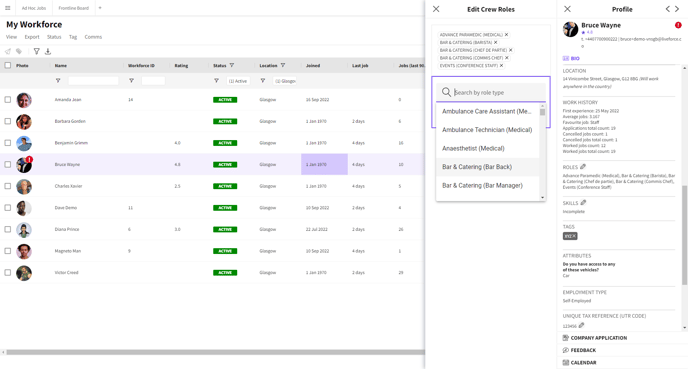
*Editing Role Types*
#### Feedback
- Any Crew feedback is stored in this tab including:
- Feedback left by Admins after a Job has been completed
- Cancellations (if this feature is turned on)
- 'Did not show' tracking
- Notes left by Admins
- Details of the Admin who left the feedback or completed the action will be displayed
Admins with OWNER or MANAGER permissions can edit or delete Crew Job feedback. This can be done from the Feedback tab in the Crew profile on the Workforce page or from the Feedback tab in the Approvals page.
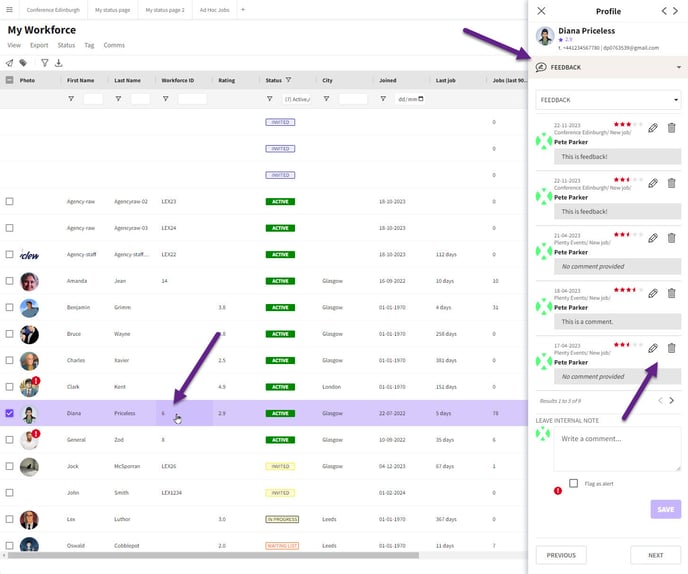
*Delete and edit icons Crew profile Workforce page*
*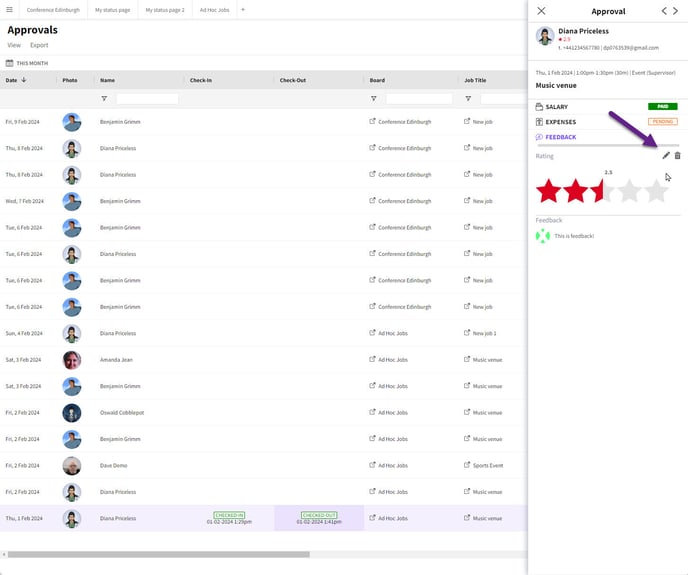*
*Delete and edit icons Approvals page*
*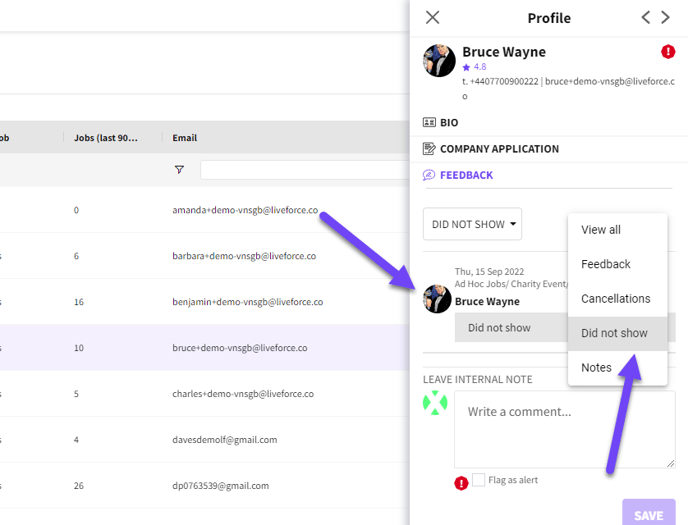*
*Feedback*
### Leave A Note
- Admins can leave notes on each Crew member
- If FLAG AS AN ALERT is checked then that Crew's profile will also show a warning icon
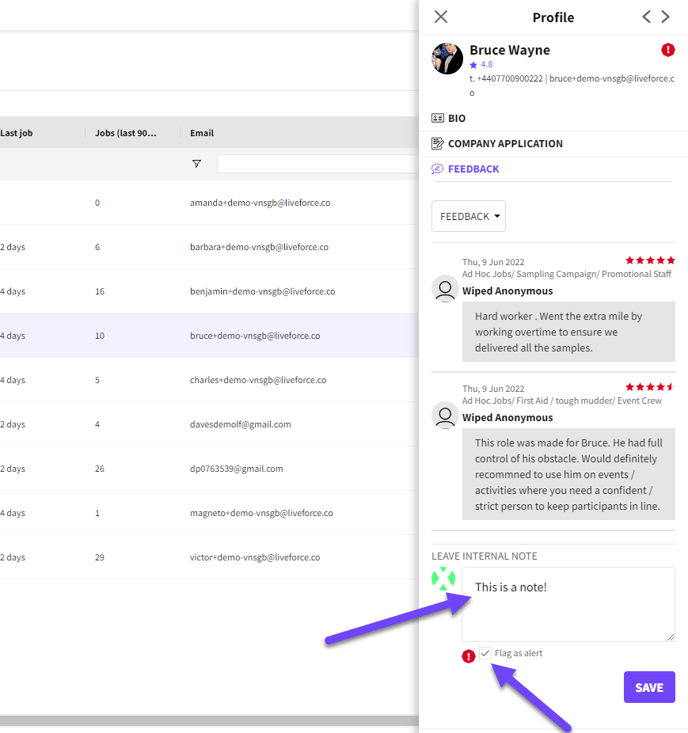
*Flag notes as an alert*
#### Calendar
- This tab shows all the Jobs that Crew have worked on in the past and anything in the future
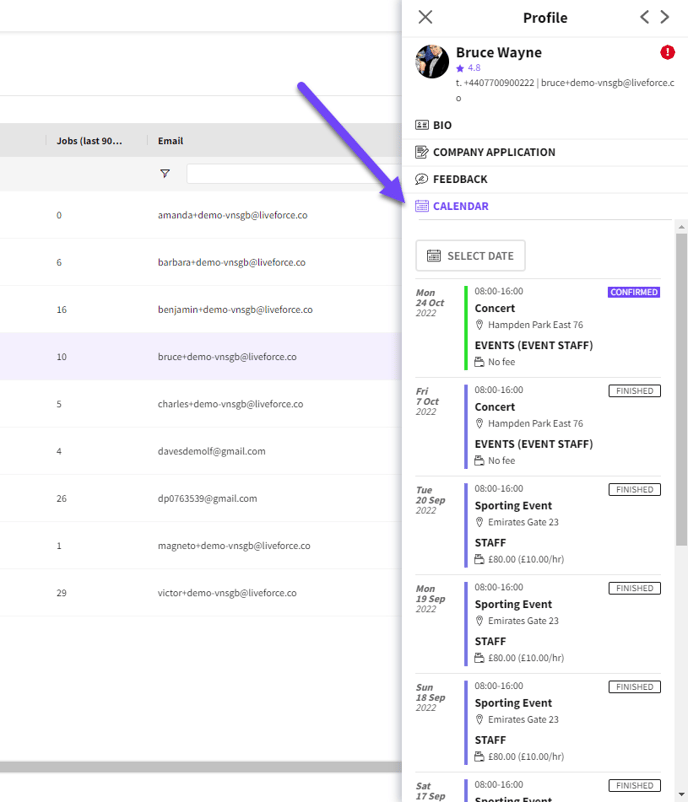
*The Calendar tab shows all jobs that Crew has completed*
### Calendar Filter
- Use the date picker to jump to a particular date in the past (or future) to look at Jobs
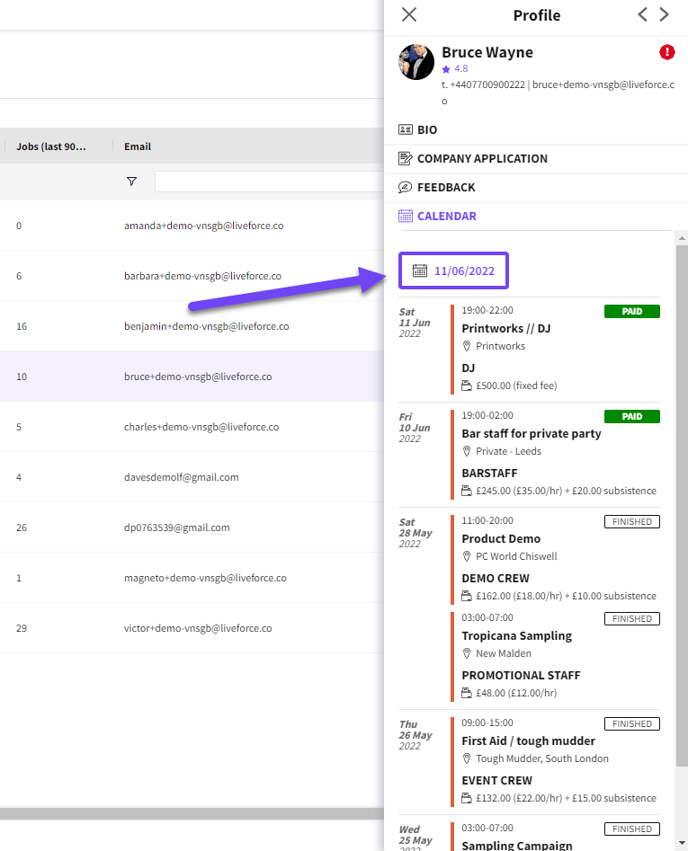
*You can filter down to a particular date*
#### Photos
- The photo section can be expanded under the Bio tab by clicking the EXPAND icon
- Admins can upload new images and delete existing ones
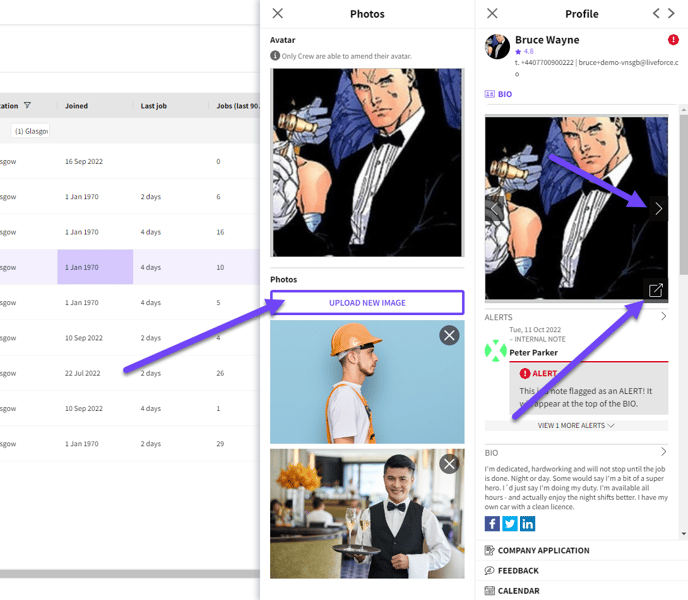
*Crew photos*
### Change Avatar
The Crew avatar can be changed across the Admin platform by selecting the box below the image. Once the pages are refreshed the avatar changes.
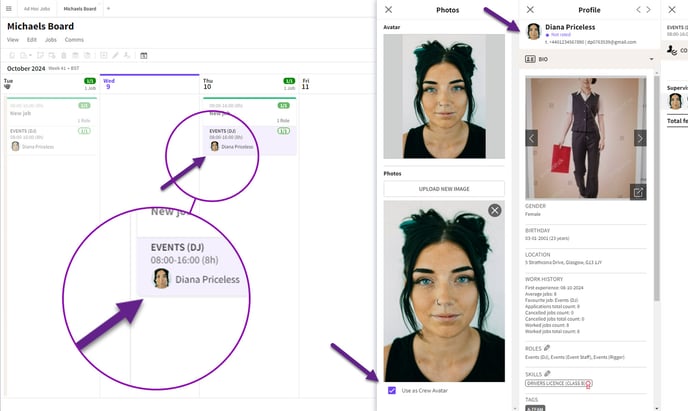
*Avatar changed*
- [Training Academy](https://help.liveforce.co/en/admin/training-academy?hsLang=en)
- [The Basics](https://help.liveforce.co/en/admin/the-basics?hsLang=en)
- [Boards](https://help.liveforce.co/en/admin/boards?hsLang=en#main-content)
- [Timezones](https://help.liveforce.co/en/admin/boards?hsLang=en#timezones)
- [Job Scheduling](https://help.liveforce.co/en/admin/job-scheduling?hsLang=en#main-content)
- [Multiple Day Jobs](https://help.liveforce.co/en/admin/job-scheduling?hsLang=en#multiple-day-jobs)
- [Basics](https://help.liveforce.co/en/admin/job-scheduling?hsLang=en#basics)
- [Managing](https://help.liveforce.co/en/admin/job-scheduling?hsLang=en#managing)
- [Job Fulfilment](https://help.liveforce.co/en/admin/job-fulfilment?hsLang=en#main-content)
- [Methods](https://help.liveforce.co/en/admin/job-fulfilment?hsLang=en#methods)
- [Multi Day Jobs (1)](https://help.liveforce.co/en/admin/job-fulfilment?hsLang=en#multi-day-jobs-1)
- [Portfolio Sharing](https://help.liveforce.co/en/admin/job-fulfilment?hsLang=en#portfolio-sharing)
- [Basics](https://help.liveforce.co/en/admin/job-fulfilment?hsLang=en#basics)
- [Workforce Management](https://help.liveforce.co/en/admin/workforce-management?hsLang=en#main-content)
- [Managing](https://help.liveforce.co/en/admin/workforce-management?hsLang=en#managing)
- [Profiles](https://help.liveforce.co/en/admin/workforce-management?hsLang=en#profiles)
- [Data Validation](https://help.liveforce.co/en/admin/workforce-management?hsLang=en#data-validation)
- [Tags](https://help.liveforce.co/en/admin/workforce-management?hsLang=en#tags)
- [Status Page](https://help.liveforce.co/en/admin/status-page?hsLang=en)
- [Communications](https://help.liveforce.co/en/admin/communications?hsLang=en)
- [Tables](https://help.liveforce.co/en/admin/tables?hsLang=en)
- [Platform Set Up](https://help.liveforce.co/en/admin/platform-set-up?hsLang=en#main-content)
- [General](https://help.liveforce.co/en/admin/platform-set-up?hsLang=en#general)
- [Workforce Configuration](https://help.liveforce.co/en/admin/platform-set-up?hsLang=en#workforce-configuration)
- [Profiles](https://help.liveforce.co/en/admin/profiles?hsLang=en#main-content)
- [Settings](https://help.liveforce.co/en/admin/profiles?hsLang=en#settings)
- [Reports](https://help.liveforce.co/en/admin/profiles?hsLang=en#reports)
- [Data](https://help.liveforce.co/en/admin/profiles?hsLang=en#data)
- [Timesheets and Payments](https://help.liveforce.co/en/admin/timesheets-and-payments?hsLang=en)
- [Invoicing](https://help.liveforce.co/en/admin/invoicing?hsLang=en#main-content)
- [Payment Reports](https://help.liveforce.co/en/admin/invoicing?hsLang=en#payment-reports)
- [Getting Started](https://help.liveforce.co/en/admin/invoicing?hsLang=en#getting-started)
- [Approval Process](https://help.liveforce.co/en/admin/invoicing?hsLang=en#approval-process)
- [Invoicing Section](https://help.liveforce.co/en/admin/invoicing?hsLang=en#invoicing-section)
- [Invoicing Submission Types](https://help.liveforce.co/en/admin/invoicing?hsLang=en#invoicing-submission-types)
- [Contact Support](https://help.liveforce.co/en/admin/contact-support?hsLang=en)
- [FAQs](https://help.liveforce.co/en/admin/faqs?hsLang=en)
[](https://liveforce.co/)
Admin App | Knowledge Base