
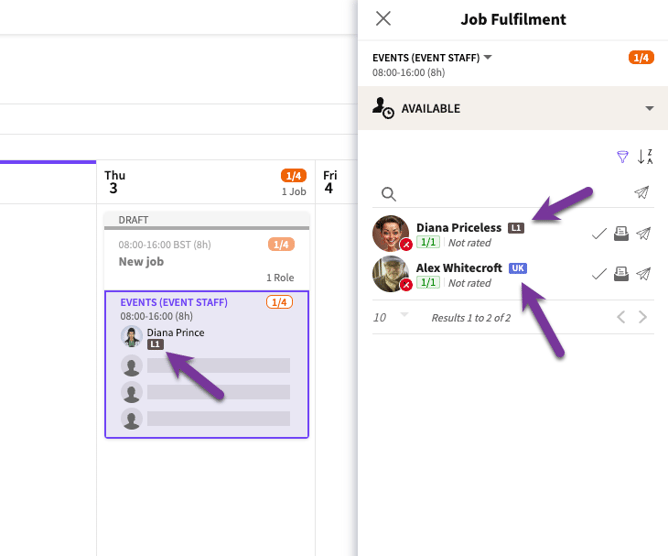
Badges give you a short, prominent way to show a Crew member's level or category — things like "L1", "L2", "UK" or "EU" — right where you're booking and managing Crew. They're separate from Tags: a Crew member can have several Tags, but only ever one Badge at a time.
Badges
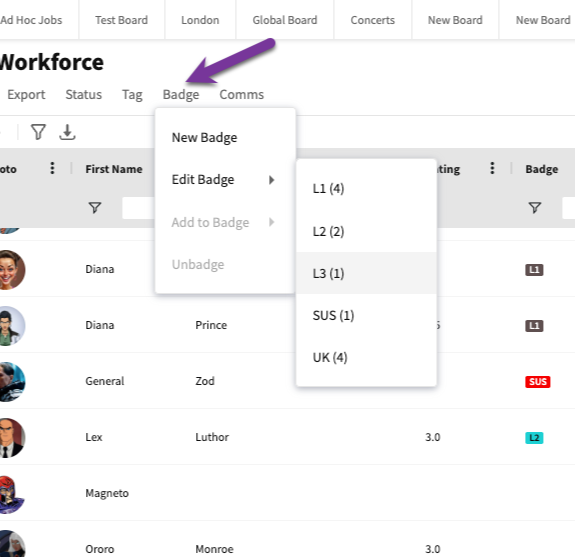
Badges are managed through their own dedicated menu. From the Workforce page, click Badge, then Edit Badge.
Badge menu
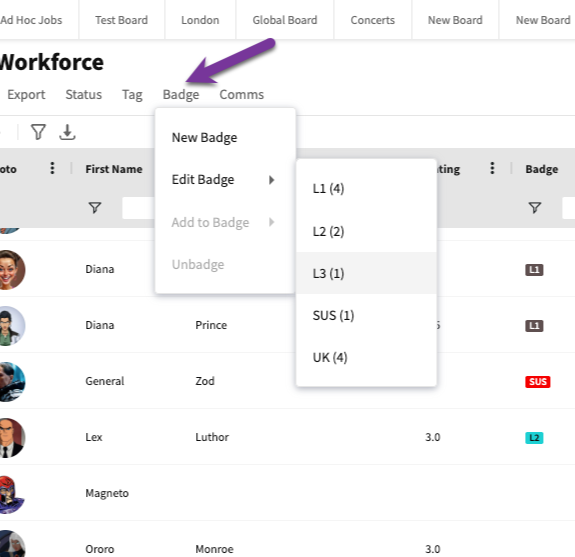
This opens the list of Badges already created for your Company. Click any Badge in the list to view or edit its details.
Badges list
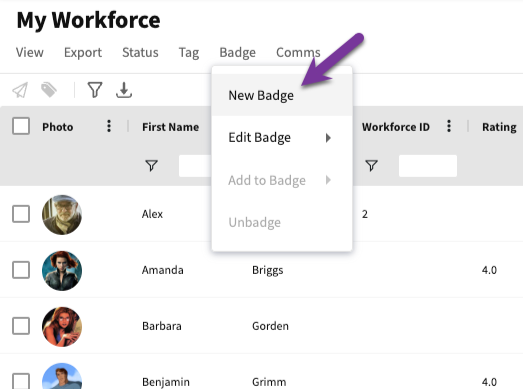
To create a New Badge, click New Badge.
New Badge
Enter a Badge Label and select a colour, then click DONE. Badges can be a maximum of 5 characters.
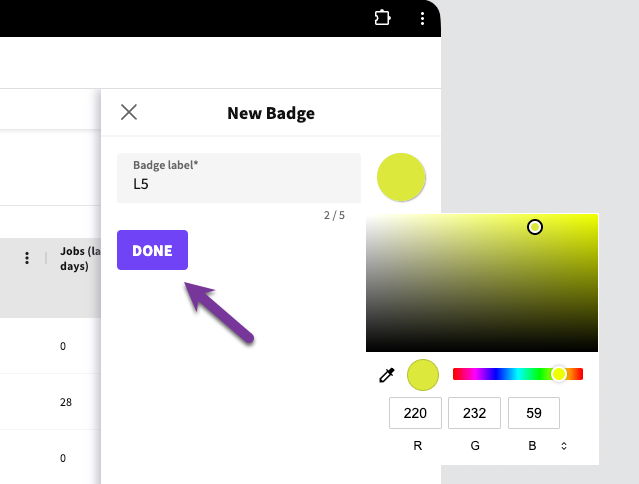
Label and colour
To edit an existing Badge, click Badge > Edit Badge, click it from the list, update the Label or colour, and click DONE. Refresh the Workforce page to see the changes.
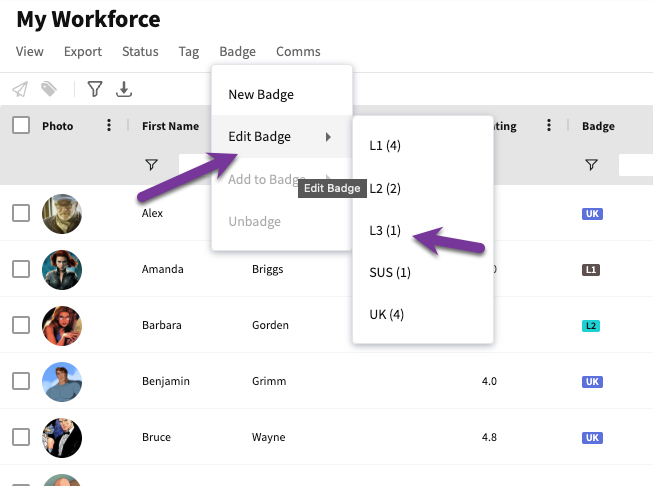
Editing a Badge
To delete a Badge, open it and click DELETE THIS BADGE at the bottom of the pop-in.
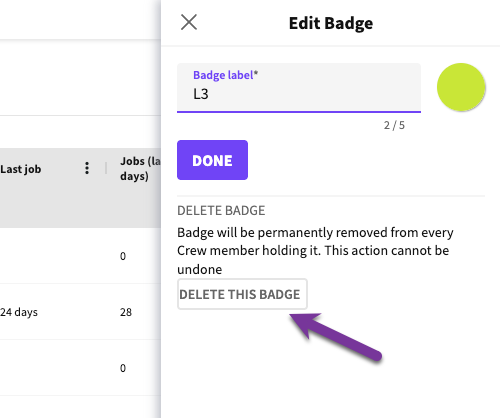
Deleting a Badge
To assign a Badge to a Crew member, open their Crew Profile. You'll see a separate Badge field below the existing Tags field.
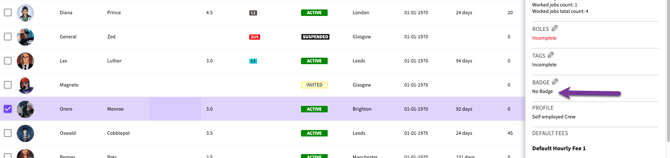
Assigning a Badge
Click the edit icon to see all the Badges available. A search field helps you find the right one quickly as you type.
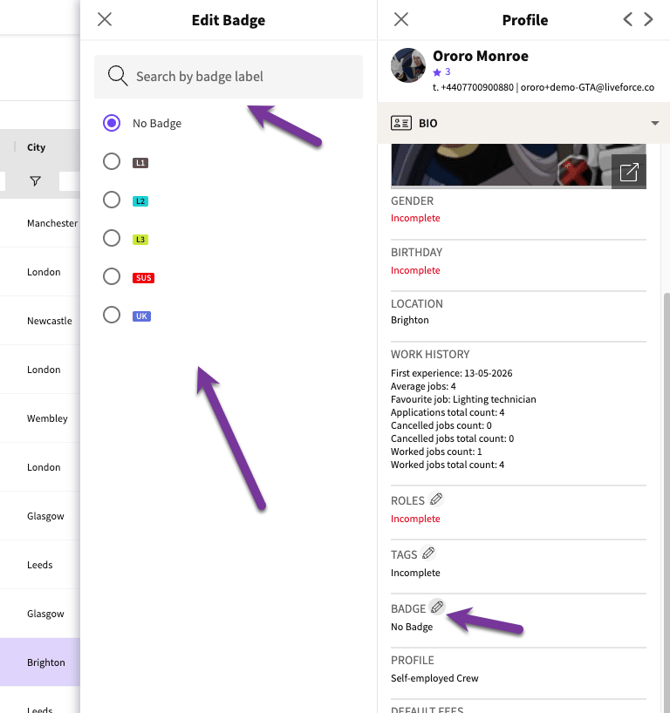
Badges available
Select a Badge to assign it. A Crew member can have no more than one Badge at a time, so choosing a new Badge automatically replaces whichever one they had before.
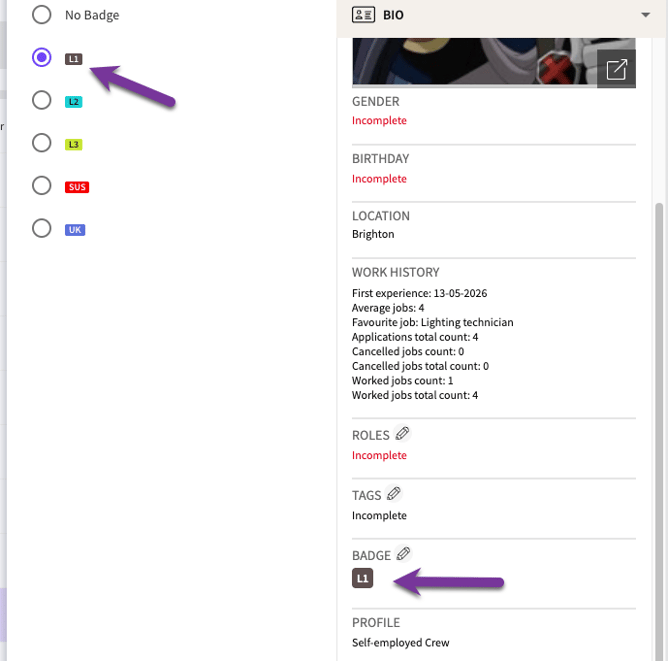
Assigned Badge
Once assigned, the Badge appears prominently in the Crew profile header, underneath the Crew member's name. If no Badge is assigned, nothing is shown there.
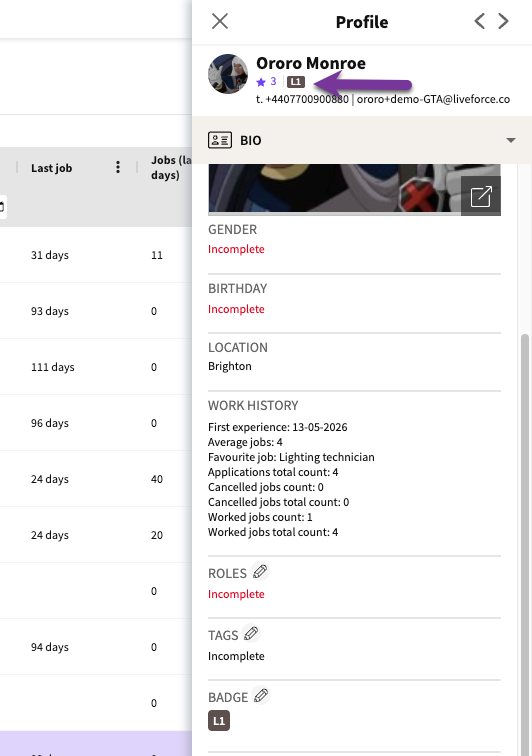
Badge in Profile
Wherever that Crew member appears on a Job — Role cards, and other booking and fulfilment views — their Badge is shown next to their name, on both draft and published Jobs. If their Badge is later changed or removed, it updates everywhere they appear.
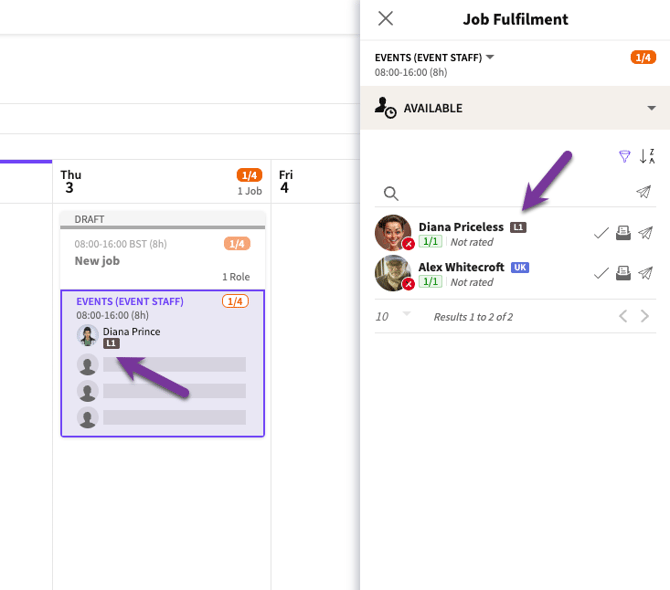
Badge visibility
On the Workforce table, a dedicated Badge column shows each Crew member's assigned Badge, so you can view, search, filter and sort by it like any other column.
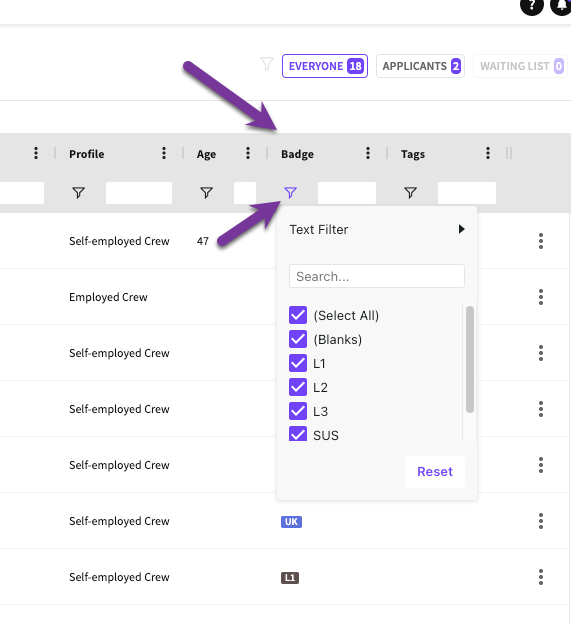
Badge column
You can assign Badges in bulk to several Crew members at once. Select the Crew members on the Workforce table, then click Badge, then Add to Badge.
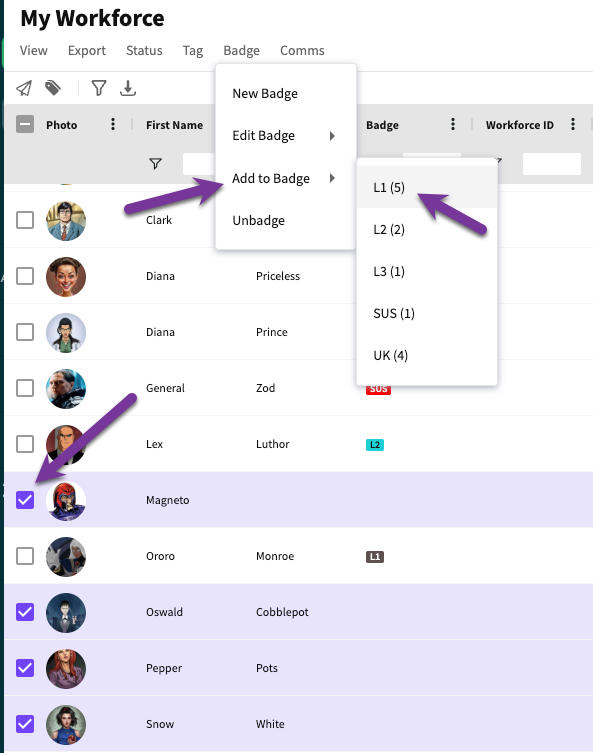
Bulk assign
Select the Badge you want to apply.
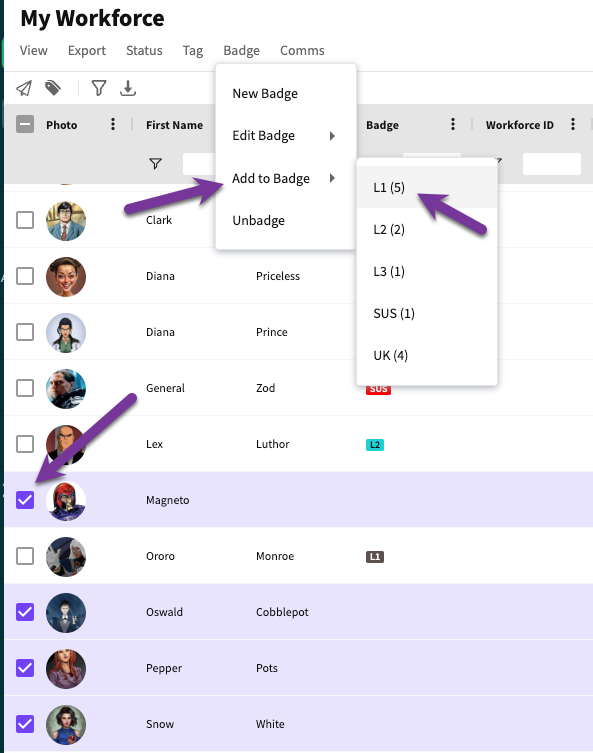
Selecting Badge to assign
Before the Badge is assigned, a confirmation modal appears. Click YES to continue.
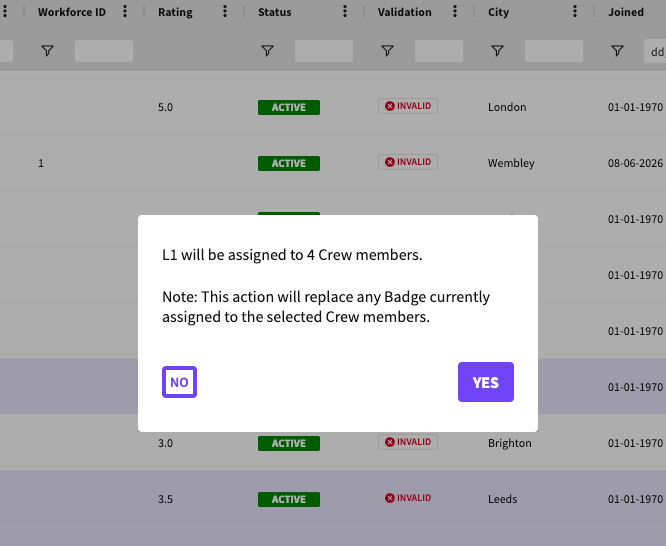
Warning modal
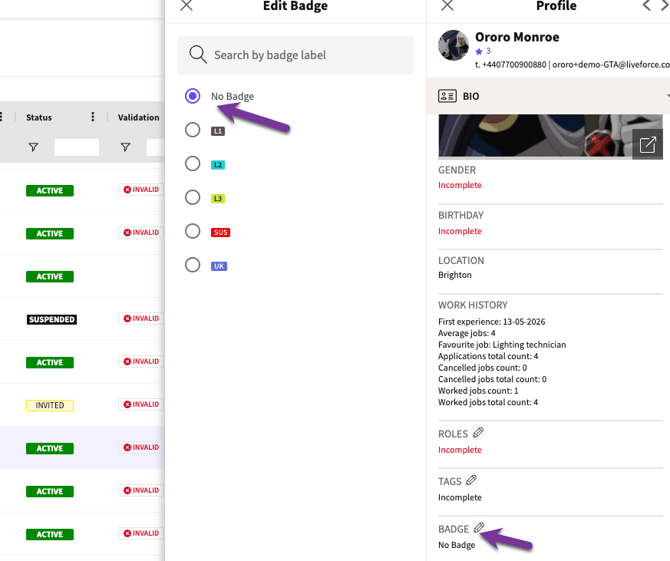
To remove a Badge from one Crew member, open their profile, open the Badge field, and click No Badge. You don't need to assign a replacement
.
Removing a Badge from single Crew
To remove Badges from multiple Crew members at once, select them on the Workforce table, then click Badge, then Unbadge.
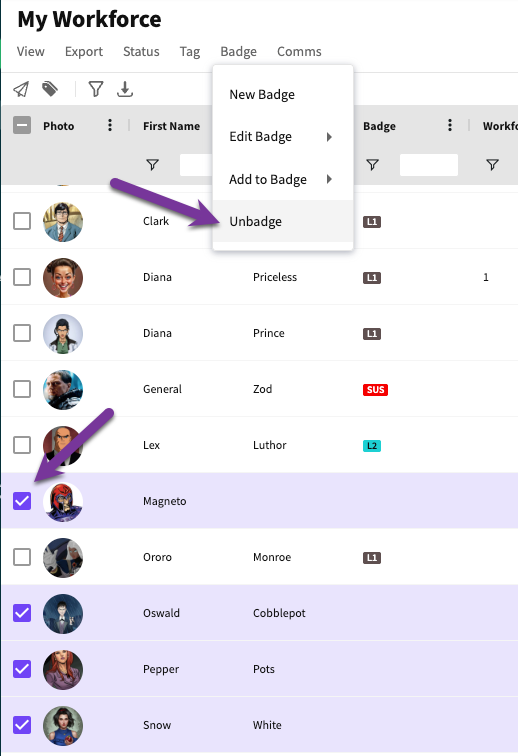
Removing badges from multiple Crew