
Setting Up
Before you can turn on Collect Reference, the Sub-section needs an existing Email field. The toggle stays greyed out until you add one.
Go to the Profile page and click on the relevant PROFILE DATA.
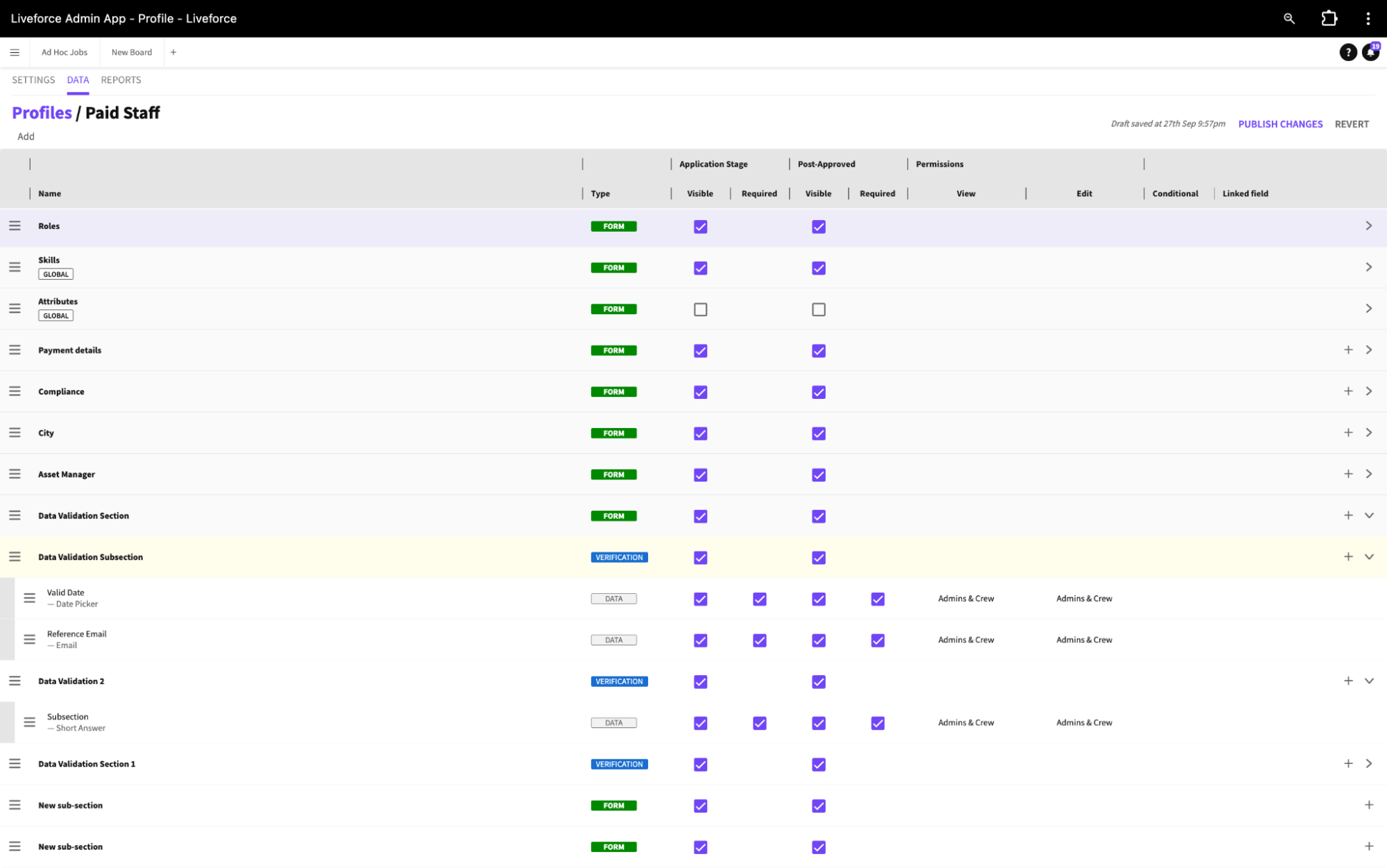 Profile Data
Click the COLLECT REFERENCE toggle to turn it on.
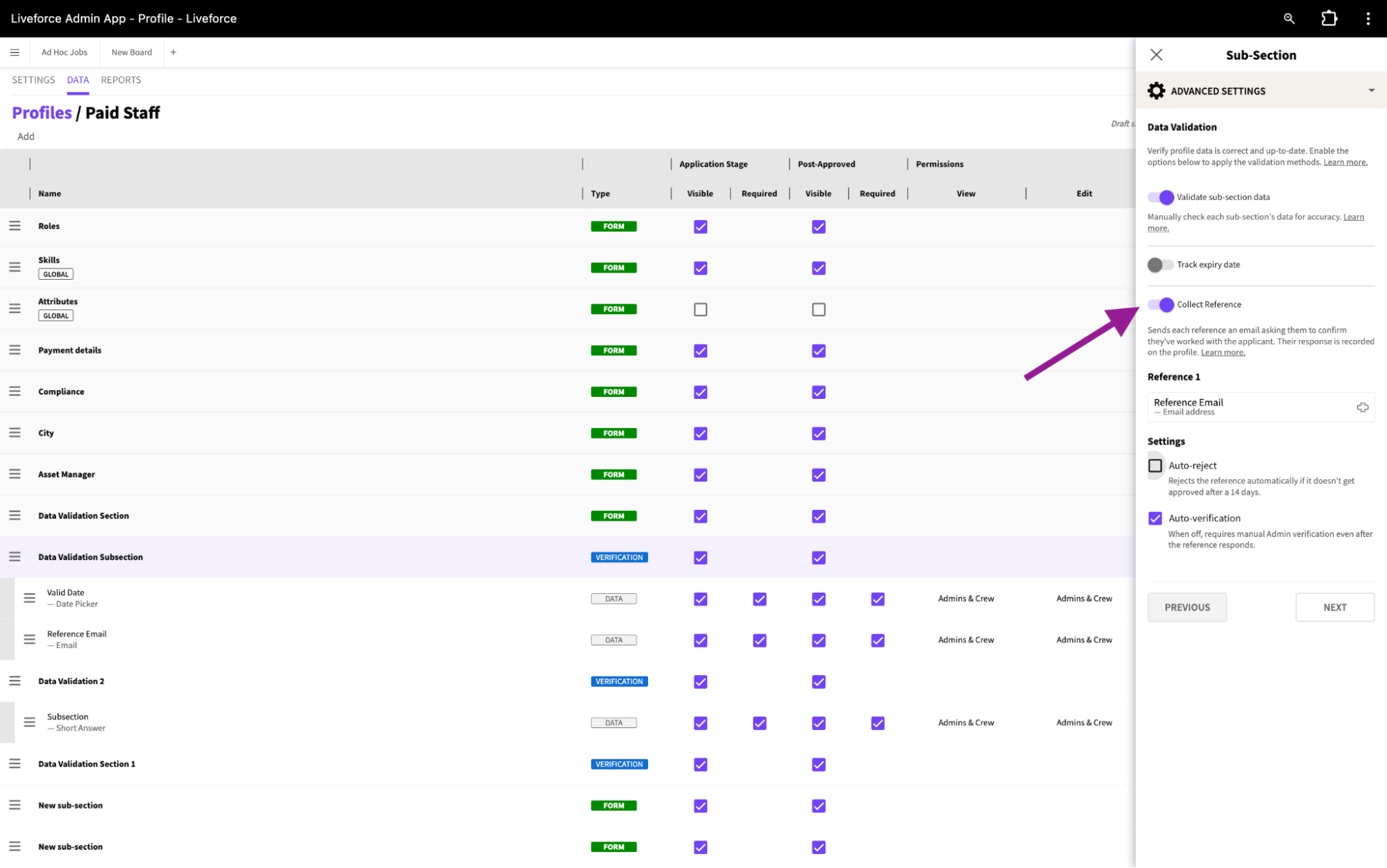 Collect Reference
Enable AUTO REJECT if you want a reference automatically rejected when there's no response. The reference is rejected if the recipient doesn't respond within two weeks.
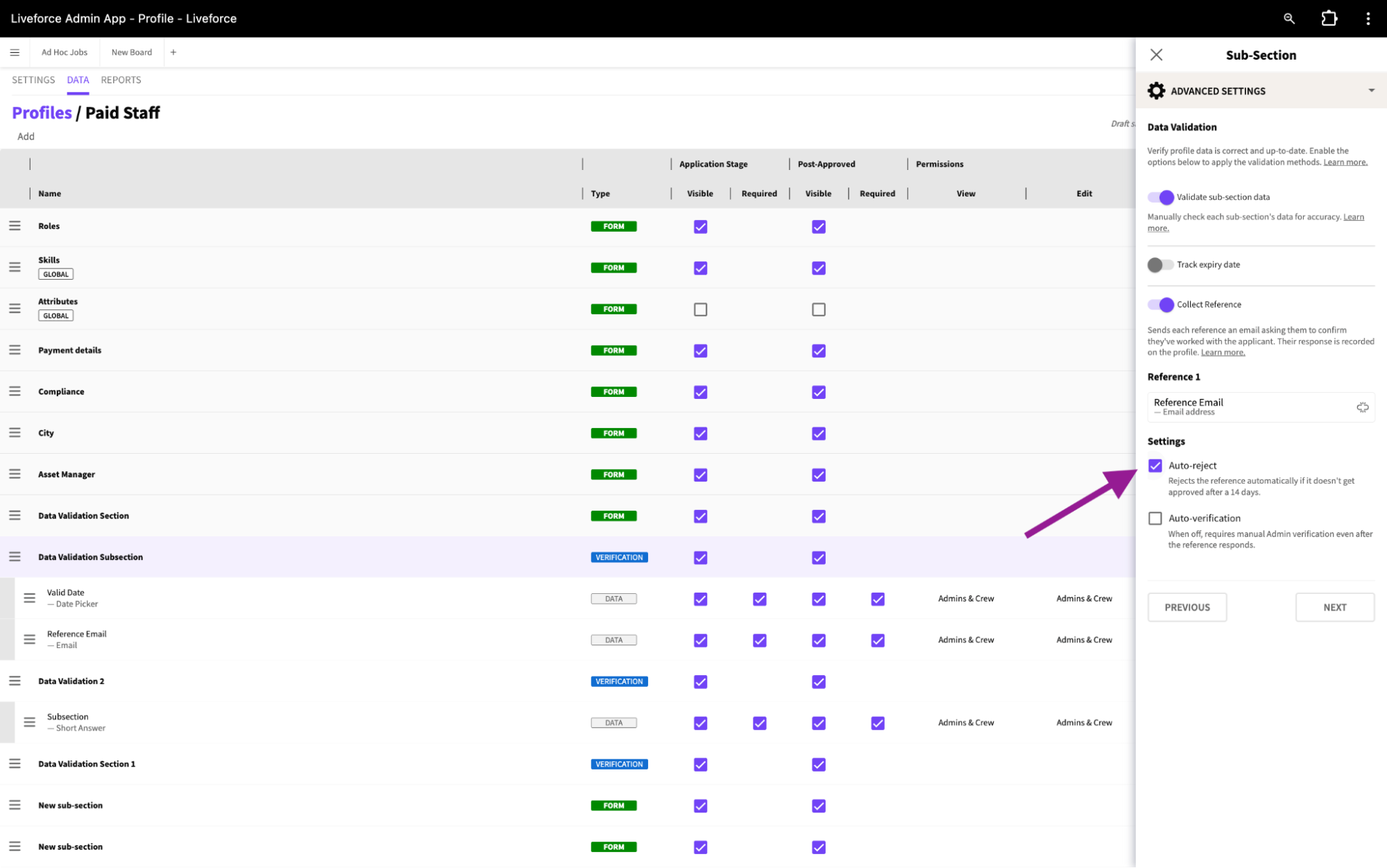 Auto-reject Setting
Enable AUTO VALIDATION if you want a reference automatically accepted after verification. This is turned on by default.
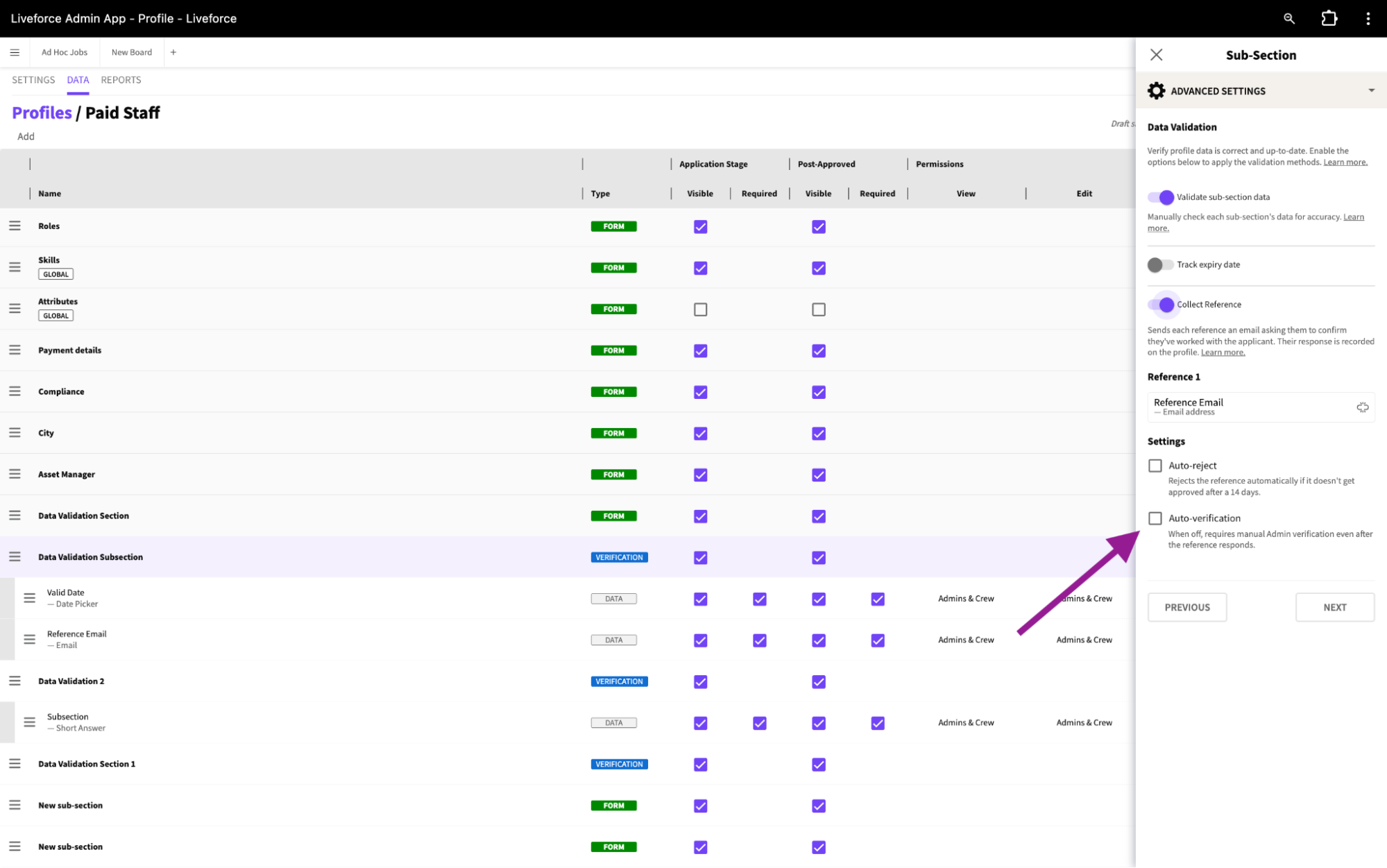 Auto-validation Setting
Click PUBLISH CHANGES.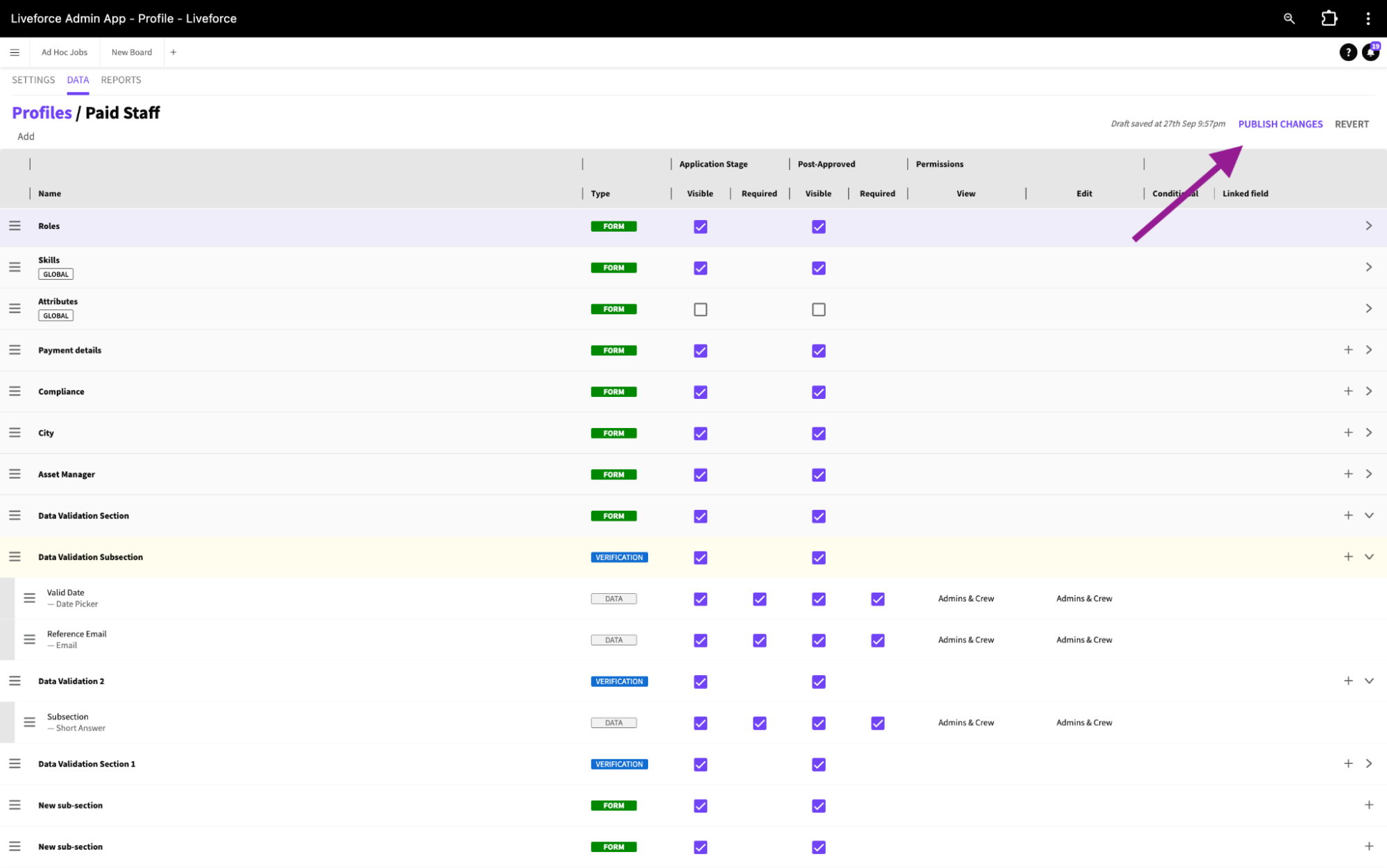 Publish Changes
Crew Submitting References
The Crew member enters their referee's email and clicks SAVE.
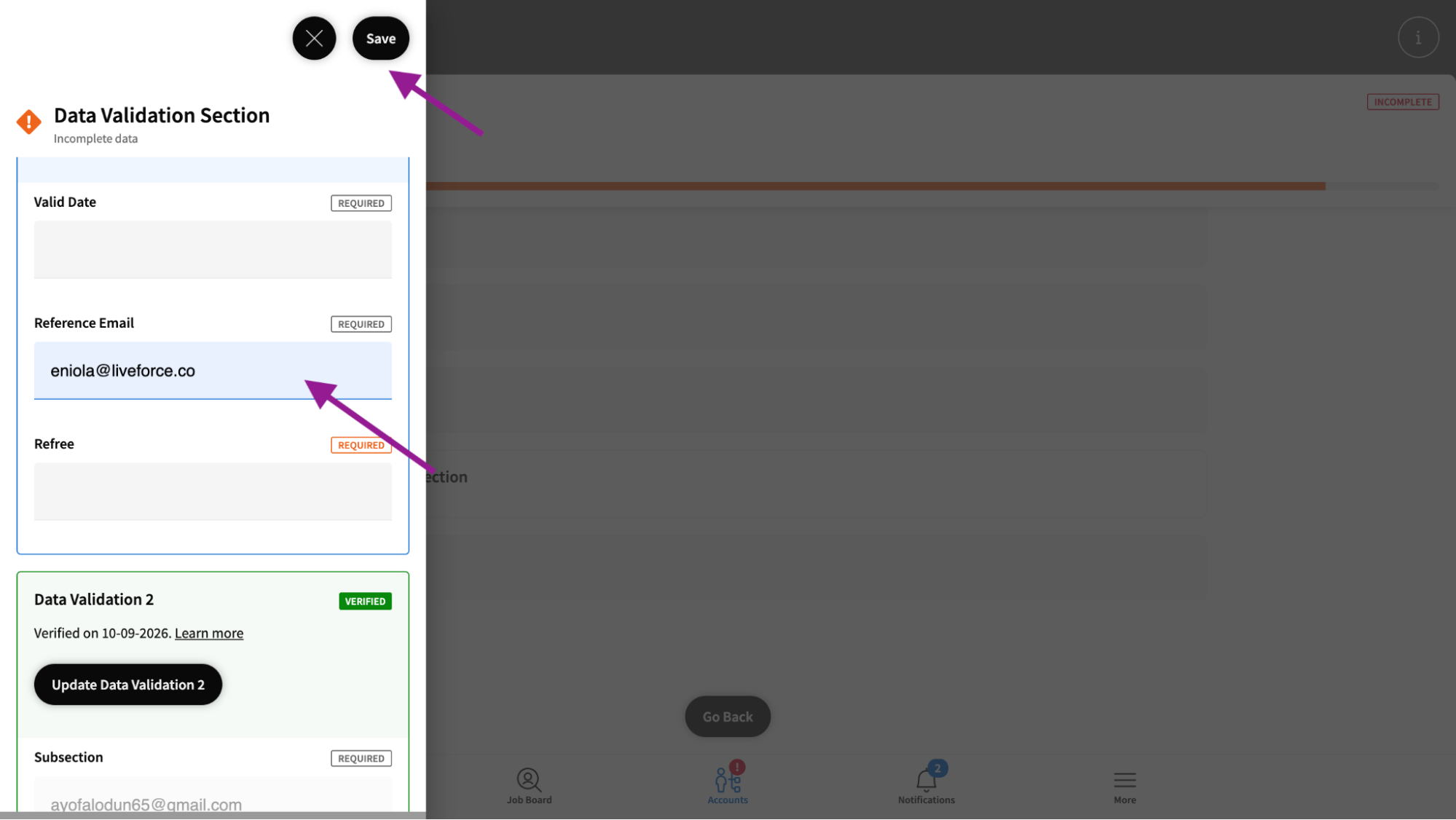
Crew Submitting References
As soon as the Crew member submits the Sub-section, the system automatically emails the referee asking them to confirm whether they worked together.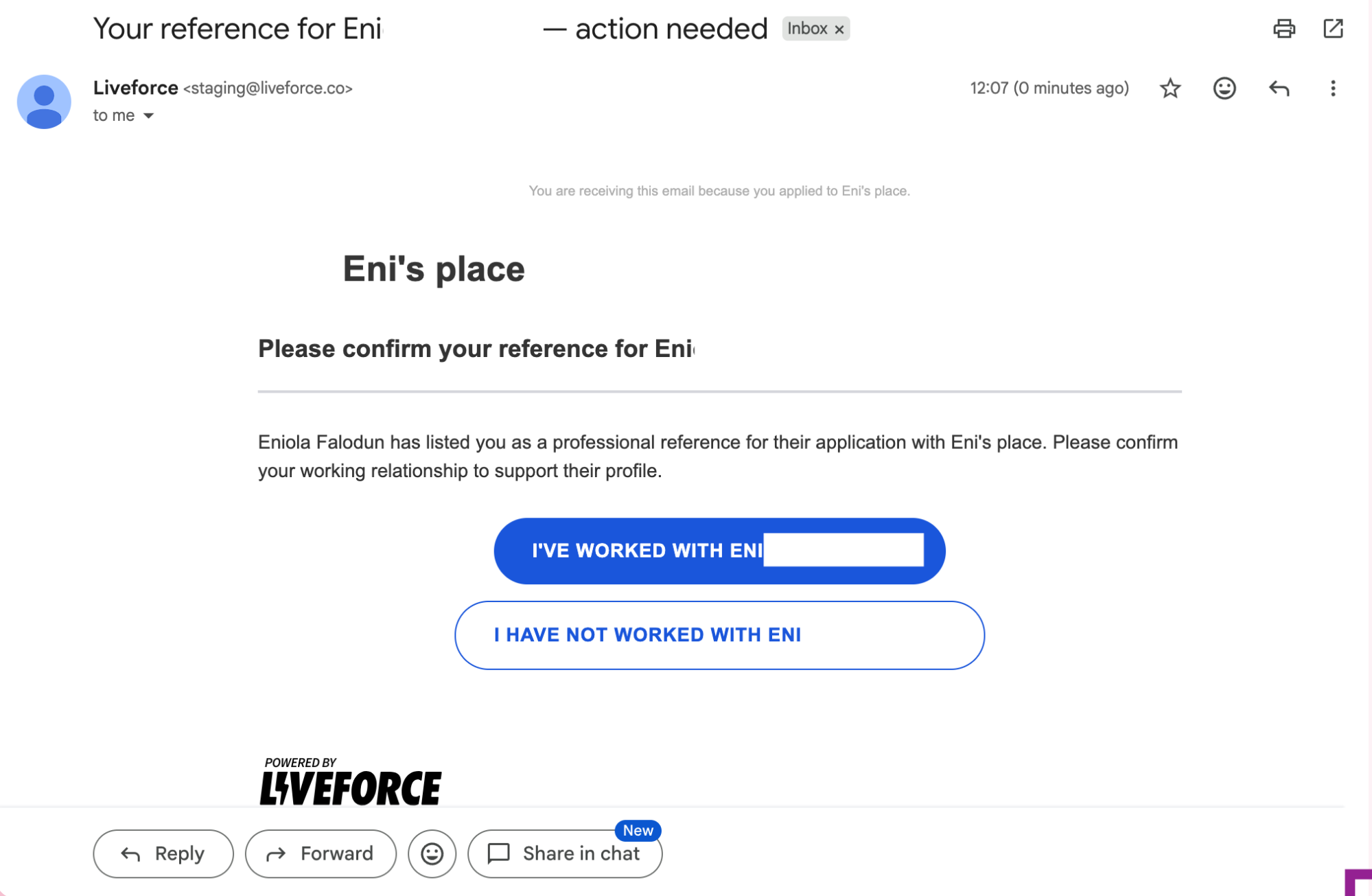
Rejected Status
Reference Responses
If the referee confirms they worked with the Crew member, the record status changes automatically. With Auto Validation turned on, it moves straight to Verified. With Auto Validation turned off, it moves to Review so you can check it manually.
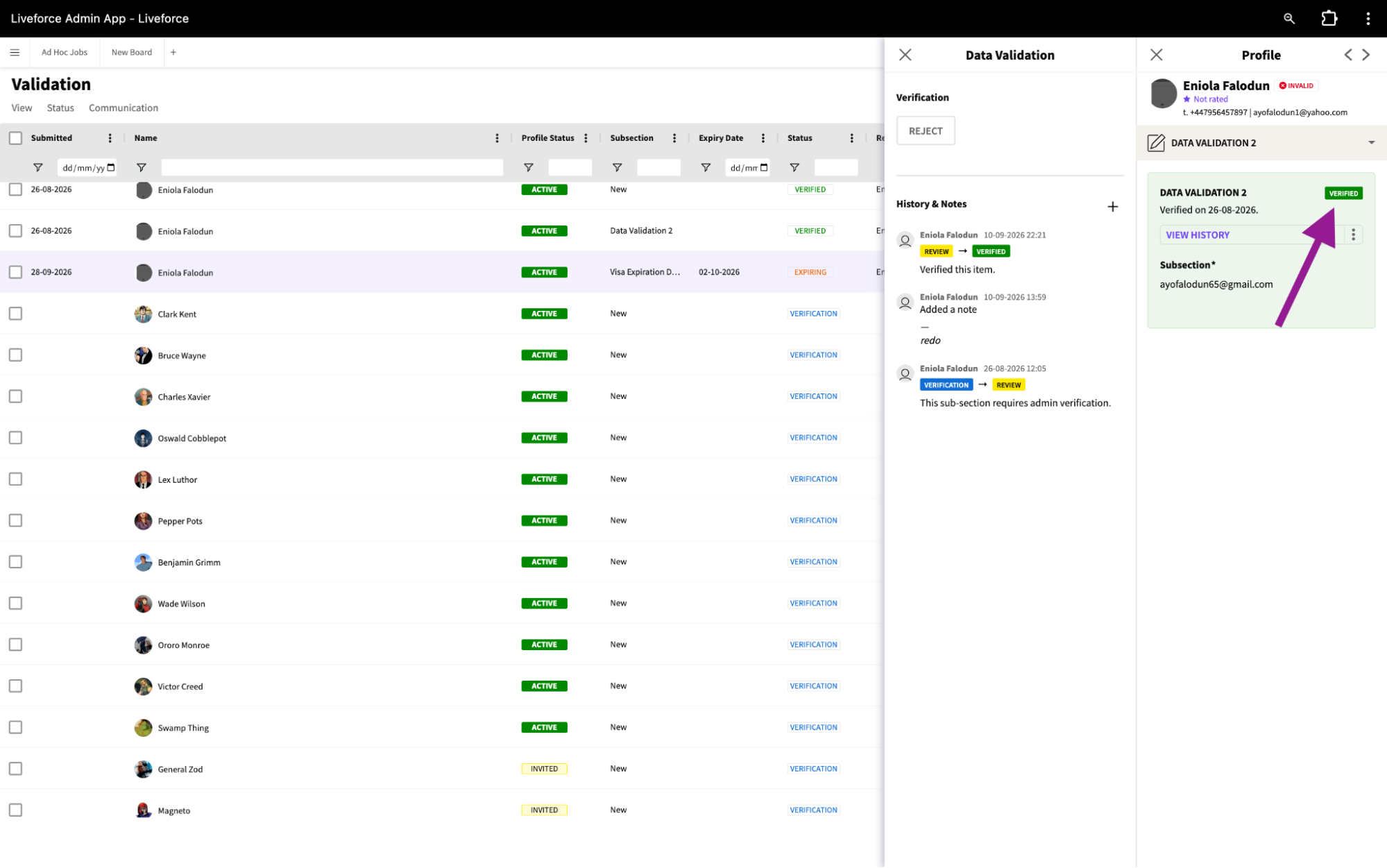 Verified Reference Status
If the referee says they didn't work with the Crew Member, the record isn't automatically rejected. Instead, it's flagged for you to review manually, since a single negative response could simply be a mistake.
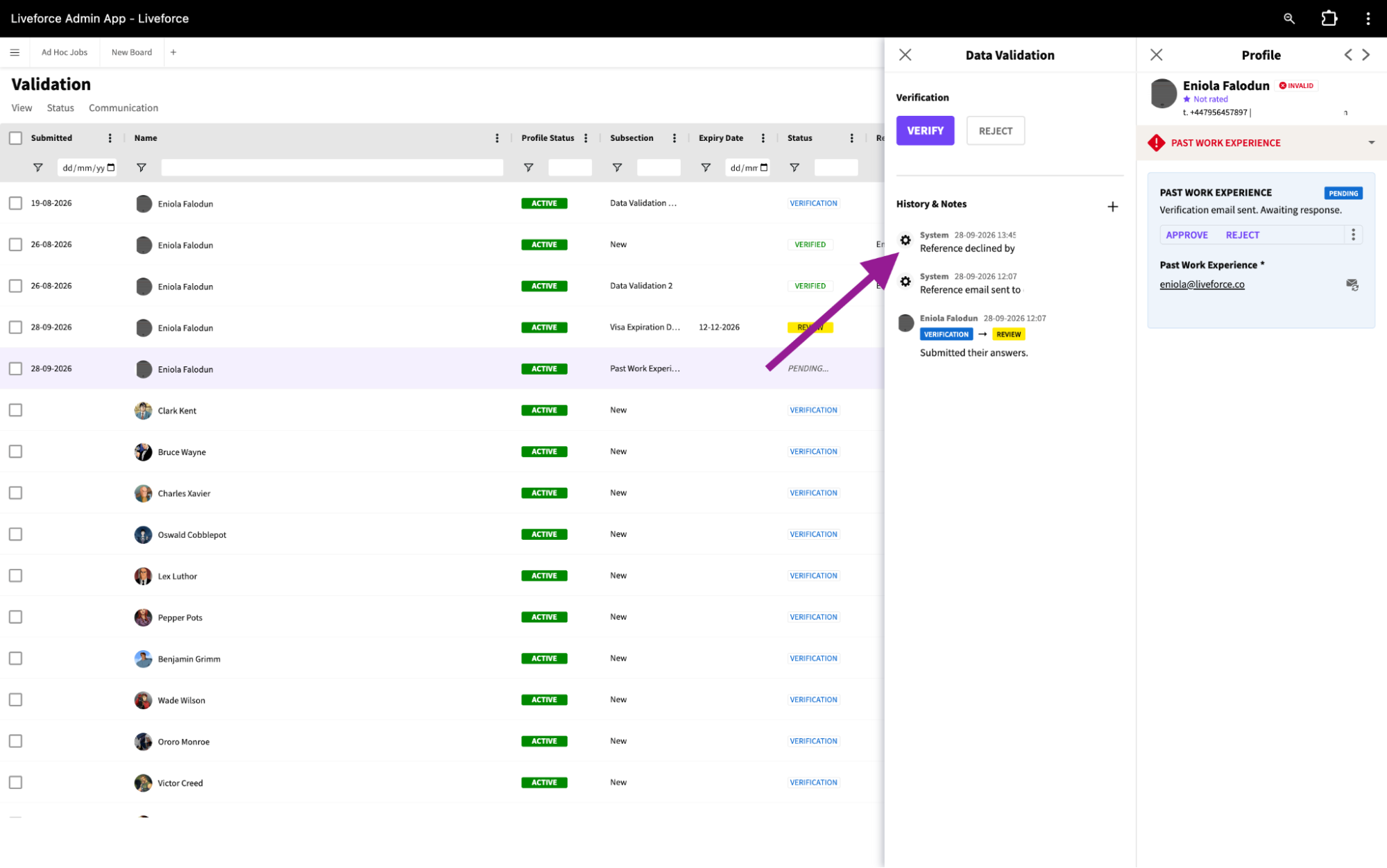
Declined Refence Status
If the referee doesn't respond within two weeks and Auto Reject is turned on, the record is rejected automatically.
Reminders
If the referee hasn't responded, reminder emails are sent at 7 days and 14 days.
You can resend the reference email to the referee manually at any time.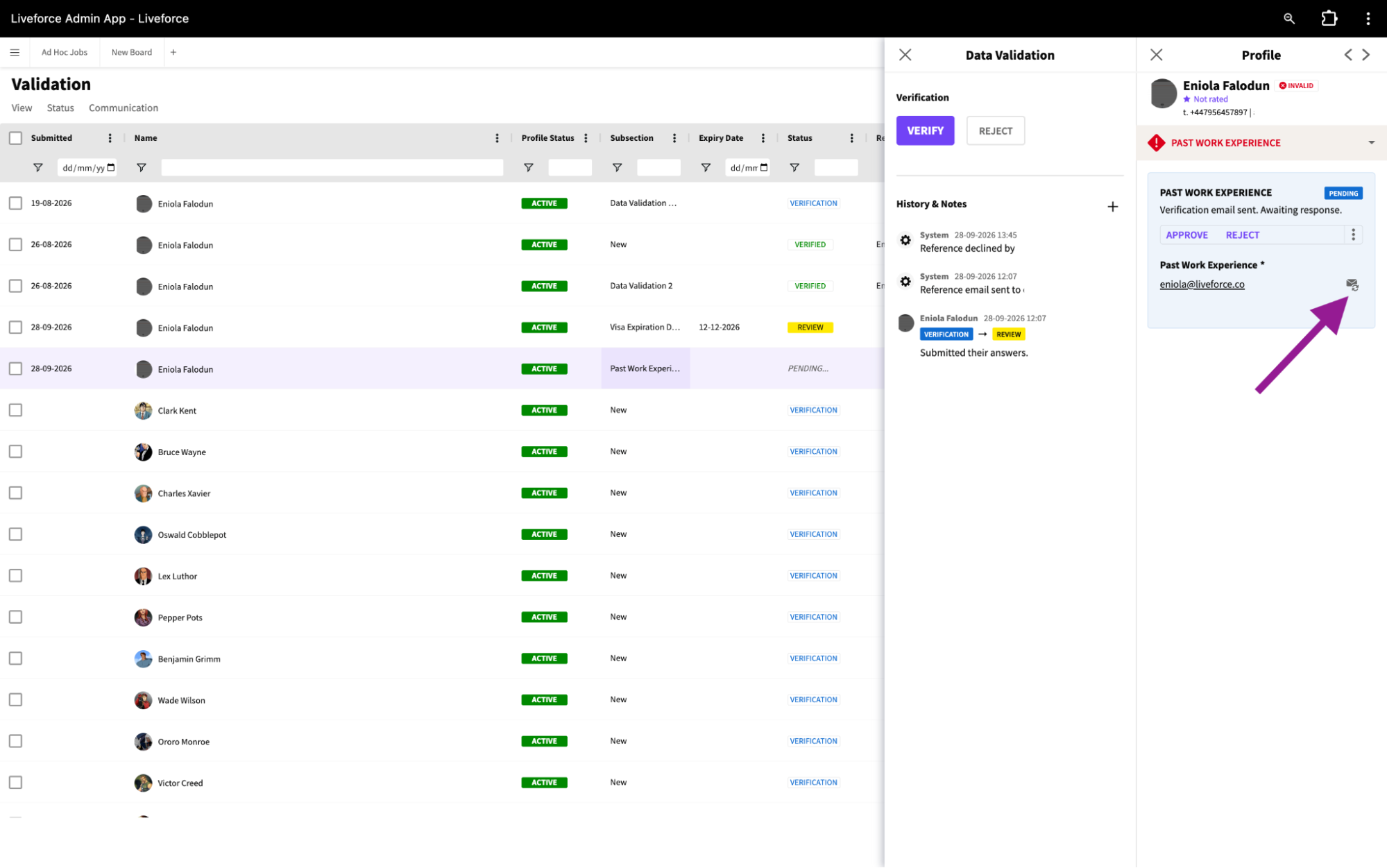 Reminder Button
Admin Actions
As the Admin, you can verify or reject a reference record at any time, regardless of the referee's response.
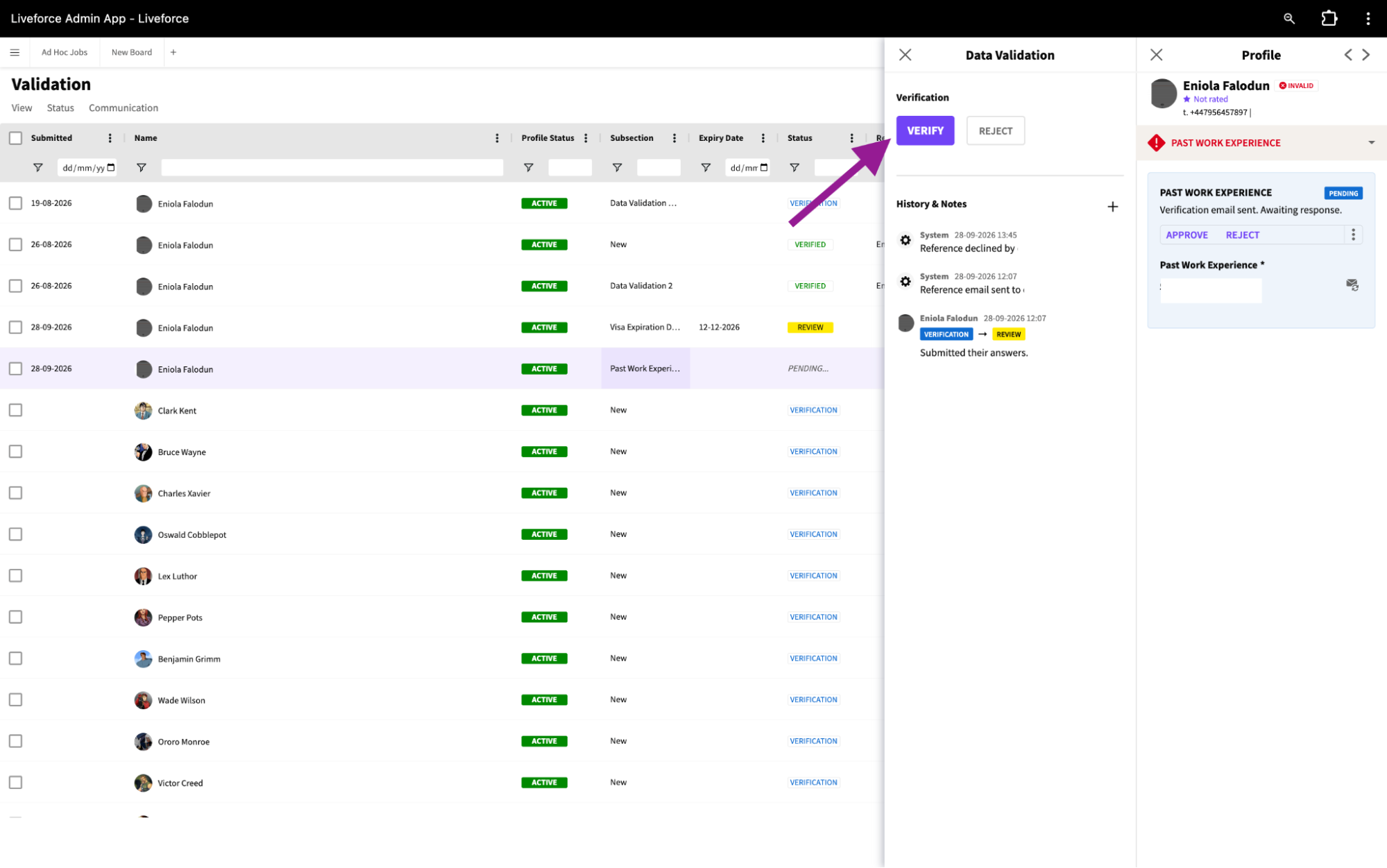 Verify Button
A full history is available, showing every email sent, opened, and responded to.
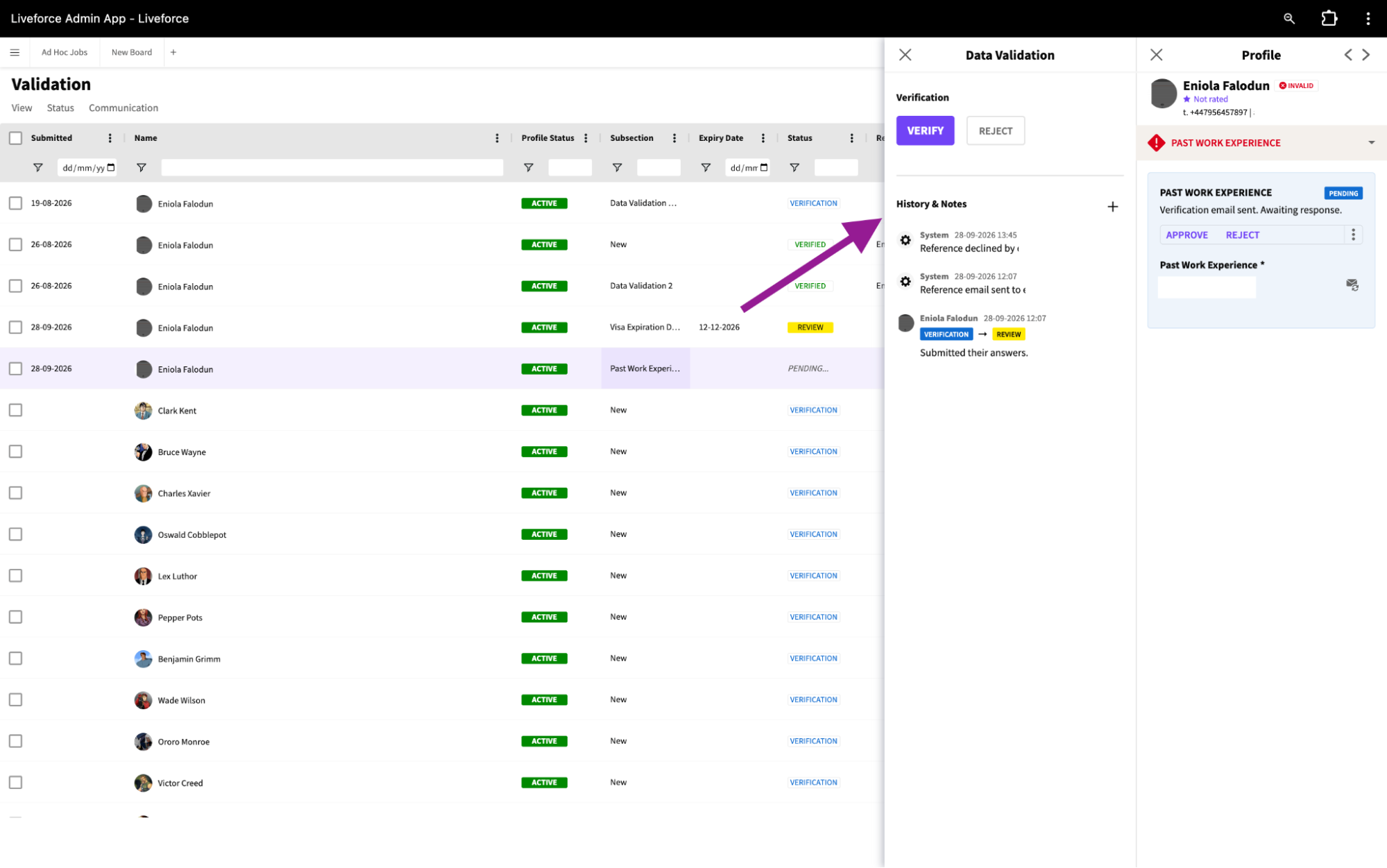 Validation History
Status Reference
PENDING — the reference email has been sent, and the system is waiting for a response. No action needed from you.
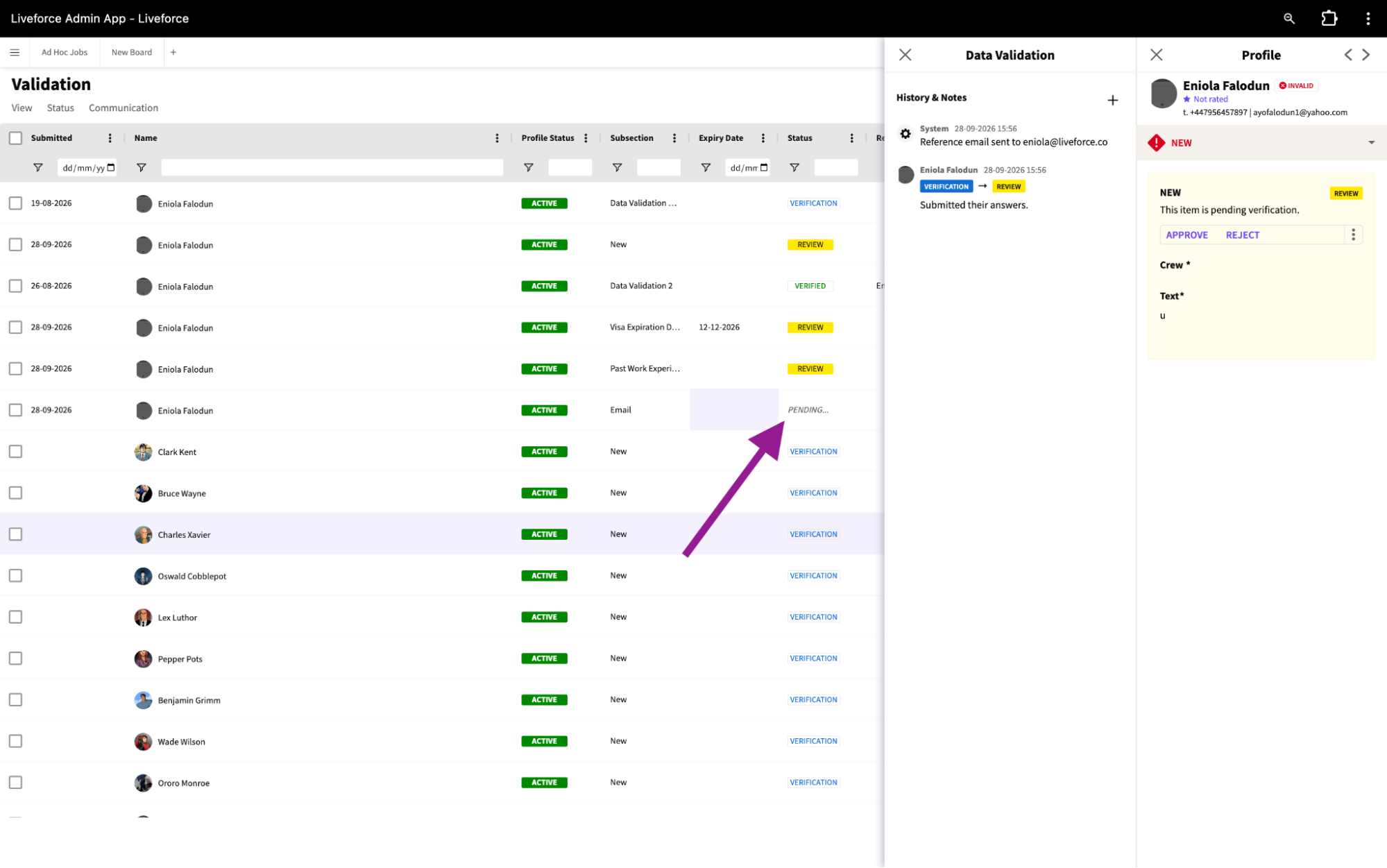 Pending Status
REVIEW — the referee has responded, but AUTO VALIDATION is off, or a negative response needs your manual check.
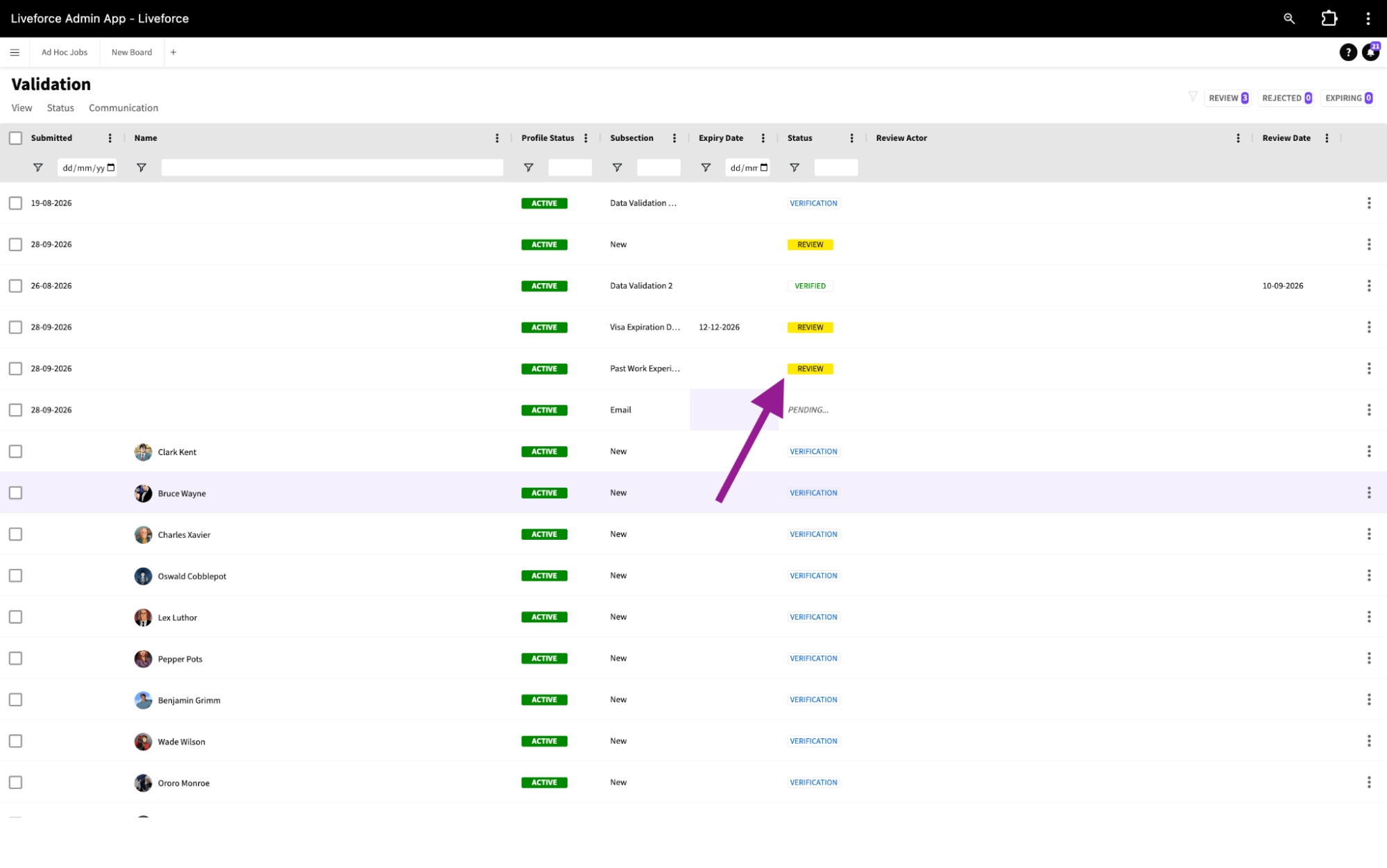 Review Status
VERIFIED — the reference has been accepted, either automatically or by you.
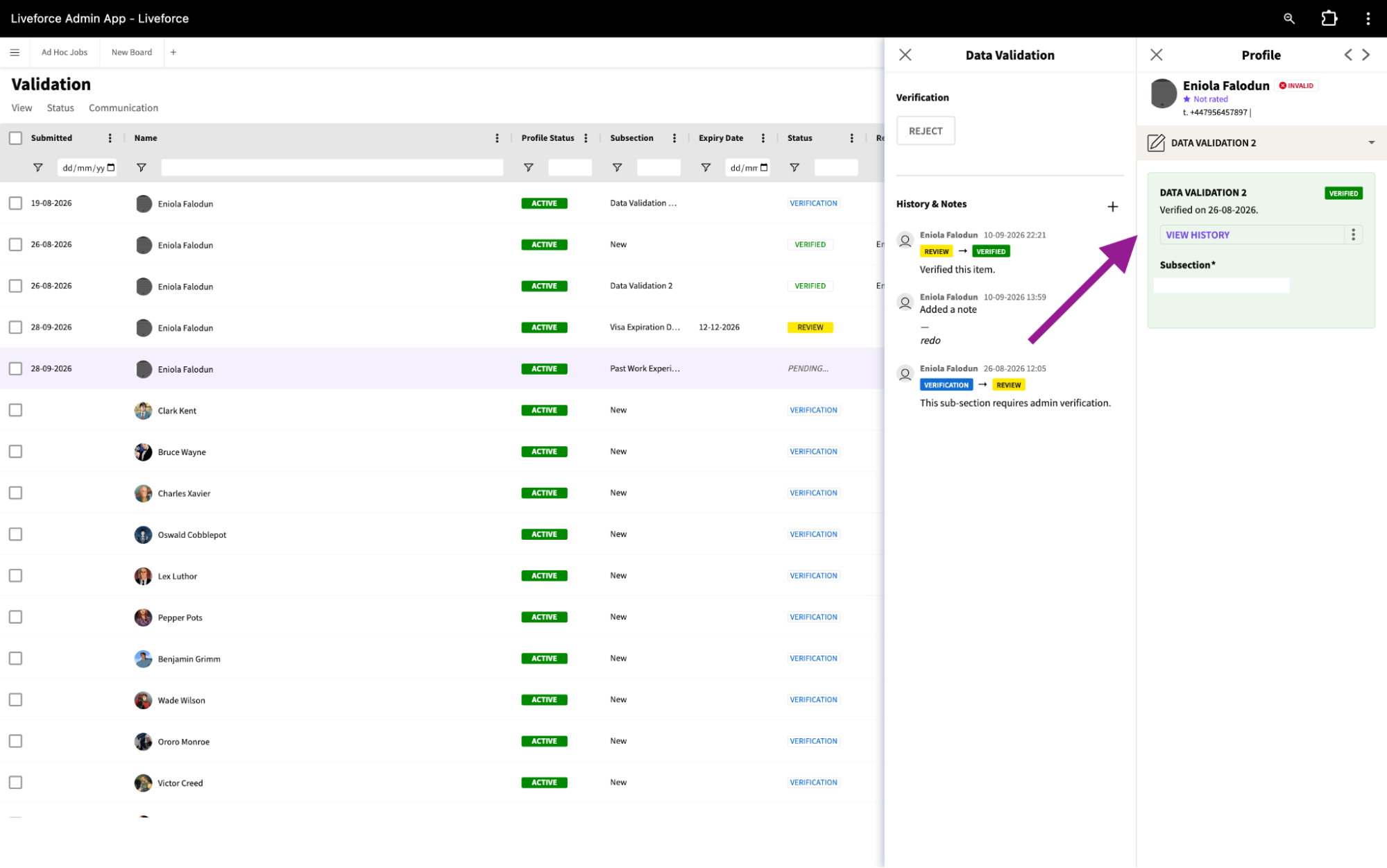 Verified Status
REJECTED — the reference was rejected, either manually by you, or automatically when the referee hasn't responded within 14 days, and Auto Reject is turned on.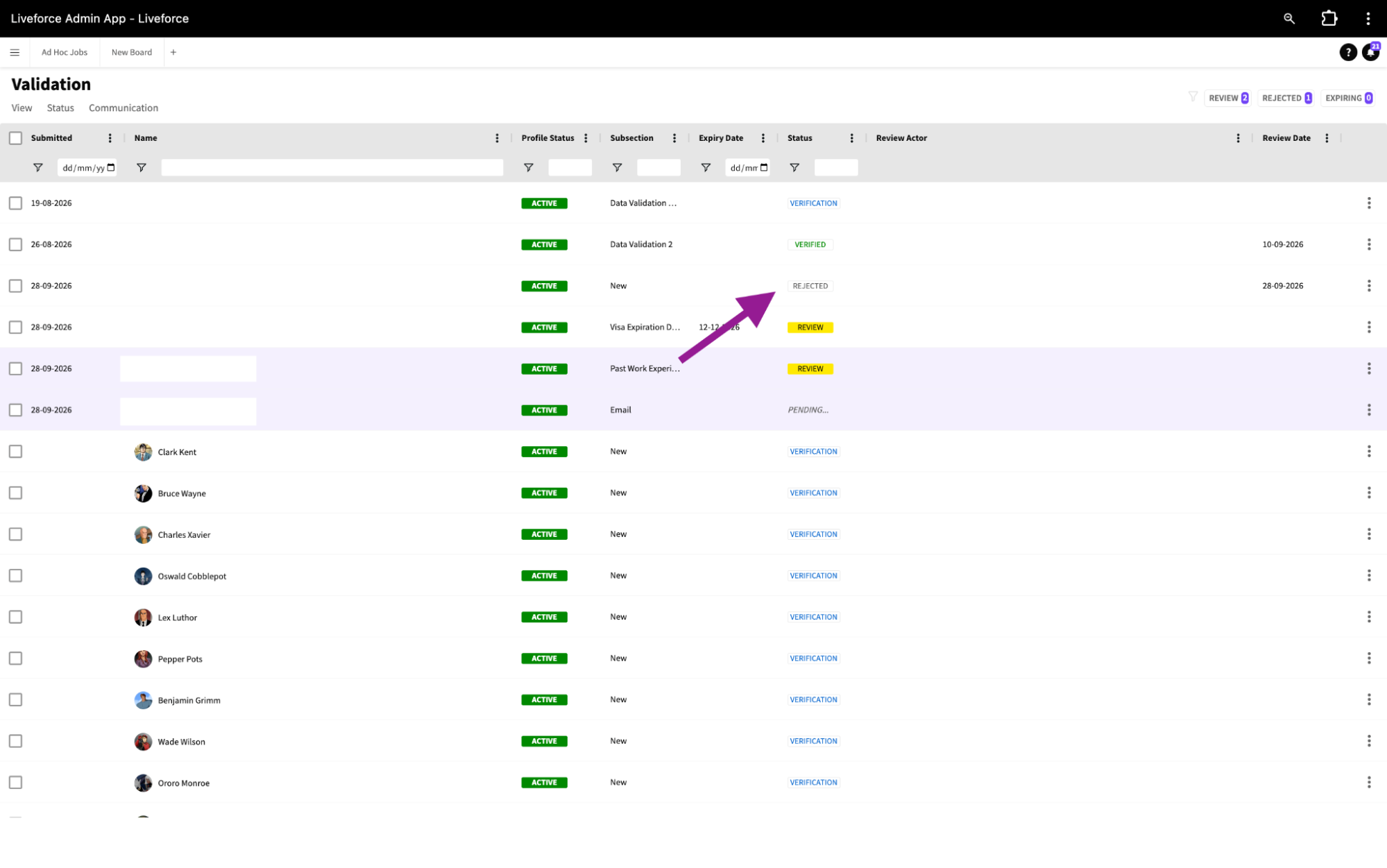 Rejected Status