
Adding Requirements to a Role
When creating or editing a Role, open the Role Details tab.
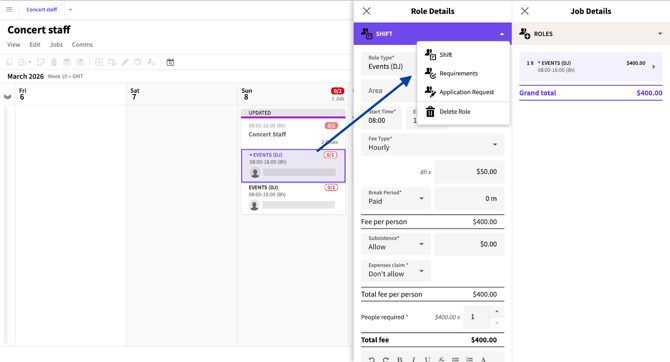
Role Details tab
Click ADD REQUIREMENTS.
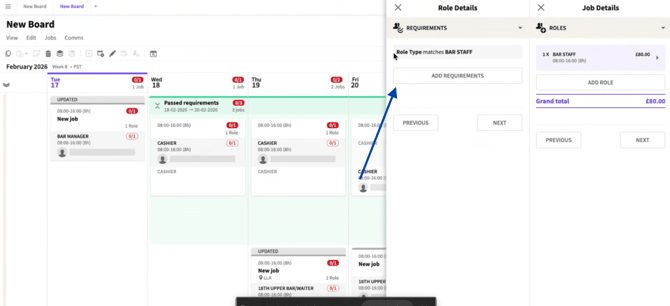
Add Requirements button
From the first dropdown, select the Requirement Type (Skills, Tags, Labels, etc.).
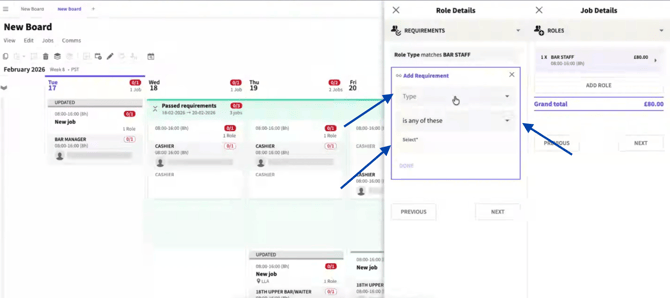
Add Requirements drop down menu
From the second dropdown, choose how Crew should match the Requirement: Matches all of these, Is any of these, or Is none of these
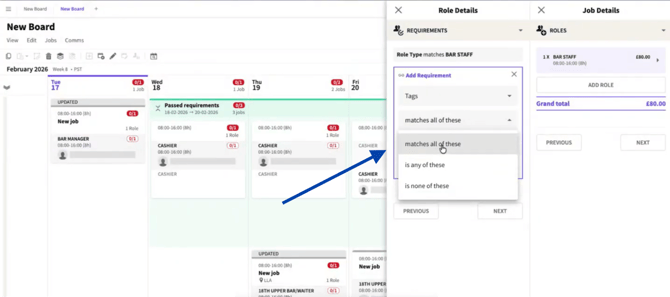
Add Requirements second drop down menu
From the third dropdown, select the specific Requirement values.
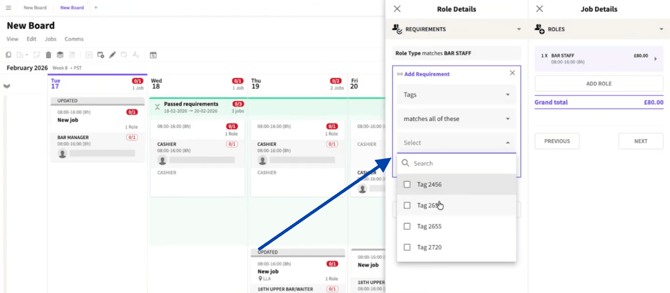
Add Requirements third drop down menu
Click the X to remove a Requirement if needed. Repeat to add multiple Requirements.
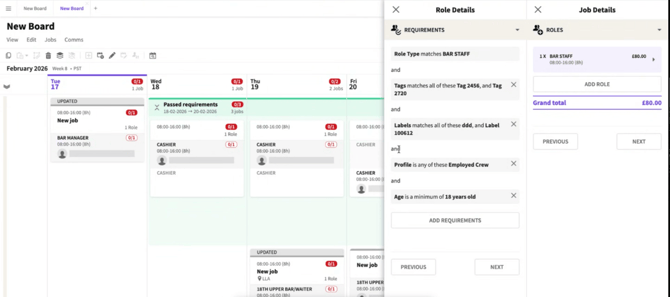
Requirements under the Role Details tab
Each Requirement uses ‘AND’ between each criteria, but the way it matches with Crew can be AND or OR depending on the match method selected.
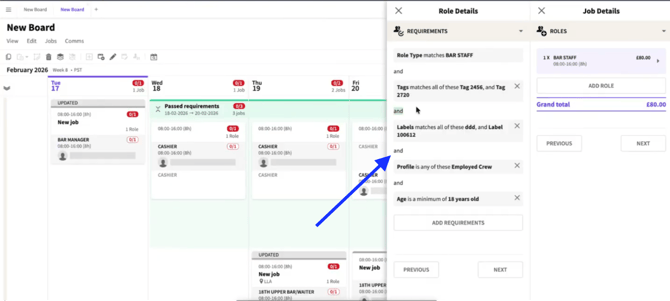
Requirements under the Role Details tab
Viewing Matching Crew
Once a Requirement has been added, you can view what Crew matches all (or some) of the Requirements.
Go to Job Fulfilment.
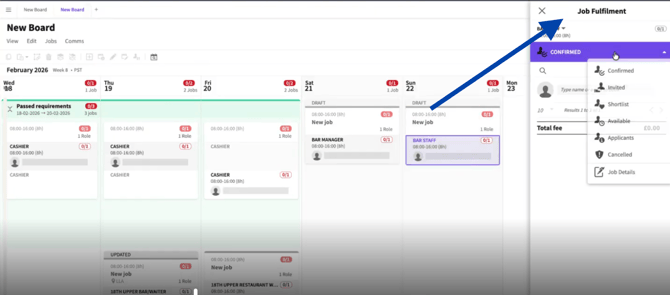
Job Fulfilment tab
Click the Available tab.
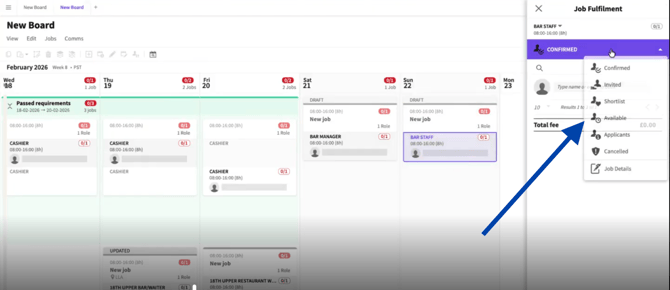
Dropdown menu on Job Fulfilment tab
Review filtered Crew based on Requirements.
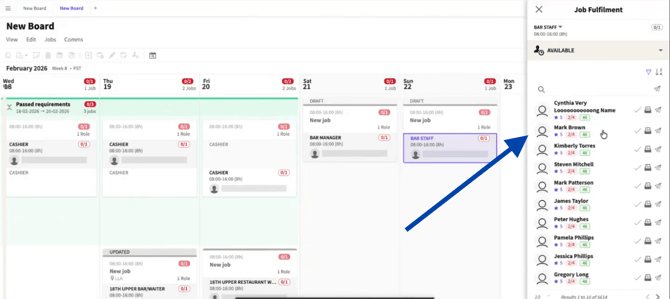
Filtered Crew on Job Fulfilment tab
Untick “Only show Crew with all Requirements matched” to widen the selection if needed.
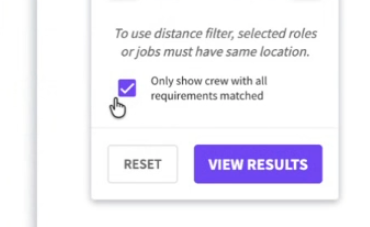
Untick to show Crew even if not all Requirements are met
Next to each Crew’s name, pills indicate Requirements met: green = all met, red = some missing.
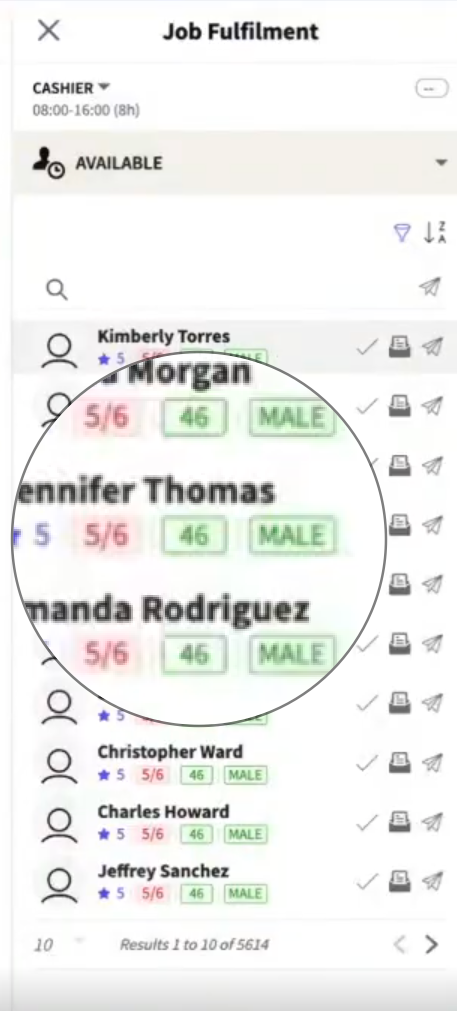
Pills next to each Crew show Requirements met
Specific pills for Age and Gender are visible for these Requirements.
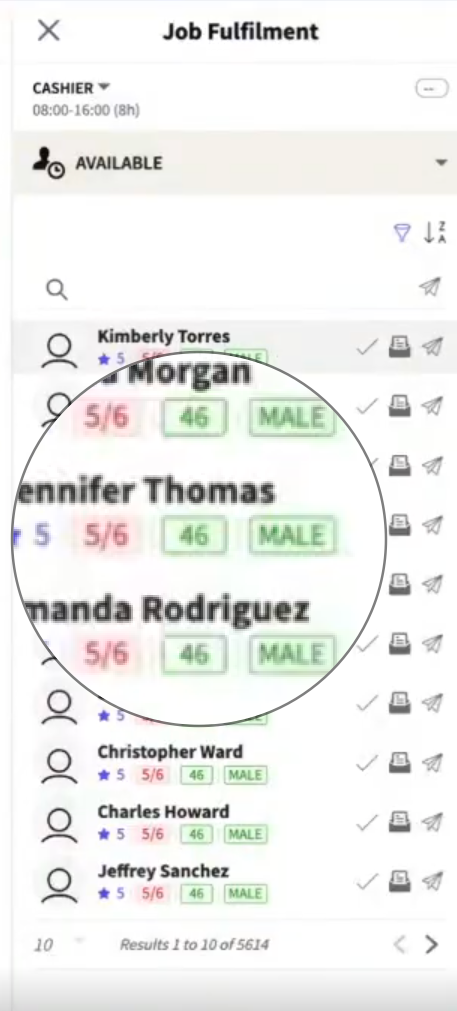
Age and Gender pills show specific Requirements
Click a Crew name to view which Requirements they meet.
The section will be red if they do not match all Requirements set.
Any specific missing Requirements are highlighted individually in red.
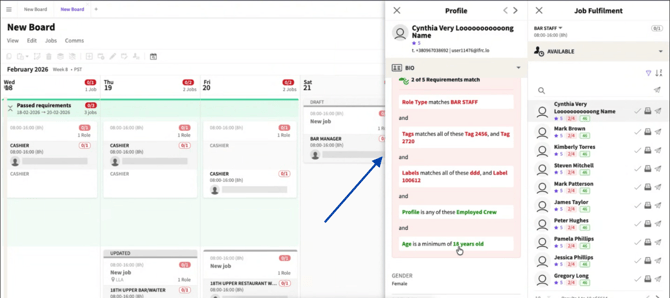
Missing Requirements are highlighted in red
The section will be green if they match all Requirements set.
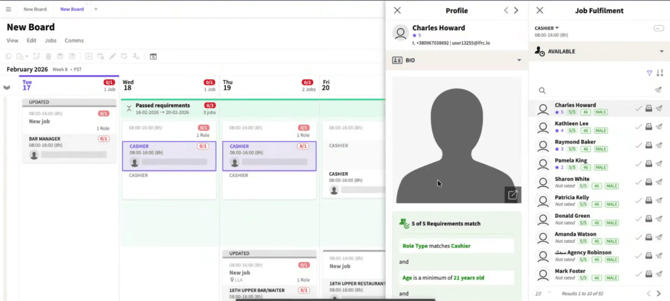
Section turns green if all Requirements are met.
Job Board Targeting
Roles promoted on the Job Board can be targeted to display only to Crew who meet all Requirements.
Go to Role Details.
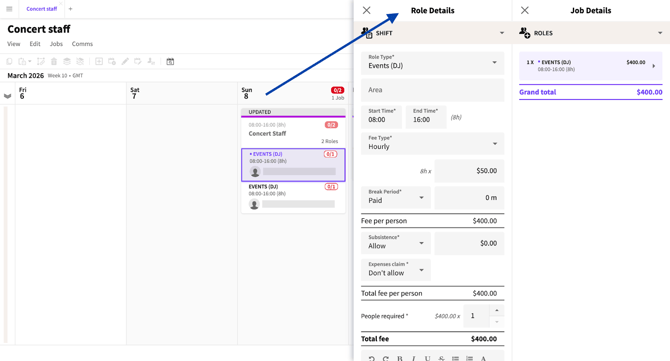
Role Details Tab
Scroll to Job Visibility.
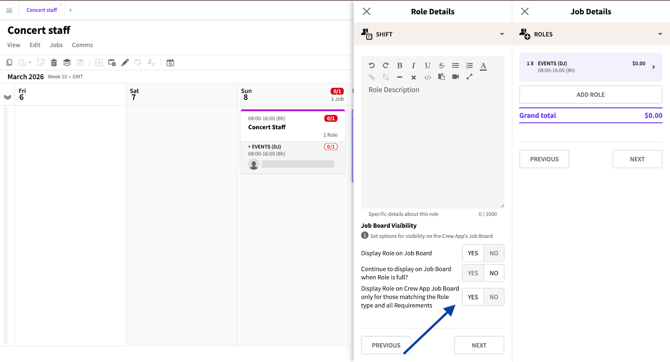
Job Visibility tab
Toggle “Display role on Crew App Job Board only for those matching the Role Type and all Requirements.”
Toggle to show role only to matching Crew.
When set to Yes then only Crew that match all the Requirements set will see the Role on their Job Board.
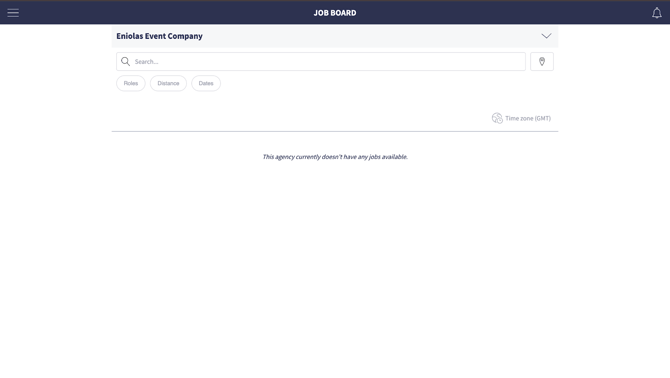
Yes = only Crew meeting all Requirements see the Role
When set to No then all Crew can see the Role even if they do not match all the Requirements set on the Role.
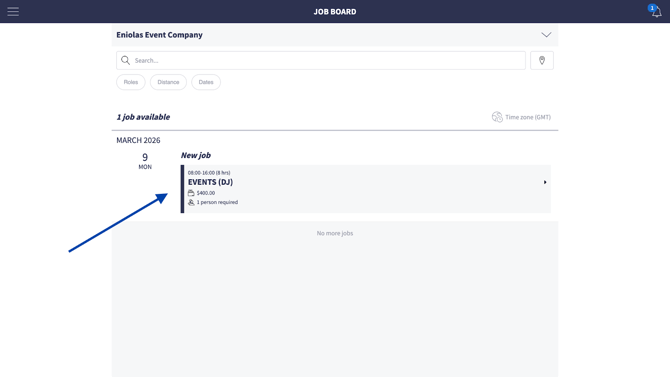
No = all Crew can see the Role, even if Requirements aren’t met